Files
Drawings are saved in the .bbd format: a single file, robust against crashes and readable by other programs (the specification is public). The commands and shortcuts are AutoCAD's. OPEN and SAVEAS also work with AutoCAD's DWG and DXF (see the DXF and DWG files chapter).
Commands
| Command | Shortcut | What it does |
|---|---|---|
| NEW | Ctrl+N | Starts a new drawing in a new tab (the open drawing stays in its tab). |
| CLOSE | — | Closes the drawing's tab, asking first if there are unsaved changes. |
| CLOSEALL | — | Closes all tabs, asking about each drawing with unsaved changes (see below). |
| OPEN | Ctrl+O | Opens a .bbd file in a new tab (or goes to its tab, if it is already open). |
| QSAVE | Ctrl+S | Saves to the drawing's file. A drawing that does not have a name yet asks for one, like Save As. |
| SAVEAS | Ctrl+Shift+S | Saves with another name, in another folder or in another format (.bbd, DXF or DWG, choosing the version). The extension is added if missing. |
New, Open, Save and Save As are also on the Quick Access Toolbar, at the top left. The file name appears in the title and on the drawing's tab; a * on the tab indicates unsaved changes. Several drawings stay open at the same time, each in its own tab (see File tabs, in the interface chapter).
A drawing saved in a layout (AutoCAD's TILEMODE 0) opens in that layout; one saved in Model opens in Model. This applies to .bbd, DXF and DWG.
Opening from Finder or File Explorer (double-click)
Double-clicking a .bbd file opens the drawing in BadBit CAD, like OPEN. A DWG, DXF or DWT opens the same way through Open with ▸ BadBit CAD on the right-click menu (BadBit CAD is added as an option, without replacing the default program for those files).
- With the program closed, it opens directly with the drawing, in place of the Start tab.
- With the program open, the drawing goes to a new tab in the same window (it does not open another copy of the program), and the window comes to the front.
- Several at once (selected together in Finder, or dropped on the BadBit CAD icon in the Dock): each one opens in its own tab, one after the other, and the last one stays in view. Each file is read in the background, as with OPEN: the window keeps responding while large drawings load.
- File already open: BadBit CAD just goes to its tab, without opening it again.
- Opening prompts come one at a time: a password-protected DWG, a unitless DXF or a drawing with changes recovered from a crash asks before the next file opens.
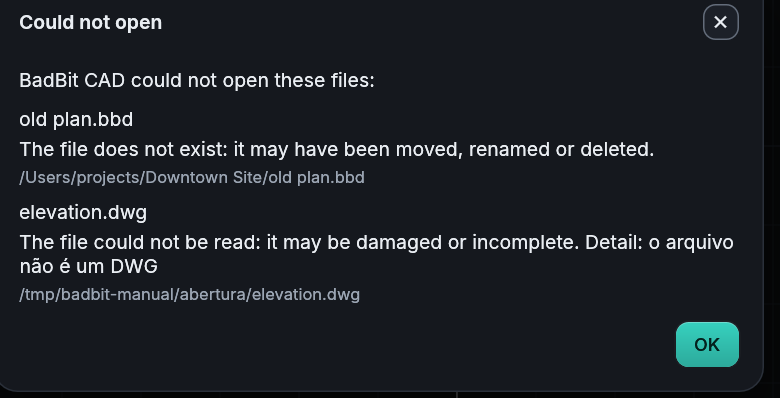
If a file does not open, the others open normally and the Could not open dialog box says which one and why: the file does not exist (it was moved, renamed or deleted), you do not have permission to read it, it is not a type BadBit CAD opens, or it could not be read (damaged or incomplete, with the error detail). The same message stays on the command line. OK closes the dialog box and the program carries on.
On Windows and Linux the file path reaches the program through the command line (badbit-shell planta.bbd, which also accepts several files): BadBit CAD opens each one in a tab, with the same messages. With the program already open, the same applies as on the Mac: the drawing goes to a new tab in the open window, which comes to the front (restored from the taskbar, if it was minimized). File names with accented characters written by older systems (outside UTF-8, common on Linux disks and network folders) open normally.
On Windows and Linux, starting BadBit CAD from the Start menu or a shortcut, with no file, while the program is already open, opens another session of the program, as in AutoCAD. Files opened afterwards by double-clicking go to the first session; when it closes, the other one starts receiving them.
Copying and pasting between drawings
| Command | Shortcut | What it does |
|---|---|---|
| COPYCLIP | Ctrl+C | Copies the selected objects to the clipboard, with the base point at their lower left corner. |
| COPYBASE | Ctrl+Shift+C | Copies the selected objects, asking for the base point. |
| PASTECLIP | Ctrl+V | Pastes the objects, asking for the insertion point (the base point lands on it). |
| PASTEBLOCK | Ctrl+Shift+V | Pastes the objects as an anonymous block (A$C…), asking for the insertion point. |
| PASTEORIG | — | Pastes the objects at the same coordinates as in the drawing they came from. |
| CUTCLIP | Ctrl+X | Cuts: copies the selected objects like COPYCLIP and erases them from the drawing. |
| CUTBASE | Ctrl+Shift+X | Cuts, asking for the base point, like COPYBASE. |
With no selection, COPYCLIP (and Ctrl+C) asks Select objects: as AutoCAD does, and COPYBASE asks for the base point and then the objects; Enter with nothing chosen cancels. CUTCLIP and CUTBASE ask the same way; the copy goes to the clipboard in the same format as COPYCLIP (PASTECLIP pastes it back, in this or another tab) and the erasing is a single undo step (Undone: CUTCLIP). Objects on locked layers go into the copy and stay in the drawing, with a message saying how many were on a locked layer, as with ERASE.
On the ribbon, with a wide window (the ribbon at 1,400 points or more; narrower, the panel is dropped so the layer list fits), the Clipboard panel, at the end of the Home tab, has Paste (with Paste as Block and Paste to Original Coordinates in its list), Cut and Copy Clip (with Copy with Base Point in its list), as in AutoCAD. The same commands are in the Clipboard submenu of the right-click menu with a selection. The shortcuts work with the drawing in focus and the command line empty; in a text being edited or a table cell, Ctrl+C and Ctrl+V belong to the text.

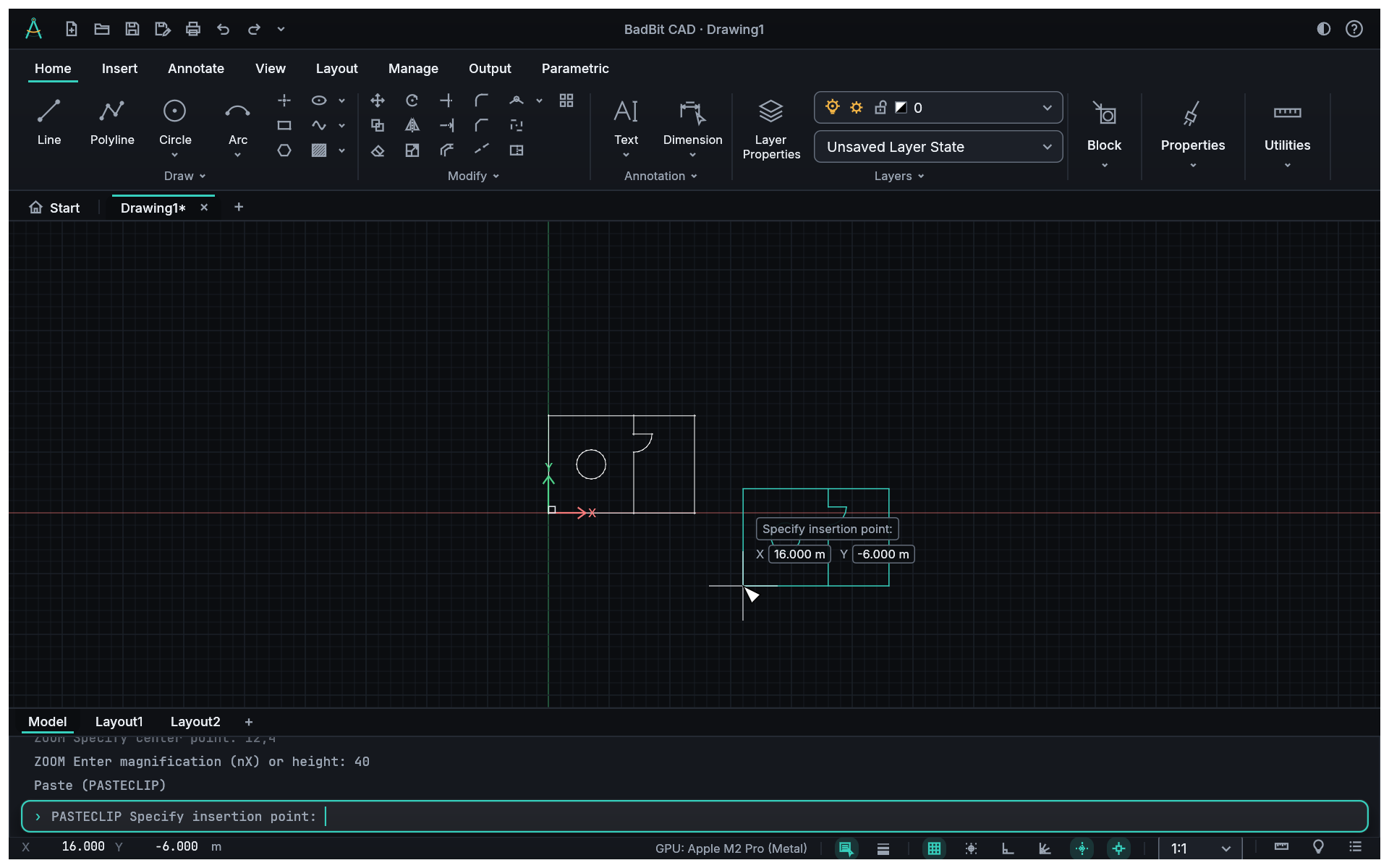
In PASTECLIP and PASTEBLOCK, the copied objects appear following the cursor, with the base point on it (already sized for this drawing's unit), until the click or the typed point; Esc cancels. With many objects (more than 2,000), the preview shows the first ones and the outline of all of them.
The insertion point (and COPYBASE's base point) is asked for as in any command: object snaps (F3; clicking near the end of a line pastes exactly on it), a snap typed for that point only (MID, END, NON...), the grid (F9) and tracking from acquired points (F11, with polar F10) all work the same.
Pasting brings along the layers, linetypes, styles and blocks that the objects use and that are missing from the drawing (those that already exist stay as they are in the drawing, as in AutoCAD), in a single undo step. Between drawings with different units, the objects are converted by the factor between the units, as with INSERT (from m to mm, 1000; from mm to m, 0.001), with the paste's own message on the command line: Different units: Meters in the copy, Millimeters in this drawing; the pasted objects were scaled by 1,000.
The system clipboard also receives the copied objects, as DXF text (with the unit and the base point): pasting into a BadBit CAD open in another window (another process) reads that text. Text that is not a drawing is not pasted into the drawing (the command line says so).
With FILEDIA at 1 (the default), opening and saving show the system's file dialog box. With FILEDIA at 0, the name is typed on the command line (spaces in the name are allowed; Enter confirms), useful in scripts and for pasting paths.
Purging the drawing (PURGE, aliases PU, -PU)
Removes from the drawing what is not in use, like AutoCAD's -PURGE on the command line. Choose the type:
| Option | What it purges |
|---|---|
Blocks (B) | Block definitions that no reference uses. |
LAyers (LA) | Layers with no objects or block items (never "0", the current layer or Defpoints). |
LTypes (LT) | Linetypes that no layer, object or the current linetype uses (never Continuous). |
All (A) | Blocks, layers and linetypes. |
Zero-length geometry (Z) | Lines, arcs, circles and polylines with no length. |
Empty text objects (E) | Texts and multiline texts containing only spaces. |
For blocks, layers and linetypes, give the names (* and ? are allowed, several separated by commas; Enter is *) and whether you want to verify each one (Y: asks by name, with Enter keeping it). Objects on locked layers stay. Everything is a single undo step.
Save changes?
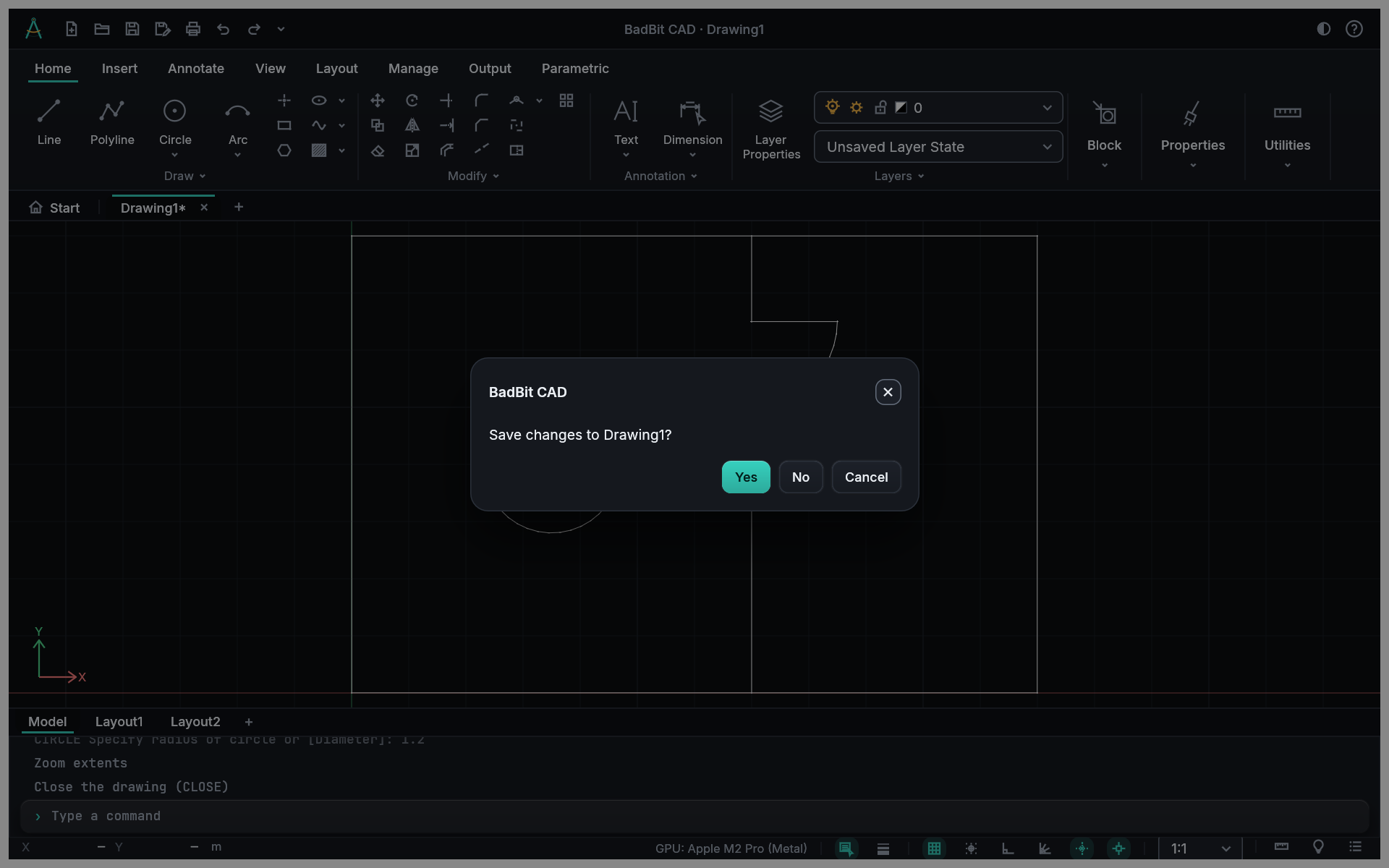
Closing the tab (CLOSE or the ×) and closing the window with unsaved changes ask before discarding them (NEW and OPEN go to a new tab and lose nothing):
- Yes saves and continues. An untitled drawing asks for the name first.
- No discards the changes and continues.
- Cancel returns to the drawing, without doing anything.
CLOSEALL closes all tabs, as in AutoCAD: drawings without changes close directly; each modified drawing comes to the screen and asks, one at a time. Yes and No move on to the next one; Cancel stops everything (the drawings that have not closed yet stay open). When all are closed, an empty drawing remains, as after the last CLOSE.
Saving is fast, even in large drawings
Saving to the same file writes only the objects that changed since the last save. In a drawing with 200,000 lines, saving one change takes a few milliseconds. Saving and opening run in the background: the window keeps responding, and the result appears on the command line ("Saved to …", "Opened: …"). Each save is a complete operation: either everything goes into the file, or nothing in it changes.
Recovery after a crash
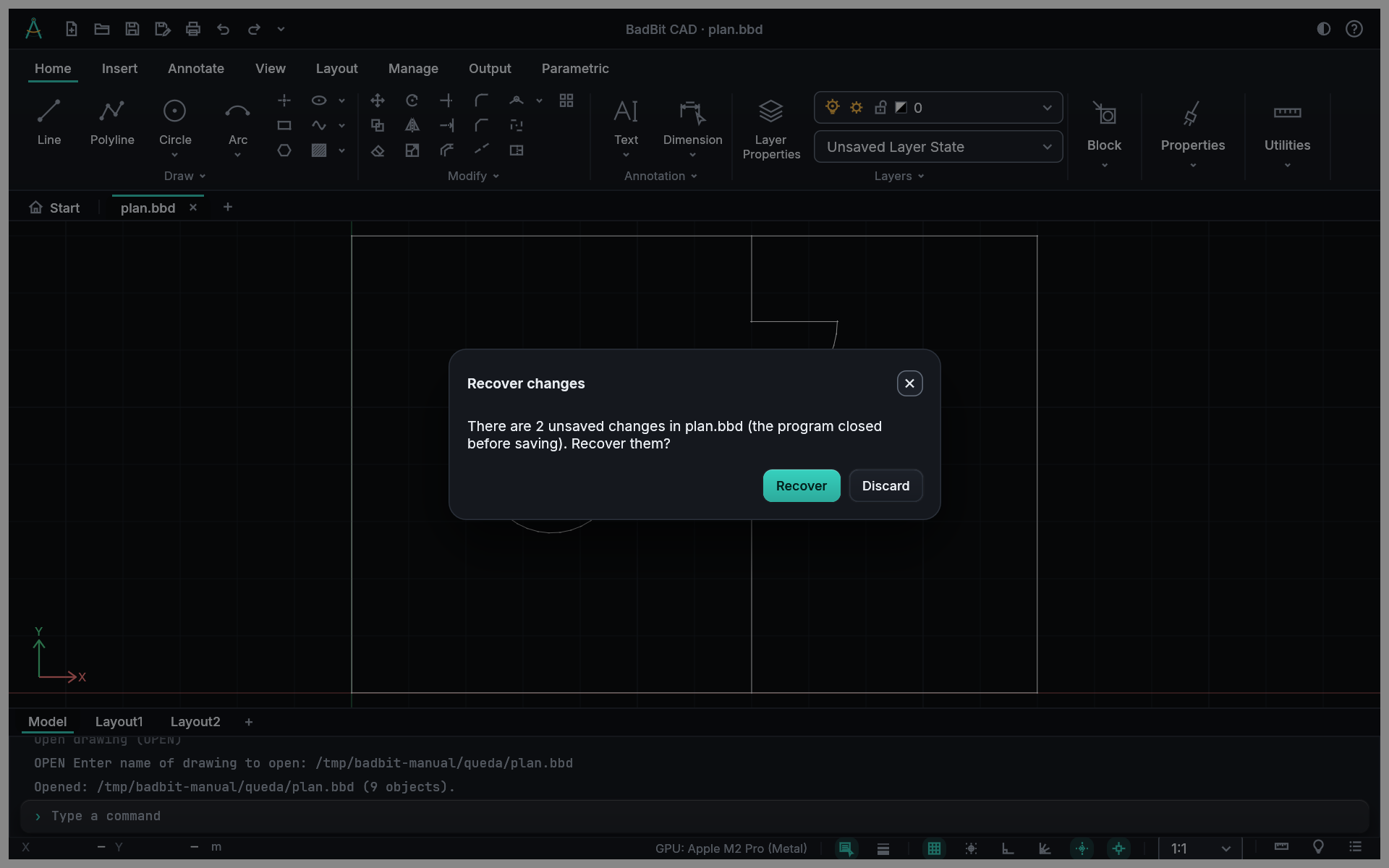
While the drawing is open, each command is recorded in a journal in the recovery folder (see Automatic save, below). Only the .bbd file sits in your drawing's folder. Saving empties the journal, and closing without saving deletes it.
If the program or the computer crashes, the journal stays on disk. When you open the file again (with OPEN or from the Drawing recovery dialog box), BadBit CAD reports how many unsaved changes it found:
- Recover reapplies the changes on top of the file. The drawing is as it was before the crash, still unsaved, and so is undo: U goes back through the same history as before the crash (including what was in the long undo file and what came before the last save), and REDO redoes what had been undone. A journal from an earlier version of BadBit CAD recovers the changes, but without the history: each recovered change becomes an undo step.
- Discard deletes the journal (and the long undo file of the session that crashed) and opens the file as it was last saved.
If the crash came right after saving, with no changes to recover, there is no prompt: the file opens as it was saved and U goes back through the history from before the crash (the journal records which saved version of the file it belongs to). If the file was changed externally after the crash, that history is discarded.
A new, still untitled drawing also has a journal: it stays in the recovery folder (below) until the drawing is saved with a name.
Automatic save (SAVETIME)
As in AutoCAD, BadBit CAD periodically writes an automatic copy of the open drawing. The interval is the SAVETIME variable, in minutes: the default is 10, and 0 turns it off. The copy goes to a separate recovery folder and never touches your file: it only changes when you save. Writing runs in the background, and the command line says "Automatic save to …".
The recovery folder is in the user data folder:
| System | Folder |
|---|---|
| macOS | ~/Library/Application Support/BadBit/recuperacao |
| Windows | %LOCALAPPDATA%\BadBit\recuperacao |
| Linux | ~/.local/share/badbit/recuperacao |
Closing the drawing normally (with or without saving) deletes its copy and its journal. The journal applies from the first command, even in an untitled drawing: this way not even Drawing1 is lost in a crash. In a drawing from a newer version of BadBit CAD, the journal also keeps what the copies carried that this version does not understand, and recovery gives that back too.
Drawing recovery
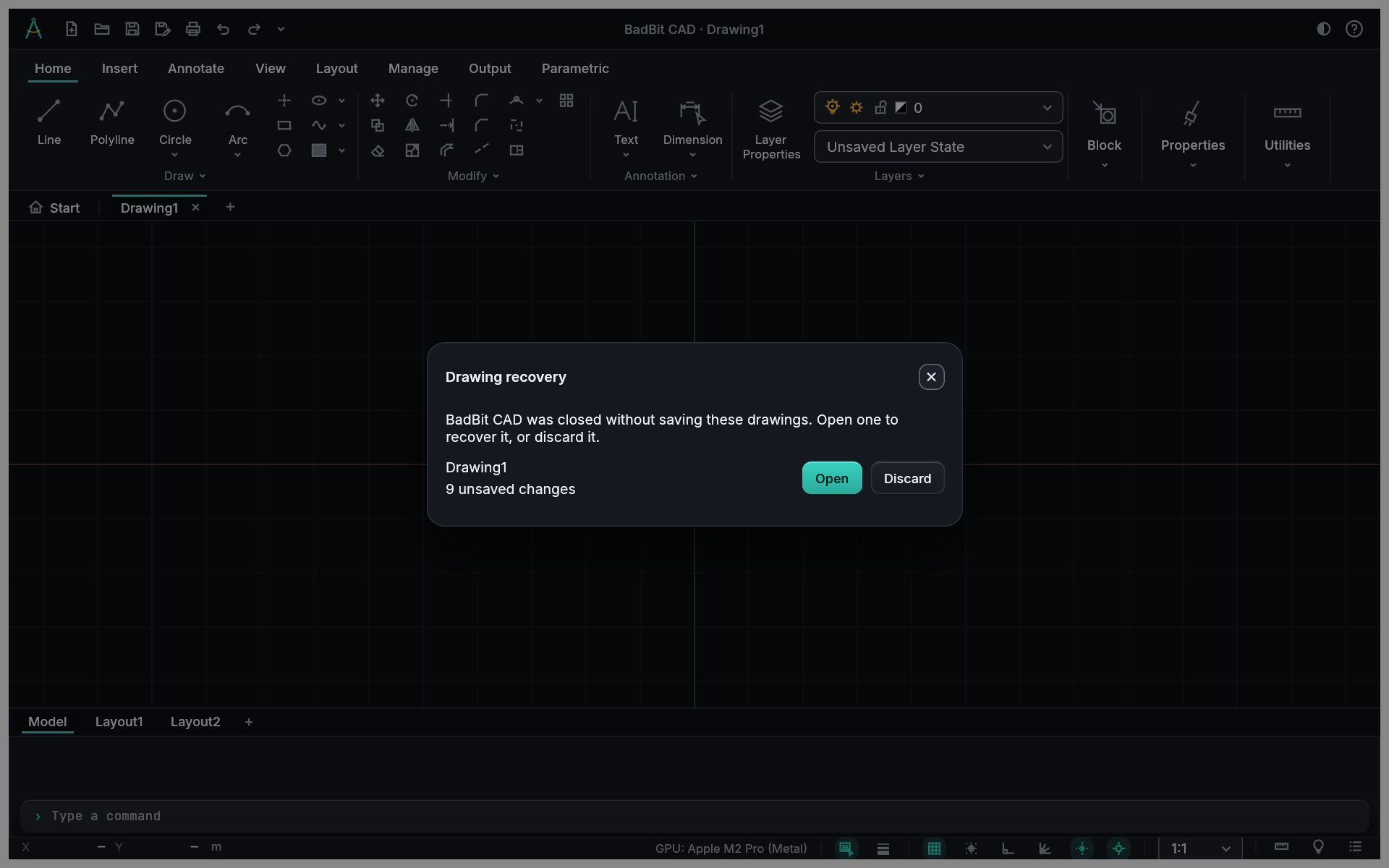
If the program crashes, the copies stay in the folder. The next time it starts, the Drawing recovery dialog box lists each drawing with how many unsaved changes it has (a named drawing with no changes to recover does not appear: its undo history comes back when the file is opened):
- Open, for a named drawing, opens your file and offers the changes in the journal (see above). If the file has disappeared or does not open, the automatic copy is opened instead.
- Open, for an untitled drawing, brings the automatic copy plus the commands in the journal. The drawing stays untitled and unsaved: use Save As.
- Discard deletes the copy.
- Close keeps the list for the next start.
Several BadBit CAD windows open at the same time do not get mixed up: the copies of an open window are locked and do not appear as crash leftovers in the others.
Files from newer versions
A file saved by a newer version of BadBit CAD opens read-only, with a message. To save, use Save As with another name (the same name is refused, so as not to damage the original).
What this version does not understand is not lost. Objects of a new type (from another module or a newer version) are kept without being displayed, and the command line says how many there are ("3 objects from a newer version of BadBit were kept without being displayed."). New data on a known object (a new property of a line, for example) is also kept, even if you edit the object. All of this goes back to the file unchanged when you save, including with Save As. An object with corrupted data is handled the same way, with its own message.
Copies carry this new data along: COPY, MIRROR, ROTATE and SCALE with copy, ARRAY (non-associative), COPYTOLAYER, grips with copy, COPYCLIP and PASTECLIP (also between tabs), WBLOCK and the ETRANSMIT package. When the copy goes to another drawing, the objects kept without being displayed that this data refers to go along, unchanged. What becomes part of a block (BLOCK, PASTEBLOCK, associative ARRAY, the Block Editor's BSAVE and REFEDIT) also carries this data, and EXPLODE gives it back to the objects.
Undoing (U) a block redefinition (BSAVE, a saved REFEDIT, BATTMAN, ATTSYNC, -BLOCK over an existing one) also restores this data to what it was before, and REDO redoes it. In REFEDIT, the blocks that contain the edited block follow the change, and an object that leaves the working set (REFSET Remove) goes to the drawing with the data it had.
Comparing drawings (DWGCOMPARE)
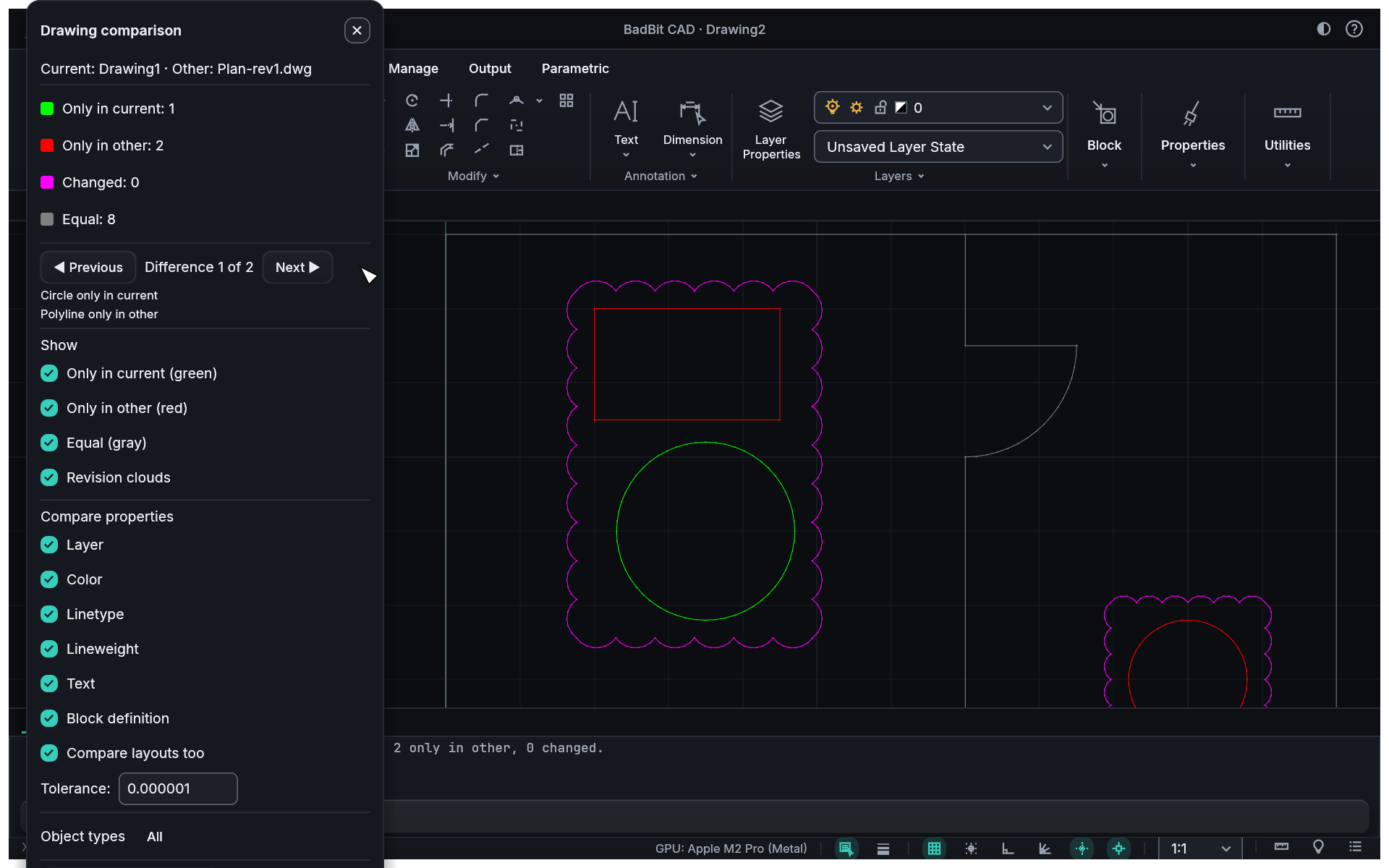
DWGCOMPARE compares the current drawing with another one (.dwg, .dxf or .bbd), like AutoCAD's. Reading and comparing run in the background (comparing tens of thousands of objects takes less than a second) and the result opens in a new tab, the comparison:
- green: only in the current drawing; red: only in the other; gray: the same in both;
- changed: the same geometry with a different layer, color, linetype, lineweight or text, or a reference to a block with the same name and a different definition in the two drawings; both versions appear (green and red) and the bar says what changed (Block definition, in the case of the block), with the text before and after. The bar also lists the blocks with the same name and a different definition;
- revision clouds (on their own layer) around each group of nearby differences.
The navigation bar (floating palette) shows the counts, ◀ Previous and Next ▶ (the zoom goes to the region and the list says what is in it), what to show (current, other, equal, clouds), the compared properties (unchecking color, for example, makes different colors count as equal; Block definition turns comparing definitions on and off), Compare layouts too, the Tolerance (in drawing units; the default is 0.000001, like AutoCAD's: two objects that differ by less than it count as equal) and the compared object types. Changing the filters, the tolerance or the layouts redoes the comparison in the same tab.
DWGCOMPAREEXPORT (or Export the comparison… on the bar) saves the comparison drawing as a file (Save As, in .bbd, DXF or DWG); DWGCOMPARECLOSE (or the bar's ×) closes the comparison tab.
Model space and the layouts (each layout's paper space against the layout with the same name in the other drawing) are compared. The clouds for a layout's differences stay in it, and Previous/Next switches to the tab of the region's layout (or of model), with the line Layout <name>: at the start of the list.
Layout viewports are included in the comparison, as in AutoCAD: a viewport with the same boundary and the same view is equal; with the same boundary and a different view (a different model center, a different scale, on or off) it is changed, and the bar says Viewport view; a viewport that exists in only one of the drawings is green or red. And what changed in model and shows through a viewport also gets a region (with its cloud) in the layout, around the place where the difference appears in the viewport (what is outside the view, or on a layer frozen in the viewport, does not). In the comparison drawing, the viewports show the model already with the comparison colors; with equal objects hidden, the viewport is still there (without the gray color).
Importing PDF (PDFIMPORT)
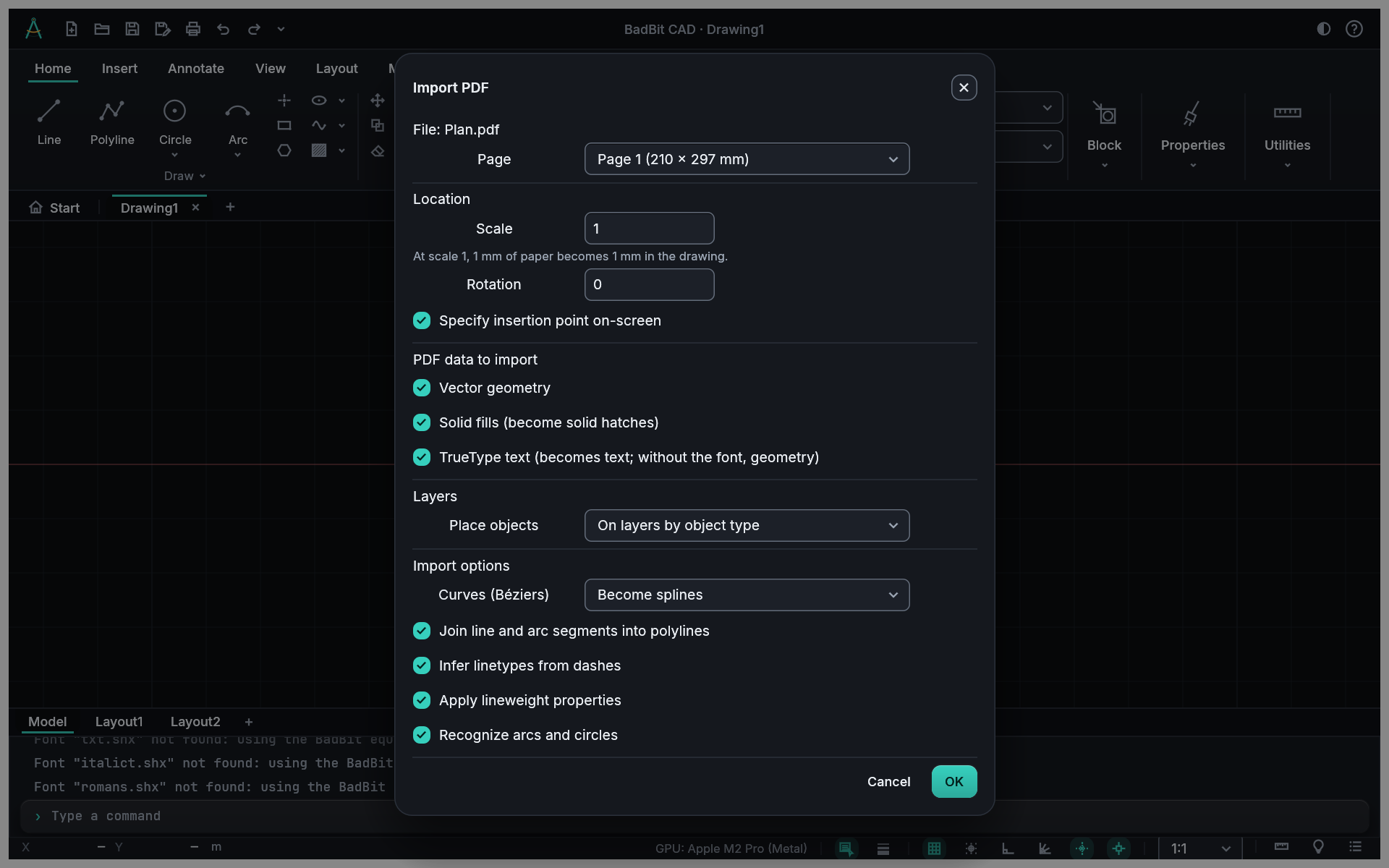
PDFIMPORT brings a vector PDF in as drawing geometry, like AutoCAD's. Choose the file; the Import PDF dialog box shows:
- Page (with its size in mm), Scale (at 1, 1 mm of paper becomes 1 mm in the drawing, in its unit), Rotation and the insertion point (the lower left corner of the page), typed or specified on-screen after OK;
- PDF data to import: vector geometry (recognized lines, polylines, arcs and circles; Bézier curves become a spline or a polyline), solid fills (they become solid hatches, with their holes) and TrueType text (it becomes text; when the PDF's font does not give the characters, it becomes geometry from the outlines of the embedded font);
- Layers: those of the PDF (the OCG layers, when the PDF has them), by object type (PDF_Geometry, PDF_Solid Fills, PDF_Text) or the current layer;
- Import options: join line and arc segments that touch into polylines, infer linetypes from dashes (the PDF's dash pattern and short collinear dashes, like those from plotting, become a single line with the linetype
PDF_DASH_n), apply lineweights (the closest standard lineweight) and recognize arcs and circles.
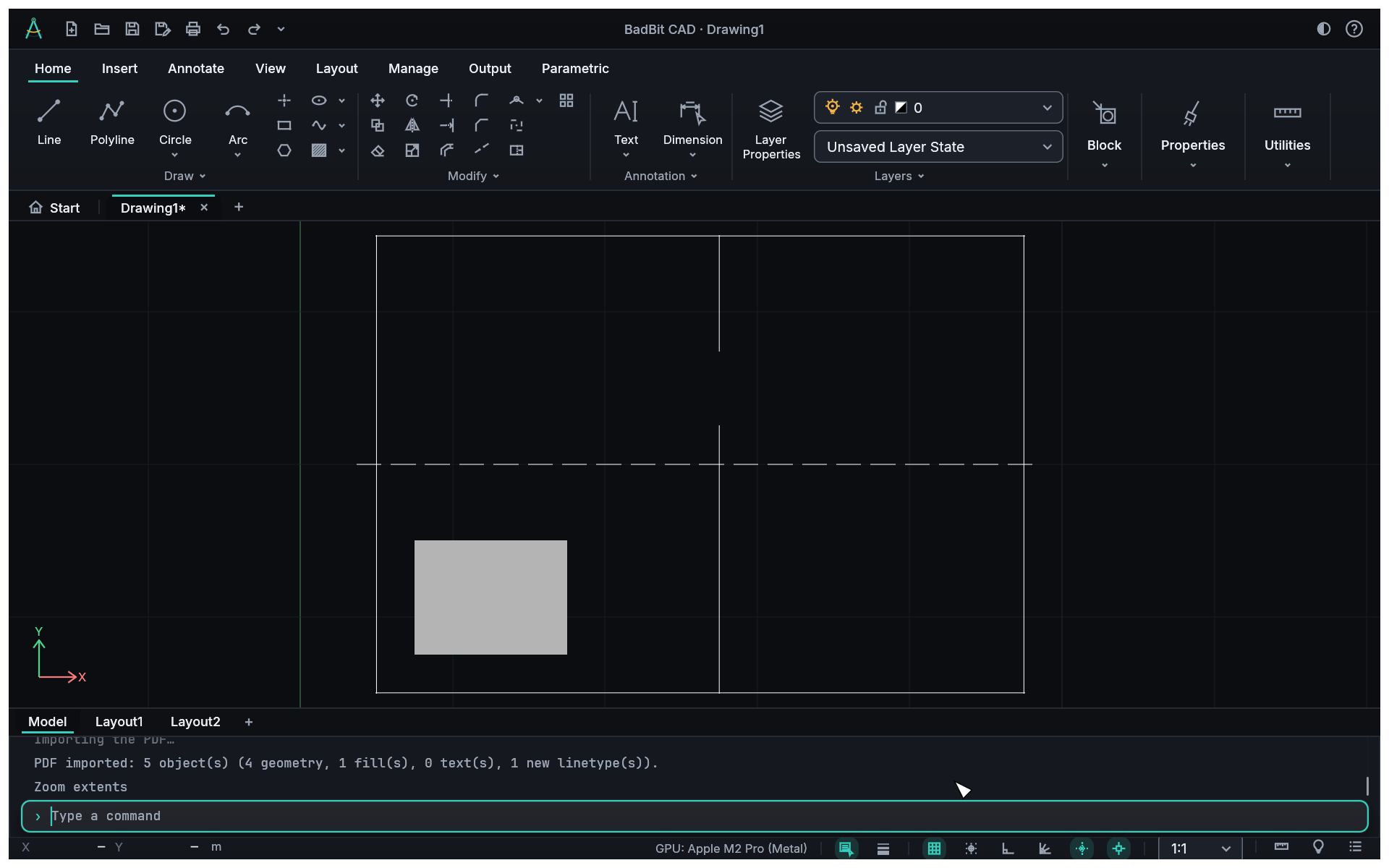
The conversion runs in the background; everything goes in as a single undo step, and the command line summarizes what came in (and reports what was left out: images, patterns and gradients, protected PDF). The PDF reader is BadBit CAD's own (ADR 0021).