
Installation and updates
BadBit CAD updates itself from inside the program: nobody needs to go back to the website to download an installer. Updating works without signing in to the BadBit Account: the program only reads the version information published by BadBit, which is digitally signed, and checks the signature before using anything in it.
How it is installed
| System | Where | First installation |
|---|---|---|
| macOS | BadBit CAD.app, wherever you put it (usually in Applications) | From the .dmg: drag BadBit CAD to Applications. |
| Windows | In your user folder (%LOCALAPPDATA%\Programs\BadBit\CAD), without asking for an administrator password: one folder per version and the BadBit CAD.exe launcher, which the shortcuts point to | With the BadBit installer. |
| Linux | In your user folder (~/.local/share/badbit/programas/cad), without asking for an administrator password, the same way as on Windows, with the badbit-cad launcher | With the BadBit installer, which comes in a .tar.gz. |
On macOS, open BadBit CAD from the Applications folder. When it is opened straight from the
.dmgor from the Downloads folder, macOS runs the program in a protected copy and does not allow it to be replaced: the Updates window asks you to move the program to Applications first.
Installing on Linux
- Download
BadBit-CAD-<version>-linux-x64.tar.gzfrom your BadBit Account. - In the file manager, right-click it and choose Extract Here. A single file comes out, the installer
BadBit-CAD-<version>-linux-x64-setup. - Double-click the installer (if the file manager asks, choose Run). From the terminal, the same thing:
tar xzf BadBit-CAD-<version>-linux-x64.tar.gzand./BadBit-CAD-<version>-linux-x64-setup. - In the Install BadBit CAD window, check or clear Create a desktop shortcut and click Install. At the end, Open BadBit CAD now opens the program.
The installer adds BadBit CAD to the applications menu (with "Open with" for DWG and DXF) and makes it the program for .bbd files: double-clicking a .bbd opens the drawing. The default program for DWG and DXF stays whatever you were already using. Running the installer again with BadBit CAD installed offers Update (newer version) or Reinstall (the same one).
Uninstalling on Linux. Right-click BadBit CAD in the applications menu and choose Uninstall BadBit CAD (or run ~/.local/share/badbit/programas/cad/desinstalar-badbit-cad --desinstalar). The window asks you to close BadBit CAD if it is open and asks whether to keep the preferences, the profiles, and the drawing recovery (checked). Your drawings are not deleted.
Installation without a window (IT). BadBit-CAD-<version>-linux-x64-setup --silencioso installs without a desktop shortcut; desinstalar-badbit-cad --desinstalar --silencioso uninstalls and keeps the preferences. The exit code tells whether it succeeded.
BadBit CAD for Linux needs a 64-bit (x86-64) distribution with Wayland or X11 and glibc 2.31 or newer: Ubuntu 20.04, Linux Mint 20, Debian 11, Fedora 32, RHEL 9 and their later versions, as well as openSUSE, Arch, and others. The same installer serves all of them, whether they use .deb, .rpm, or other packages, because it does not go through the package manager: it installs in your home folder, without an administrator password.
Terms of use on first run
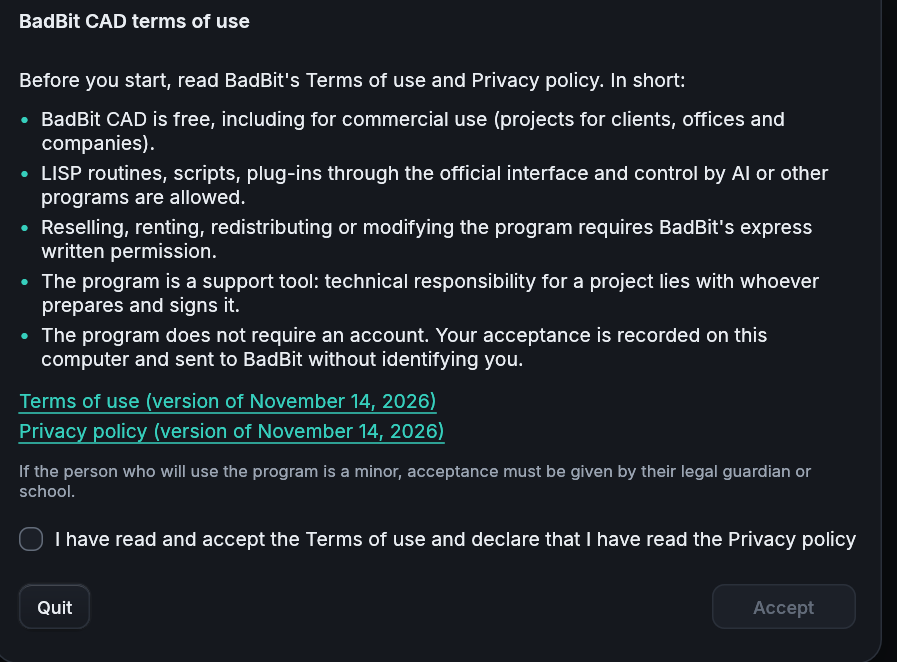
The first time BadBit CAD opens on a computer (for each user of the system), before any use, the BadBit CAD terms of use window appears, as in the installers of other CAD programs. It also applies to anyone who received a copy of the program from someone else and never went through the BadBit Account sign-up. The window shows:
- a summary of the main points (the program is free, including for commercial use; automation through LISP, scripts, plug-ins, and AI is allowed; reselling, redistributing, or modifying it only with BadBit's permission; technical responsibility for the project lies with whoever signs it);
- the Terms of use and Privacy policy links, with the date of the version in effect: clicking opens the full text in the browser, in the program's language (Portuguese, English, or Spanish);
- the notice that, if the person who will use the program is a minor, acceptance must be given by their legal guardian or school;
- the I have read and accept the Terms of use and declare that I have read the Privacy policy box and the Accept (only with the box checked) and Quit buttons.
While the window is open, nothing of the program appears behind it. Quit closes BadBit CAD without recording anything, and the window comes back the next time it opens. After acceptance, it no longer appears on that computer.
When the terms change
Each new version of the Terms of use or of the Privacy policy is marked by BadBit with the size of the change, and BadBit CAD acts accordingly:
- Minor: nothing appears. You do not need to accept again, and the acceptance you already gave still applies.
- Relevant: the Terms of use update window, which does not block the program and can be left for later (below).
- Mandatory: from the effective date, the program only continues once you accept the new version (see Mandatory change, next). Before that date, it appears like a relevant change, with a notice of the date.
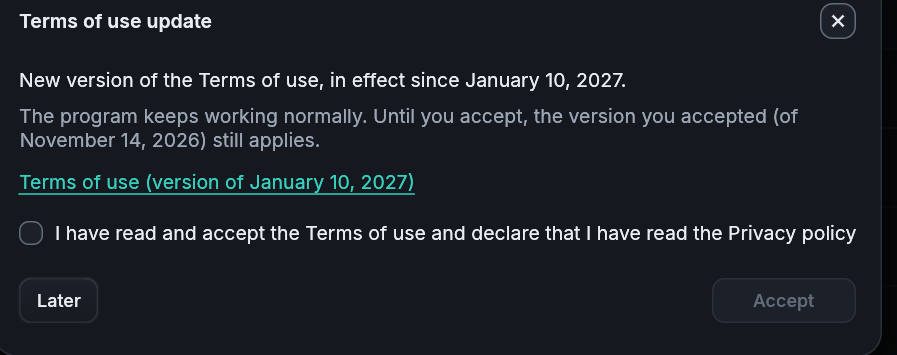
For a relevant change, BadBit CAD shows the Terms of use update window, with the date the new version comes (or came) into effect and the link to read it. It does not block the program: Later closes the notice, work continues normally, and until you accept, the version you accepted still applies. The notice opens by itself once each time the program starts and stays in the title bar (Terms of use updated, to the left of the ?) until you accept; clicking it reopens the window.
BadBit CAD learns about the new version from the same signed information it already reads for updates (no account and nothing that is not signed by BadBit); without internet, the version that came with the program applies.
Mandatory change
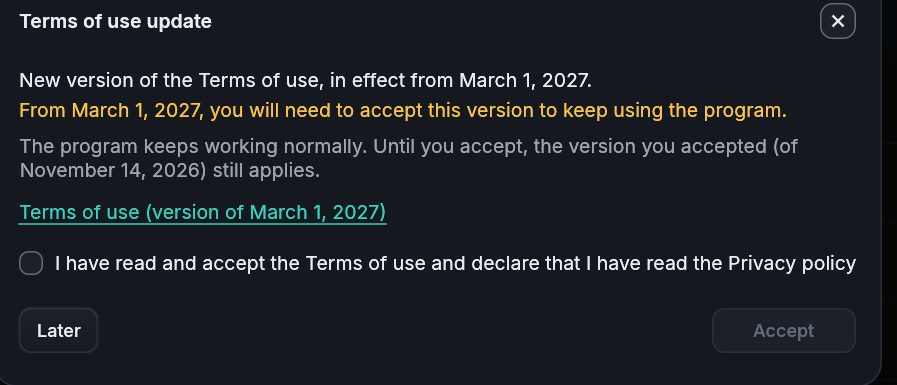
Before the effective date, a mandatory change appears like a relevant one: the Terms of use update window, with Later, plus a highlighted line: "From March 1, 2027, you will need to accept this version to keep using the program." You can accept right away, or leave it for later and keep working until that date.
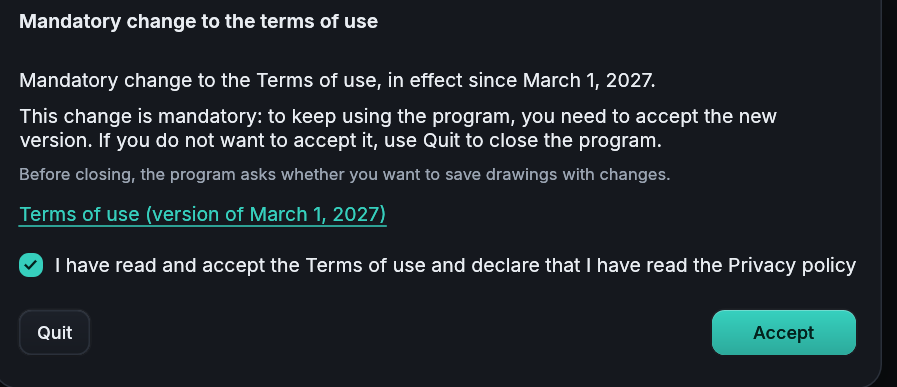
From the effective date, the Mandatory change to the terms of use window blocks the program like the first-run one: it says which document changed and since when, explains that you need to accept the new version to continue, and has the link to read it, the I have read and accept… box and only two buttons, Accept (with the box checked) and Quit. There is no Later and no × to close it, and Esc does not close the window. If the date arrives while the program is open, the window appears right away, on top of your work.
Quit closes BadBit CAD without recording the acceptance. Before that, as when you close the program window, it asks whether you want to save each drawing with changes (Save changes to Drawing1?, with Yes, No and Cancel); Cancel goes back to the terms window, which keeps blocking, and the drawings stay as they were. Closing the program window with the terms window open does the same as Quit. The next time the program opens, the window comes back until you accept. After Accept, the program continues normally and the new version is recorded.
Where the acceptance is recorded
The acceptance is stored on the computer, in the user folder (aceites.json): the document, the version, the jurisdiction (Brazil, or international for other countries, based on the system's country), the language, the date and time, and the program version. It is also sent to BadBit without identifying you: the only thing that goes with it is a random number created for this purpose (it is not the one used for the gradual rollout and has no relation to your account). Sending happens in the background and, without internet, is left for later, without getting in the way of your work. With updates turned off by IT ("updates": "off"), nothing is sent: the acceptance stays only on the computer.
The About window (ABOUT) shows the accepted version and the links to the Terms of use and the Privacy policy.
The new version notice

BadBit CAD checks for a new version when it opens and then every 4 hours, in the background: nothing freezes meanwhile. When there is one, it starts downloading right away (only the files that changed, and for each large file only the difference) and the notice Update version available appears in the title bar. Clicking the notice opens the Updates window.
The download resumes where it stopped if the internet drops or if you close the program midway: the part already downloaded is reused the next time. Each downloaded file is verified (size and SHA-256 digest of what BadBit published), including what was already stored from a previous attempt; whatever does not match is discarded and downloaded again. Right before switching versions, BadBit CAD verifies all the files of the assembled version again and, on macOS, BadBit's signature on the new program (Apple's, with the BadBit team); if anything does not match, the version is discarded and the window says so.
BadBit CAD only talks to the update server over a secure connection (https://) and never offers a version older than the installed one (unless BadBit has withdrawn the installed version; in that case, going back is only through the full installer). The version information published by BadBit has an expiration date: once expired, it is not valid.
Not checked for more than 14 days

If BadBit CAD goes more than 14 days without being able to verify BadBit's version information (no internet, a company proxy blocking it, or expired information), the notice Updates not checked for N days appears in the title bar, and the Updates window explains: check the internet connection or the company proxy, because without checking, security fixes do not arrive. The notice disappears on the first successful check. With updates turned off by IT, there is no notice; with manual updates only, the notice appears only in the window.
The Updates window
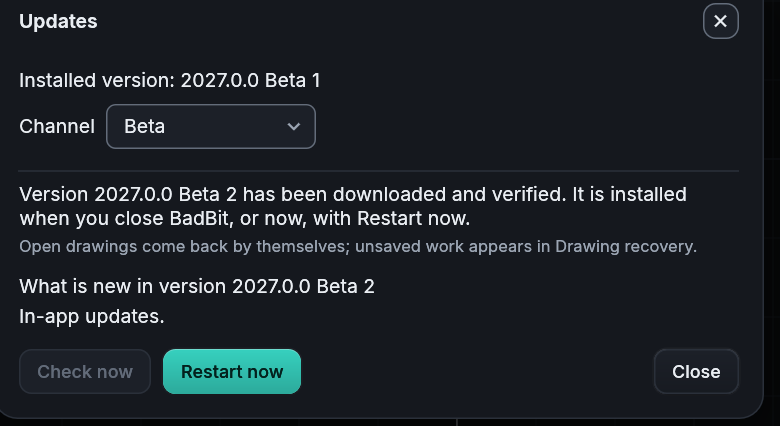
It opens from the notice, from ? > Check for updates (which also checks right away), and from the About window (ABOUT) > Update. It shows:
- the installed version;
- the channel: Beta (the test versions, which arrive earlier) or Stable. Switching channels checks again right away. The beta version of BadBit CAD starts on the Beta channel;
- the progress: Checking for updates…, BadBit CAD is up to date., Version … is available., Downloading version … NN% (with the bar), or Version … has been downloaded and verified;
- what is new in the version, in the interface language;
- the Check now, Download (when automatic updates are turned off), Restart now (with the version ready), and Close buttons.
When the new version takes effect
- When you close BadBit CAD: the downloaded version is installed by itself when you close the program; the next time it opens, it is already the new version.
- Restart now: BadBit CAD closes immediately, without asking whether to save, switches versions, and opens again. The drawings that were open come back by themselves: saved ones open as they were, and what was not saved comes back through Drawing recovery (the same as when the program crashes, chapter Files), with the question of whether to recover the changes.
If the new version does not open
The previous version is kept until the new one opens properly. If the new one closes with an error before it is up and running, or does not get up and running in three consecutive starts, BadBit CAD goes back to the previous version by itself, opens the previous one, and no longer offers that version on this computer. BadBit can also withdraw a version with a problem: anyone on it is taken to the good version on the next check.
No permission in Applications (macOS)
If your macOS account cannot write to the folder where BadBit CAD is (Applications on a managed machine, for example), the window says so and offers Install in ~/Applications: the new version goes to your own applications folder and opens from there; the old one stays where it was.
Gradual rollout
Each new version is released gradually: first to a portion of the computers, then to all of them. That is why a colleague may get the version a day before you. The draw uses a random number created the first time BadBit CAD checks for updates, stored only on your computer (it does not identify you and is not sent to BadBit). Required updates (security fixes) reach everyone at once.
For company IT: turning off automatic updates
IT can turn off automatic updates (and distribute the versions on its own) in two ways. The more restrictive of the two applies: a variable does not turn back on what the file turned off.
The machine's policy file, politica.json:
| System | Path |
|---|---|
| macOS | /Library/Application Support/BadBit/CAD/politica.json |
| Windows | %ProgramData%\BadBit\CAD\politica.json |
| Linux | /etc/badbit/cad/politica.json |
{
  "updates": "manual",
  "channel": "stable",
  "baseUrl": "https://espelho.empresa.local/badbit/"
}updates:auto(the default: checks and downloads by itself),manual(only checks when the person asks, in Check for updates, and only downloads with Download), oroff(turned off: the window says IT turned it off and nothing is queried). An unreadable file counts asmanual.
The file only applies in full if only the administrator can change it: on macOS and Linux, the file and its folder must belong to root, with no write permission for the group or for others. A file that fails this check only restricts (its updates applies), and its channel and baseUrl are ignored. On Windows, create the %ProgramData%\BadBit\CAD folder with write permission only for Administrators and SYSTEM (the BadBit installer does this); BadBit CAD does not yet check this permission on Windows.
channel(optional): pins the channel (betaorstable); the window shows set by your company's IT and does not allow switching.baseUrl(optional,https://only): an internal mirror with the same structure ashttps://downloads.badbit.com.br/(the files published by BadBit, copied unchanged; the signature is still verified).
Environment variable BADBIT_UPDATES with auto, manual, or off (0 and false count as off), for deployment scripts.
PDF manual. The installer does not include the manual: the program downloads it the first time someone asks for it (Manual button or F1), from cad/releases/<version>/manual/ on the download base (BadBit's or the mirror's baseUrl, which must also copy that folder). On a network without internet access, copy BadBit-CAD-Manual-pt-BR.pdf (or the PDF for the interface language, such as BadBit-CAD-Manual-en.pdf) to the manual folder next to the executable (on macOS, BadBit CAD.app/Contents/Resources/manual/): the copy next to the program takes precedence over everything and nothing is downloaded.
For company IT: acceptance of the terms by the company
In a corporate installation (or in a school), the company can accept the Terms of use and declare that it has read the Privacy policy on behalf of the people who use its machines. Then the acceptance window, the new-version notice and the mandatory change window do not appear for anyone. This goes in the same politica.json:
{
  "termsAcceptance": {
    "acceptedBy": "Construtora Exemplo Ltda",
    "termsVersion": "2026-11-14",
    "privacyVersion": "2026-11-14"
  }
}acceptedBy: who accepted (the legal name of the company or school, up to 200 characters). Without it, the company's acceptance does not apply and the window appears normally.termsVersionandprivacyVersion(optional, in theYYYY-MM-DDformat): the versions the company accepted. Without them, the version in effect applies, including the next ones BadBit publishes.
The company's acceptance only applies with the file protected (only the administrator can change it, as explained above): in a file that any user can write, or through an environment variable, nobody is exempted from accepting. BadBit CAD records the acceptance on behalf of the company (with its name) and sends it to BadBit like any other acceptance. The About window shows accepted by and the company's name.
Updater folders and variables
| What | Where |
|---|---|
| Updater state (downloads in progress, versions that did not open, the gradual-rollout number) | macOS: ~/Library/Application Support/BadBit/CAD/atualizacao; Windows: %LOCALAPPDATA%\BadBit\CAD\atualizacao; Linux: ~/.local/share/badbit/cad/atualizacao |
BADBIT_UPDATE_URL | Changes the address from which BadBit CAD fetches the versions. Only accepts https://; the local server (http://127.0.0.1) only works in a development build. A rejected address is ignored and noted in the log. |
| Updater log | registro.log in the state folder: the queries that failed, the discarded versions, and what the switch helper did. |
BADBIT_UPDATE_STATE | Changes the updater's state folder (development and testing). |
Record of the terms acceptances (aceites.json) | macOS: ~/Library/Application Support/BadBit; Windows: %APPDATA%\BadBit; Linux: ~/.config/badbit |
BADBIT_CONSENT_DIR | Changes the folder of the acceptance record (development and testing). |
BADBIT_API_URL | Changes the address to which the acceptance is sent. Only accepts https://; the local server (http://127.0.0.1) only works in a development build. |
In the browser there is no updater: the new version arrives when the page is reloaded. A development build (the program running outside an installation) only reports that there is a new version; the switch is through the installer.