
Entering points and answering commands
Confirming, canceling, and repeating
| Key | Effect |
|---|---|
| Enter, spacebar, or right mouse button | Confirms; with no active command, repeats the last command. |
| Esc | Cancels the command (LINE and PLINE keep the segments already drawn). |
| Delete | Erases the selected objects. |
Coordinates
A point can be clicked in the drawing or typed. The comma separates the coordinates and the decimal separator is the period, as in AutoCAD.
| Format | Example | Meaning |
|---|---|---|
| Absolute | 10,5 | The point x = 10, y = 5. |
| Relative | @3,0 | 3 units in x from the last point. |
| Relative polar | @5<45 | 5 units at 45° from the last point. |
| Direct distance | 5 | 5 units in the direction of the cursor (with Ortho or Polar, in the locked direction). |
| With a unit | 250 cm, @1.2 m,0 | Converts to the project unit. |
With no unit written, the number is in the project unit (see Grid and units).
Dynamic input
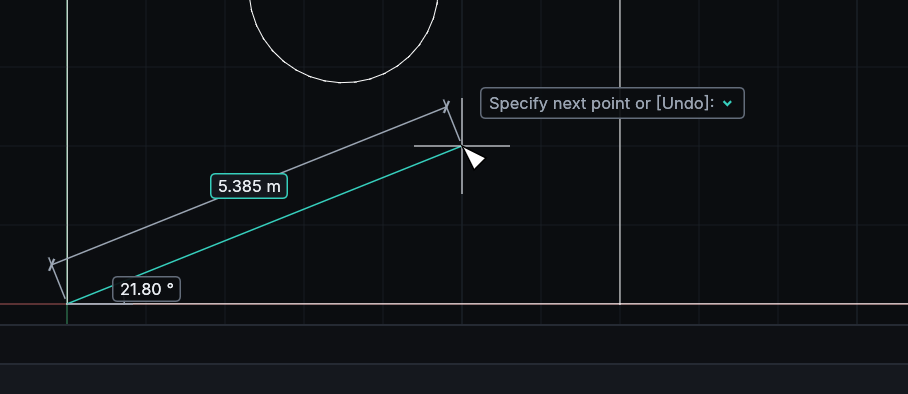
Dynamic input is always on, in any command, whether started from the ribbon or typed. While the command asks for a point, a box next to the cursor shows the prompt. From the second point on, a temporary dimension appears along the segment, with the length in the project unit, and an arc with the angle from the X axis. For the circle and for the radius of the arc, the dimension shows the radius. None of this becomes an object: it disappears when the command ends. Real dimensions, which stay in the drawing, will come with the dimension commands.
Typing in the fields, with Tab
You do not need to click anywhere to type: the number goes straight to the highlighted field next to the cursor, as in AutoCAD and Fusion 360.
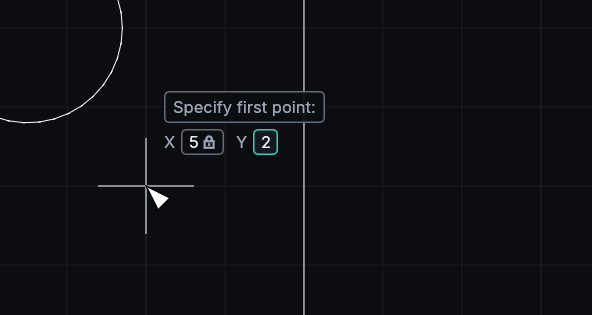
- Before the first point, the fields are X and Y. Type X, press Tab, and type Y; Enter confirms the point.
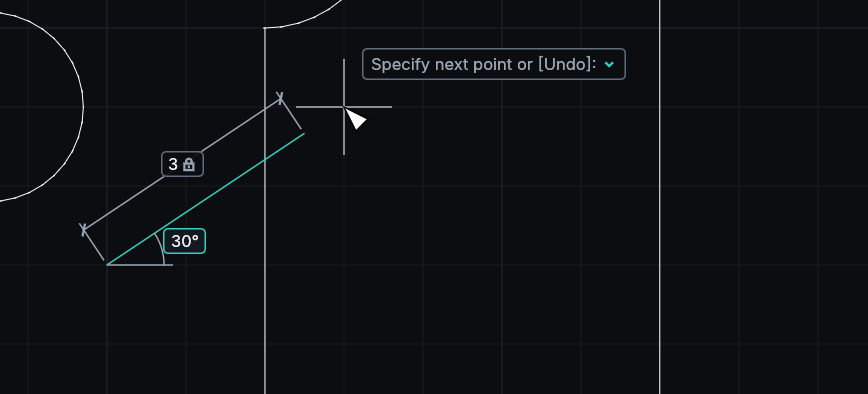
- After the first point, the fields are the length and the angle. Type the length, press Tab, and type the angle (in degrees, from the X axis); Enter confirms.
- Tab locks the typed value (a padlock appears) and moves to the other field; another Tab goes back. With a locked value, the preview and the click respect it: with the length locked, just point the direction with the mouse and click.
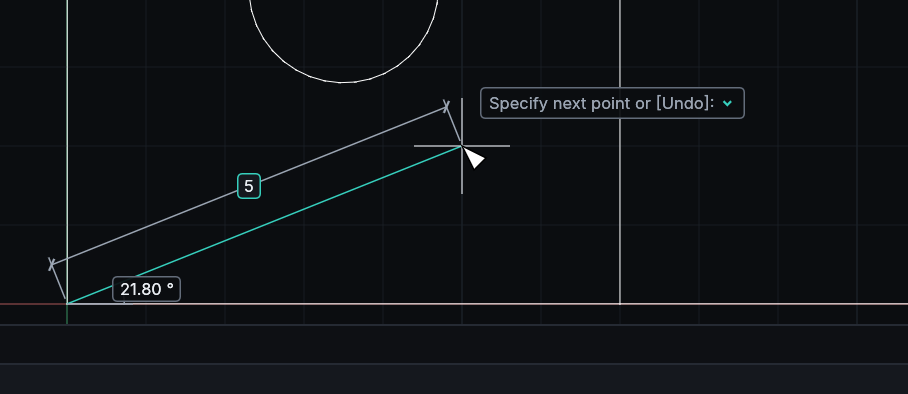
- Only the length and Enter, without Tab, is the direct distance, in the direction of the cursor (with Ortho or Polar, in the locked direction).
- Fully typed coordinates (
3,4,@5<45) still work and appear in the cursor box.
For those coming from AutoCAD who prefer to work without it, F12 turns dynamic input off and on.
Command and prompts next to the cursor (DYNPROMPT)
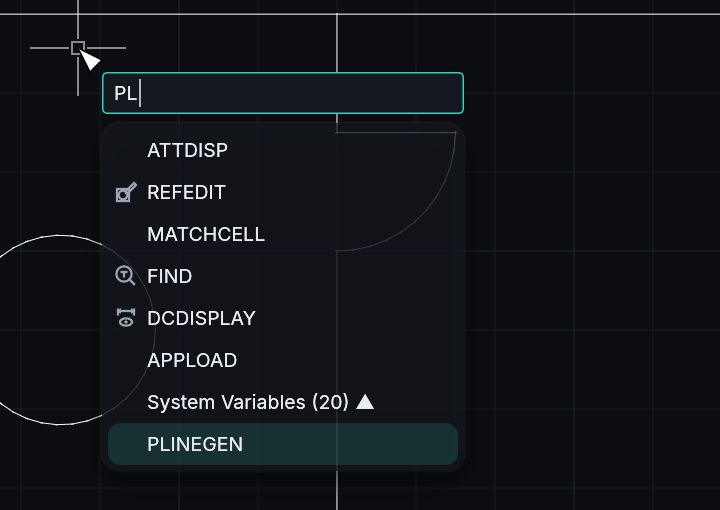
With dynamic input on, what you type over the drawing appears next to the cursor, as in AutoCAD 2026, without having to look at the command line:
- With no command, when you type (for example
L), a small box with the text appears just below and to the right of the cursor, with the suggestion list underneath: the command icon (the same as on the ribbon), the alias, and the name in capitals, such asL (LINE),LA (LAYER). The order is the same as the command line suggestions (see Suggestion order, below). Eight fit at once; the others appear when you scroll the list with the mouse wheel. - The ↑ and ↓ arrows choose the suggestion; Enter or the spacebar run it; Esc clears the text and closes the small box. Clicking a suggestion also runs it.
- During a command, the current prompt ("Specify next point or [Undo]:") appears next to the cursor, and what you type appears in the same box. The length and angle fields stay the same.
- When the prompt has options in square brackets, a small down arrow appears next to it. The ↓ key opens the small list of options right there; the arrows choose, Enter or the spacebar confirm, and clicking the option also chooses it. Esc closes only the small list, without canceling the command.
The command line at the bottom stays the same and shows the same thing: there is a single text, typed in one place it appears in the other, and the answer chosen in the small list goes into the history as if it had been typed. While the suggestion list is next to the cursor, the one above the command line does not appear, so as not to be repeated, as in AutoCAD; when typing in the command line with the mouse outside the drawing, the list appears there, as before.
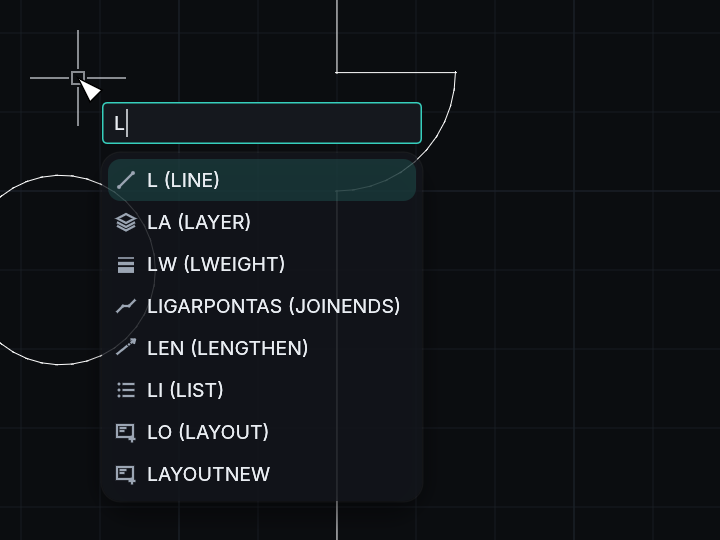
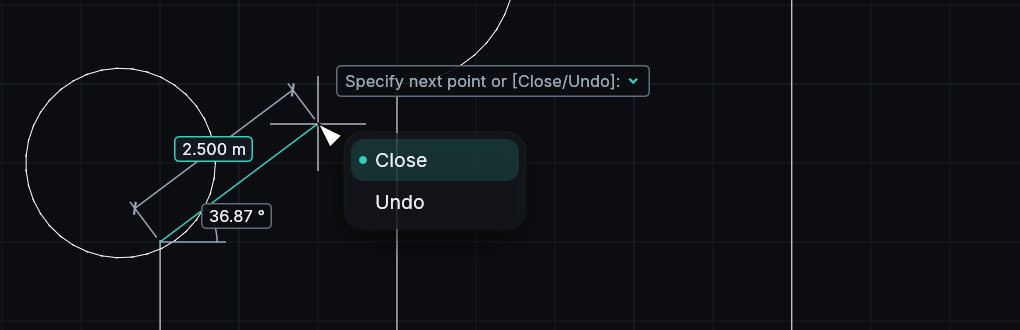
The DYNPROMPT variable turns the command and prompts next to the cursor on (1, the default, as in AutoCAD) and off (0); with 0, or with F12 off, everything stays only on the command line.
Suggestion order and search options (INPUTSEARCHOPTIONS)
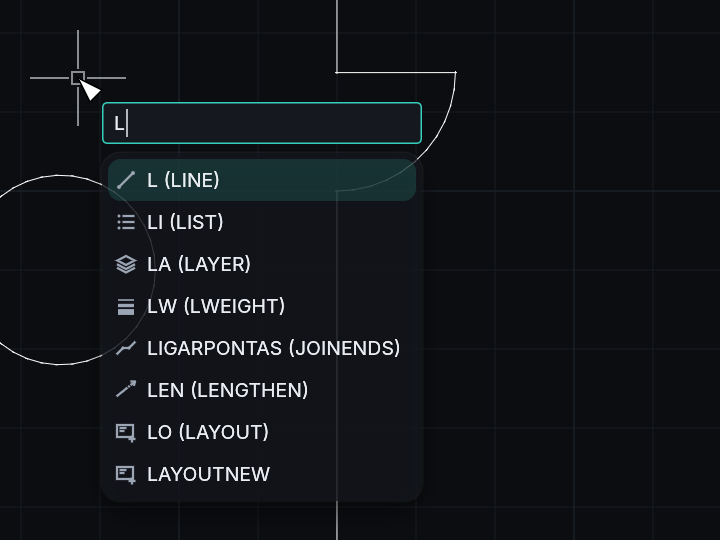
As in AutoCAD, the suggestion list (next to the cursor and on the command line) is sorted by frequency of use: each command run from the command line (typed, chosen in the list, or repeated with an empty Enter) earns a point, and the most used ones move up. Three rules stay fixed:
- the exact name or alias always comes first:
Land Enter is still LINE, no matter how much another command with L is used; - next come the ones that start with the typed text, from most used to least used;
- finally, the ones that only contain the text (in the friendly name or, with mid-string search, in the command name), also by use.
With no use at all, the order is the usual one. The count is stored in your profile (Appearance section), goes along when exporting and importing the profile, and goes back to zero with the profile's Reset.
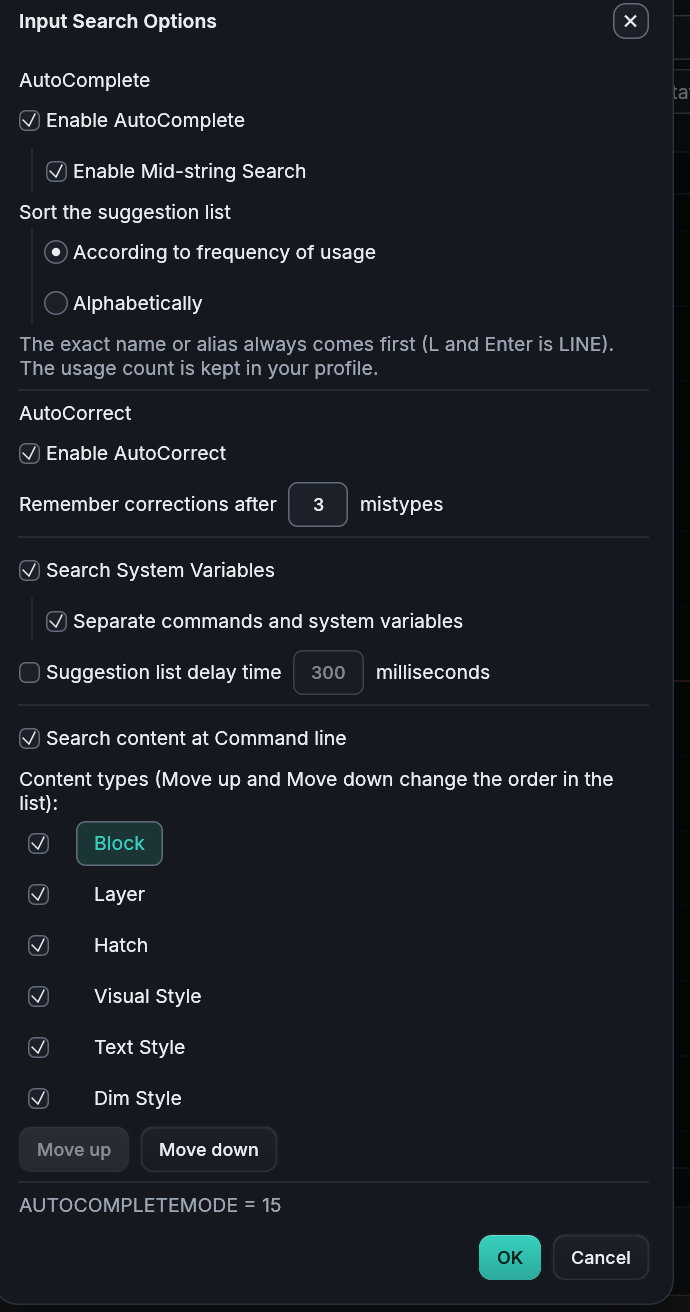
INPUTSEARCHOPTIONS opens the Input Search Options window, like AutoCAD's:
- AutoComplete — Enable AutoComplete: the commands that start with what you type go into the list and, from the third character on, the rest of the name of the first suggestion appears grayed out after the text (
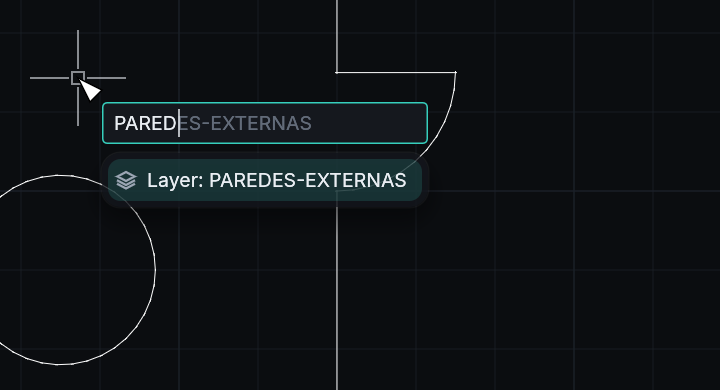
PLIshowsPLINE); when off, only the exact name or alias works. Enable Mid-string Search (only with AutoComplete): also the ones that only contain the text (LINEfindsPLINEandXLINE). Sort: According to frequency of usage (the default) or Alphabetically (the exact match still comes first; the rest by command name). - AutoCorrect — Enable AutoCorrect: BadBit CAD learns your typing mistakes. When what you type finds nothing (
LIEN) and the command run right after resembles it (LINE, up to two mistakes), the mistake counts once; after Remember corrections after N mistypes (3 to start with),LIENbecomes LINE. The learned list is stored in the profile; AutoCAD's (autoCorrectUserDB.pgp, linesWRONG, *RIGHT) comes in through the profile's Import. - Search System Variables: the variables (PICKADD, OSMODE...) go into the list; when off, they leave the list, but the exact name still works. Separate commands and system variables (only with the previous one; on to start with): the variables leave the middle of the commands and go into a separate list, below them, behind the System Variables (N) ▼ line. The Tab key opens that list (the first variable is chosen) and closes it again; clicking the line, or Enter with it chosen, does too. It works on the command line and in the list next to the cursor; the exact name of a variable (
PICKADD) still comes first, among the commands. With the box off, the variables mix with the commands again. - Suggestion list delay time: when on, the list waits the given time (in milliseconds, from 100 to 10,000; this is the INPUTSEARCHDELAY variable) after the last keystroke.
- Search content at Command line: the name of a block, a layer, a hatch pattern, a visual style, a text style, or a dimension style in the drawing also appears in the list, after the commands ("Layer: PAREDES"). Choosing the layer or a style makes it current; choosing the block starts INSERT with it; choosing the pattern starts HATCH with it. The box for each type turns it on or off, and Move up and Move down change the order of the types in the list. BadBit CAD draws in 2D, always in wireframe: the only visual style is 2D Wireframe (AutoCAD's name), which is already current; choosing it in the list ("Visual Style: 2D Wireframe") only confirms it. AutoCAD's shaded and 3D styles do not exist here.
At the bottom of the window appears the value of the AUTOCOMPLETEMODE variable, which moves together with the boxes (AutoCAD's bits: 1 turns everything on, 2 AutoComplete, 4 the list, 8 the icons of the list next to the cursor, 16 removes the system variables, 32 the delay; the default is 15). Changing the variable changes the boxes, and vice versa; with 0, only the exact name or alias works and no list appears. -INPUTSEARCHOPTIONS does the same from the command line: Autocomplete (A), autocorRect (R), System variables (S), sEparate (E) (separate commands and system variables), Content (C), Midstring (M) with Yes (Y) or No (N), and Delay (D) in milliseconds; Enter finishes. All of this is stored in the profile (Appearance section) and applies both on the command line and in the list next to the cursor.
Command options
Options appear in square brackets in the prompt, as in "[Close/Undo]". You type the letter (or the word): C for Close, U for Undo. The letters are AutoCAD's English ones, in any interface language; in a translated interface, the letters of the translated words also work.
User coordinate system (UCS)
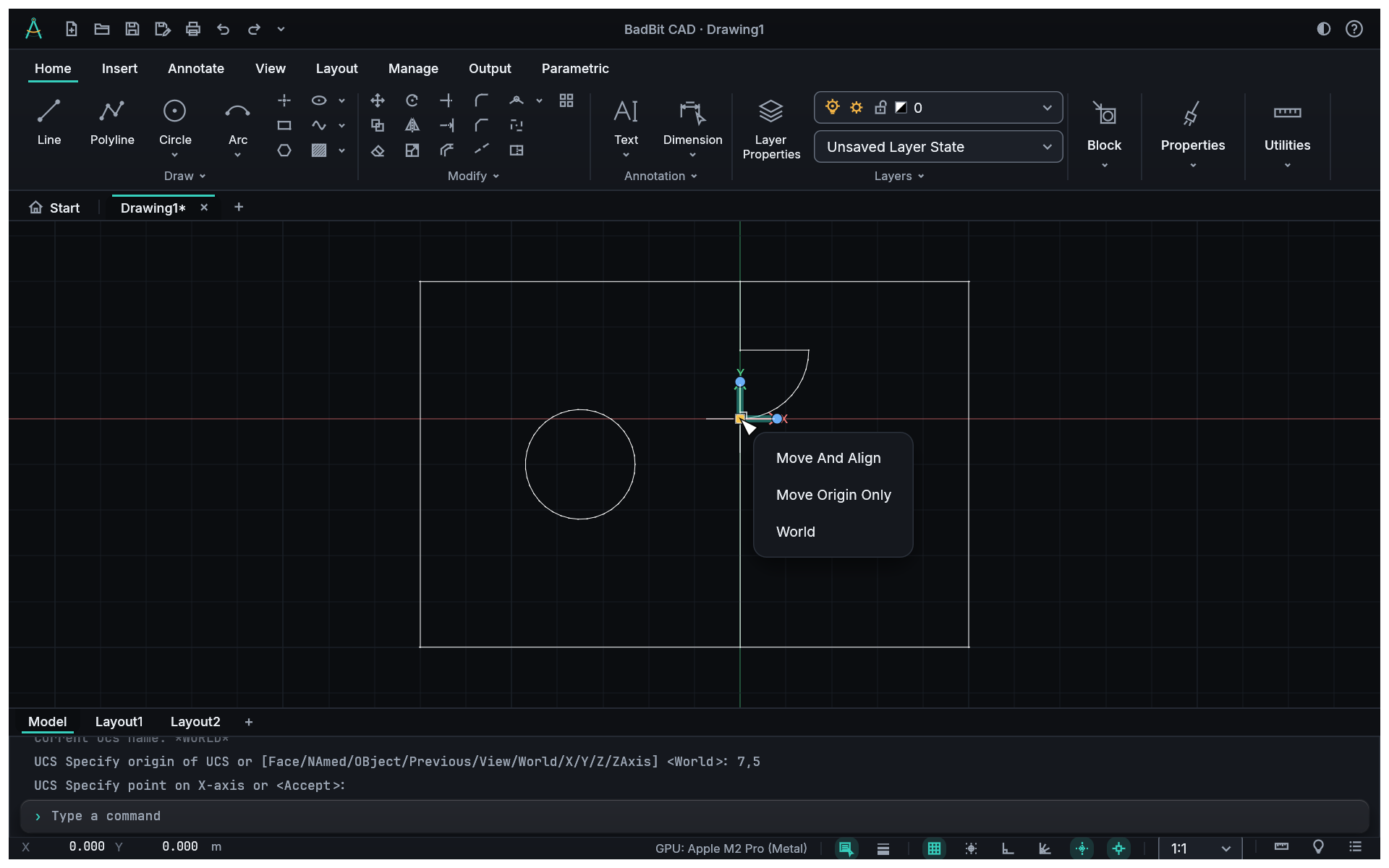
The UCS (in the Portuguese version of AutoCAD, SCU) changes the origin and rotation of the coordinates you type and see, without touching the drawing: entities remain stored in the world coordinate system (WCS, World). Since BadBit CAD draws plans, the UCS is always an origin and a rotation in the XY plane (or that plane seen from below).
With a current UCS:
10,5,@3,0, and@5<45apply on the UCS axes (angles count from its X, with ANGBASE and ANGDIR on top);*in front forces the world, as in AutoCAD:*10,5,@*3,0,*5<45;#forces absolute (#10,5), useful with dynamic input;- Ortho, Polar, orthogonal tracking, the grid, and grid snap follow the UCS axes, and the cursor crosshairs rotate with it;
- the status bar coordinates, ID, DIST (deltas and angle), and LIST show the values in the UCS;
- TEXT and MTEXT with rotation 0, insertion with rotation 0, the Horizontal and Vertical linear dimensions (and the automatic choice), the ordinate dimension (UCS origin and axes), RECTANG, XLINE Hor/Ver/Ang, and the hatch (pattern angle and default origin) are created aligned with the UCS.
The UCS command asks "Specify origin of UCS or [Face/NAmed/OBject/Previous/View/World/X/Y/Z/ZAxis] <World>":
| Answer | What it does |
|---|---|
| a point | Moves the origin. A second point gives the positive X and a third tells which side Y is on (3 points, in the plane); Enter accepts. |
| Enter or W | Goes back to World. |
| P | The previous UCS (BadBit CAD keeps the last 10 for each space, model and paper, like AutoCAD). |
| Z | Rotates around Z (the angle, <90> from UCSAXISANG, or two points). |
| X, Y | Only 180° (the plane seen from below): any other angle would take the plane out of the plan, and BadBit CAD reports that it is 2D and asks again (AutoCAD would rotate the plane and show the broken pencil). |
| OB | Aligns with the object: for the line and the polyline, the origin at the endpoint nearest the click and X along it; for the arc, at the center with X toward the nearest endpoint; for the circle, at the center with X toward the click; for text, insertion, and dimension, their origin and rotation. |
| V | The screen axes (the plan does not rotate), at the same origin. |
| ZA | Only the new origin (Z stays pointing up). |
| NA | Restore (R), Save (S), Delete (D, with * and ?), and ? (lists with the origin and axes relative to the current UCS); R, S, D, and ? work directly at the first prompt. |
| A | Applies the current UCS to all model viewports (VPORTS). |
| F | There is no solid face in 2D: BadBit CAD says so. |
Each UCS change is an undo step (U brings back the UCS) and goes into the file. With the screen split (VPORTS) and UCSVP 1, each viewport keeps its own UCS.
UCSICON turns the icon on (ON) and off (OFF), puts it at the origin (OR) or
in the corner (N), says whether it can be selected (S), and opens the Properties
(P: 2D or 3D style, size, and line width). UCSMAN (alias UC) opens the
UCS window: the list of named ones (Set Current, Rename, Delete),
the orthographic ones that work in plan (Top and Bottom), and the
Settings (the icon, UCSVP, and UCSFOLLOW). RENAME also
renames named UCSs (the UCS type, U in -RENAME), and a named
view stores the current UCS and restores it along with it (UCSVIEW 1, the Ucs option
of -VIEW sEttings).
The UCS goes into and comes back from .bbd, DXF, and DWG: the UCS table, the
UCSNAME, UCSORG, UCSXDIR, UCSYDIR variables (and the paper's PUCS* ones), the
*Active viewports of the VPORT table, and the UCS of each view in the VIEW table.
Moving and rotating the UCS with the icon
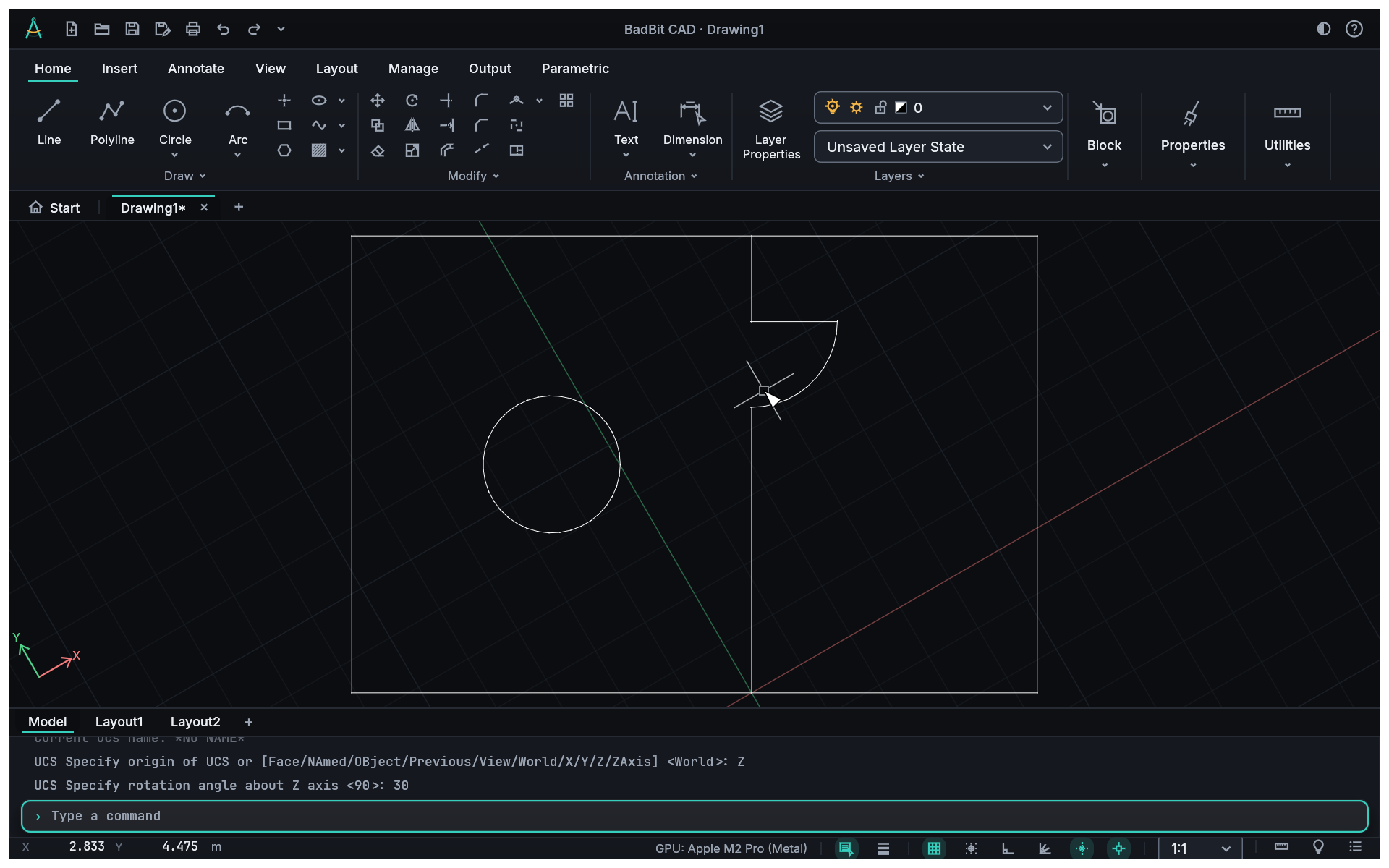
As in AutoCAD, the UCS icon can be picked with the mouse (UCSICON Selectable, the UCSSELECTMODE variable 1, the default; with 0, the icon only shows the axes). With no command, moving the cursor over the icon highlights it; clicking selects it and shows the grips: the square at the origin and the round ones at the ends of the X and Y axes.
- Origin grip: click it (or drag it) and give the new origin
point. Object snaps, the grid, Ortho, polar, and typed
coordinates work (
10,5in the current UCS,@2,0from the grip,*10,5in the world). The axes stay as they were. - Axis end grips: the axis now points from the icon to the given point (for example, the Endpoint of a slanted wall); the origin stays and the UCS rotates in the plane, with Z pointing up.
- Grip menu: hovering half a second over a grip, the menu appears. On the origin grip: Move And Align, Move Origin Only, and World (goes back to the world UCS). On the X grip: Rotate Around Y Axis and Rotate Around Z Axis; on the Y grip: around X and around Z. Around Z, type the angle (added to the current rotation) or give a point. Around X or Y the same rule as the X and Y options of the UCS applies: only 180° stays in plan (the plane seen from below); any other angle answers that BadBit CAD is 2D and the prompt continues.
What is left out in 2D: in AutoCAD, Move And Align aligns the XY plane with the face of a solid, a surface, or a mesh under the cursor; BadBit CAD draws plans and has no such faces, so it only moves the origin (the same as Move Origin Only). The Z axis grip of the 3D icon does not appear either: in a plan, Z points toward the viewer.
Each change through the icon is an undo step and goes into UCS Previous (UCS P), like the UCS command. The selected icon does not become part of the object selection (Delete erases nothing); Esc, a click outside, selecting objects, or starting a command deselect it. With the screen split (VPORTS), each viewport's icon responds when that viewport is the active one and changes its UCS; in the layout, it changes the paper's UCS. The icon and the grips are the same with and without the graphics card.
Scripts (SCRIPT, alias SCR)
A script is an .scr text file with what you would type on the command line, like AutoCAD's: command names, answers, coordinates, and options. SCRIPT (SCR) runs it: with FILEDIA at 1 it picks the file in a dialog; with FILEDIA at 0 it asks for the name on the command line (without the extension, .scr is assumed; an empty Enter repeats the last one). Dragging an .scr from the file manager onto the BadBit CAD window also runs it (the command in progress is canceled first).
The file rules are AutoCAD's:
- Each space and each end of line count as an Enter. Two consecutive spaces are two Enters; an empty line is one Enter (with no command in progress, it repeats the last command, as on the keyboard). That is why the end of a LINE needs an extra space or an empty line.
- A line that starts with
;is a comment. - At prompts that accept spaces (the text of TEXT, a file name), the space is a character and only the end of the line confirms.
- The prefixes work as when typed:
_(the English name),.(the original command),'(transparent), and-(the command-line version), combined if needed (._-HATCH). A command that has a command-line version runs that version in the script (HATCHbecomes-HATCH, without the panel), and the file dialogs give way to the prompt (FILEDIA is 0 while the script runs). - The file can be UTF-8 or ANSI (Windows-1252, the one used by the old Notepad): accented characters arrive correctly.
Example, which draws a rectangle of lines, a circle by its diameter, and a rectangle:
; quadro.scr
LINE 0,0 10,0 @0,6 C
CIRCLE 2P 3,3 7,3
RECTANG 12,0 @6,6
ZOOM E
The command line history shows each prompt with the script's answer, as if it had been typed, and each command in the script is an undo step.
Interrupting and resuming. Esc or Backspace interrupt the script (Esc also cancels the command in progress). An error also stops the script, at its line: a command that does not exist ("Unknown command") or an answer the command rejects (an invalid point); the command line tells the line of the error. RESUME continues from where it stopped (in the middle of a command, 'RESUME).
Repeating and waiting. RSCRIPT goes back to the beginning of the script: on the last line of the file, the script repeats until Esc (for demonstrations). DELAY waits the given time, in milliseconds, before the next command (from 0 to 32767, a little under 33 seconds; outside that range, DELAY rejects it and the script stops).
Left out, for now: running a script when opening BadBit CAD from the system command line (AutoCAD's /b).
Nested scripts (SCRIPTCALL). SCRIPTCALL runs a script like SCRIPT does (the same dialog with FILEDIA at 1, the same prompt with FILEDIA at 0 or inside a script, .scr when the extension is missing, UTF-8 or ANSI), with one difference: inside a script, it calls the other one and, when the called script ends, the calling script continues on the next line. The called script can call others, on several levels. SCRIPT inside a script, on the other hand, replaces everything that is running with the new script, as in AutoCAD. A name without a folder is looked for first in the folder of the calling script, then in the working folder.
; planta.scr
RECTANG 0,0 @12,8
SCRIPTCALL porta
SCRIPTCALL janela
ZOOM E
Only the top script moves forward; the ones that called it wait for it. Therefore:
- an error at any level (unknown command, rejected answer, file that does not exist) stops everything, and the command line tells the script and the line of the error;
- Esc or Backspace interrupt the called script and, with it, the ones waiting;
- RESUME continues from the point where it stopped and, at the end of the called script, goes back to the ones that called it;
- RSCRIPT inside the called script repeats the called script (the caller keeps waiting, until Esc).
So that it does not grow forever, there is a limit of 16 nested scripts: a script that calls itself stops at the 16th level, with the message "Limit of 16 nested scripts reached" (RESUME continues from what comes after the SCRIPTCALL).
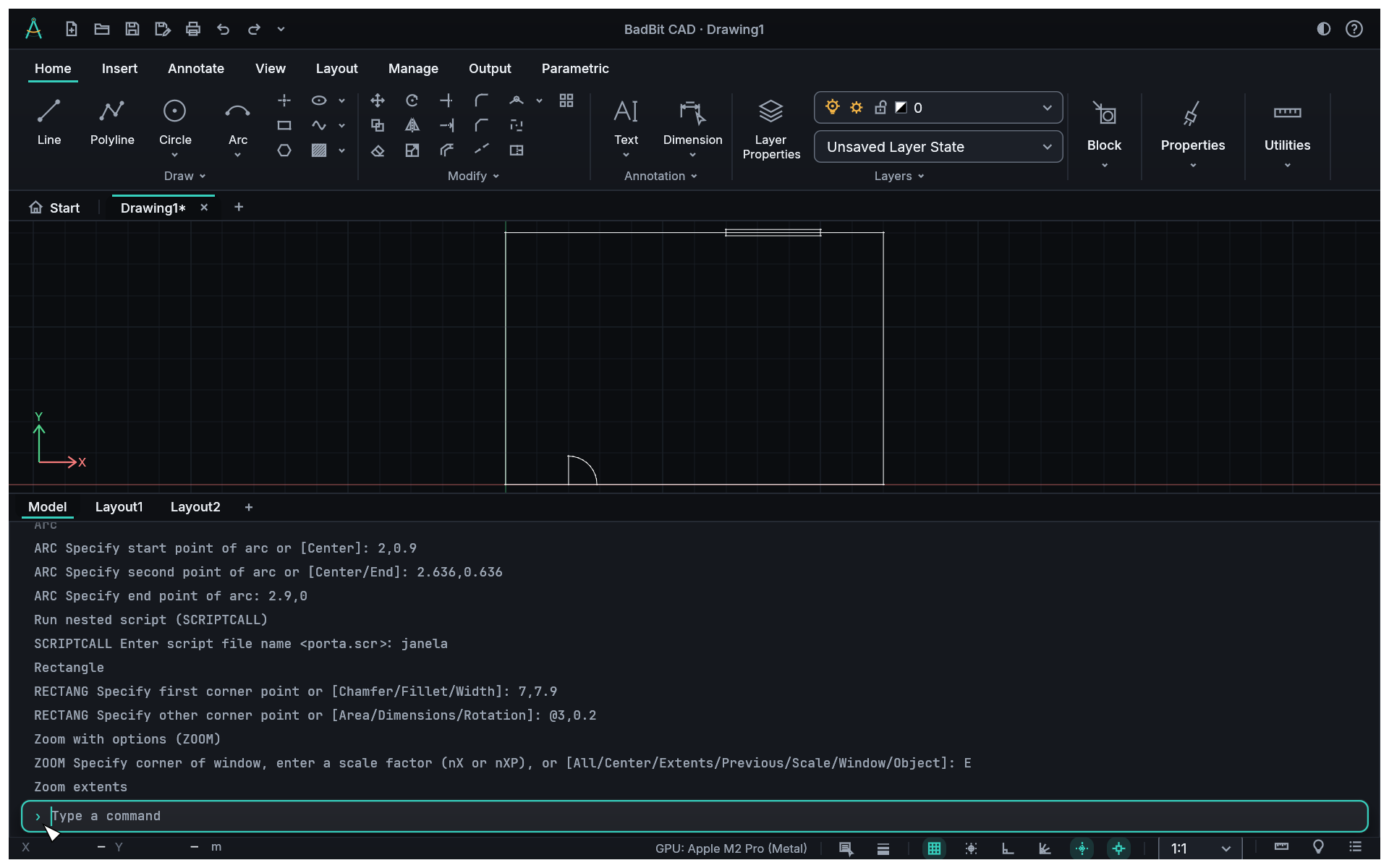
For programmers: the script hands each piece to the same command line feed that LISP uses in (command ...).
Command aliases (ALIASEDIT)
ALIASEDIT opens the command alias editor (the "Command Alias Editor" of AutoCAD's Express Tools): the list with the alias, the command (by its English name, as in acad.pgp), and the source (BadBit, the factory ones; User; User (replaces the default)). The Filter field shows only the ones that have the text in the alias or the command.
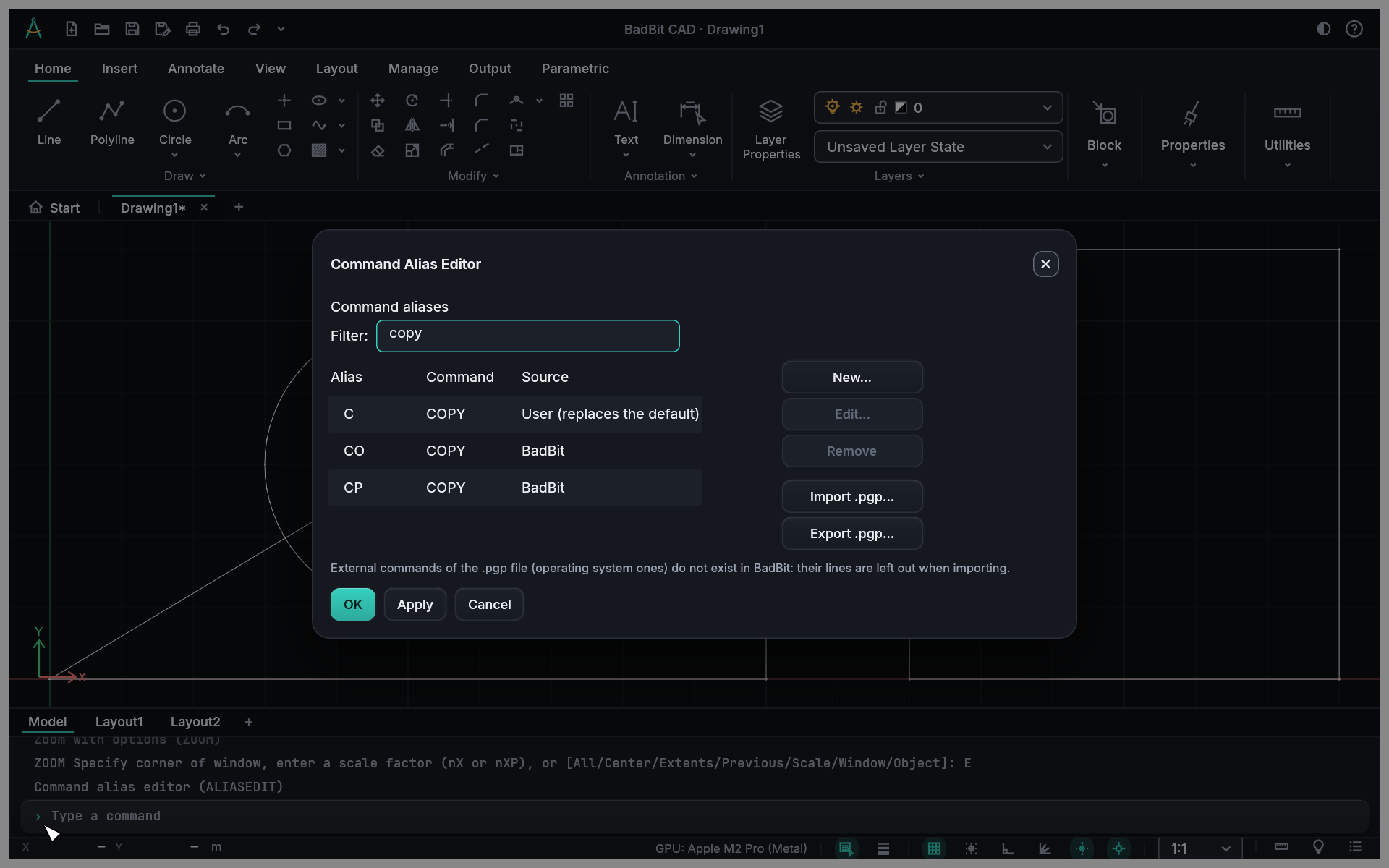
- New... creates an alias: the abbreviation (letters, numbers, and
- _ . +) and the command (the name in any language or one of its aliases). A command name cannot be used as an alias. - Edit... changes the command of the selected alias. For a factory alias, the user's takes its place (as in
acad.pgp, the last definition wins:Ccan become COPY). - Remove removes a user alias (factory ones cannot be removed; when edited, they come back when the user's is removed).
- Import .pgp... reads an
acad.pgp(AutoCAD's or one exported from here): aliases that are already the same as the factory ones do not need to come in; lines that are not usable (external commands, from the operating system, which BadBit CAD does not have; command names; commands that do not exist) are left out, with the count. - Export .pgp... writes a file in the
acad.pgptext format: the factory ones and, at the end, the user's. - Apply and OK make the aliases work immediately (AutoCAD's REINIT is not needed) and save them in the user profile (see Options and profiles); Cancel and the
×discard what has not been applied.
LISP (APPLOAD, alias AP)
BadBit CAD has its own LISP (.lsp), compatible with AutoLISP, AutoCAD's automation language: the office routines that count blocks, number texts, swap layers, or draw with commands work without changes. The interpreter is BadBit CAD's own (ADR 0029) and runs in the background: the window keeps responding while the routine works, and Esc interrupts it (the routine receives the error Function cancelled, as in AutoCAD).
On the command line. What you type starting with ( is an expression: the space is a character until the parentheses close, and Enter shows the value in the history ((* 2 1.5) gives 3.0). An expression that does not close continues on the next line (the prompt becomes (_>). !name shows the value of a variable. At a command prompt, the expression is the answer: at CIRCLE's "radius", (* 2 2.5) gives a radius of 5.
New commands. (defun c:NAME () ...) becomes the command NAME, typed like any other (it appears in the command line suggestions, as "LISP command NAME"). Everything the command does is a single undo step. A BadBit CAD command with the same name still works.
Example, a routine that counts the blocks in the drawing:
; contablocos.lsp
(defun c:contablocos (/ ss i nome par res)
  (setq ss (ssget "X" '((0 . "INSERT"))) i 0)
  (repeat (sslength ss)
    (setq nome (cdr (assoc 2 (entget (ssname ss i)))) i (1+ i))
    (if (setq par (assoc nome res))
      (setq res (subst (cons nome (1+ (cdr par))) par res))
      (setq res (cons (cons nome 1) res))))
  (foreach par res
    (princ (strcat "\n" (car par) ": " (itoa (cdr par)))))
  (princ))
Loading. APPLOAD (AP) opens the Load/Unload Applications window: the file (typed or through Browse...), Load, the list of Loaded applications in this session, and the Startup Suite, the files loaded every time BadBit CAD opens (Add..., Remove, or Add to Startup Suite for one of the loaded ones). The Startup Suite is stored in the user profile (see Options and profiles). As in AutoCAD, an .lsp cannot be unloaded (the functions stay defined): the Unload button is grayed out. Inside a routine, (load "file") also loads (without the extension, .lsp is assumed), searching in the drawing's folder, in BadBit CAD's lisp folder, and in the trusted folders. The file can be UTF-8 or ANSI (Windows-1252), like old .lsp files.
ObjectARX (.arx, .crx), .NET (.dll), VBA (.dvb), and compiled LISP (.fas, .vlx), which AutoCAD's APPLOAD loads, are not supported by BadBit CAD: the command line says so.
At startup. BadBit CAD loads, in this order: badbit.lsp (once, when the program opens; the equivalent of acad.lsp), badbitdoc.lsp (for each drawing opened or created; the equivalent of acaddoc.lsp), and the Startup Suite. Both files are searched for in BadBit CAD's lisp folder (on macOS, ~/Library/Application Support/BadBit/lisp; on Windows, %APPDATA%\BadBit\lisp; on Linux, ~/.config/badbit/lisp) and in the trusted folders. Routines belong to a single session: the ones defined in one drawing work in the others (AutoCAD has one namespace per drawing; that is why badbitdoc.lsp runs again for each drawing).
Security. A routine can change or erase the whole drawing. Like AutoCAD's SECURELOAD, BadBit CAD trusts the lisp folder and the trusted folders (TRUSTEDPATHS, separated by ;). With SECURELOAD 1 (the default), loading an .lsp from another folder opens a confirmation: Load once (in this session), Always load (the folder is added to the trusted ones), or Do not load (the load fails). With SECURELOAD 2, only from the trusted folders; with 0, without asking. Both variables are stored in the profile. Routines do not run system programs (startapp and external commands do not exist) and do not read environment variables.
What phase 1 includes. The language (lists, 32-bit integers and reals, strings, defun with local variables, if/cond/while/repeat/foreach, lambda/mapcar/apply, arithmetic, trigonometry, the rtos/distof/angtos/angtof conversions, the vl-string-* functions and the basic vl-* list functions, wcmatch), error handling (*error* called at the point of the error, with the routine's local variables still valid, and vl-catch-all-apply), getvar/setvar tied to BadBit CAD's variables, (command ...) and (command-s ...) (with pause for the user to answer), the getpoint, getcorner, getdist, getangle, getorient, getreal, getint, getstring, and getkword prompts with initget (they ask on the command line and accept clicks), entsel, ssget (the "Select objects" prompt, and the X, W, C, WP, CP, I, P, and L modes, with the filter list and wildcards), selection sets, entget/entmod/entmake/entdel/entlast/entnext/handent (LINE, CIRCLE, ARC, LWPOLYLINE, POINT, TEXT, MTEXT, and INSERT with the geometry; the others only with the layer, color, and linetype), and tblsearch/tblnext for the LAYER, LTYPE, STYLE, and BLOCK tables (entmod on a layer turns it on, off, freezes, and locks it).
Left for later: the routines' DCL dialogs, Visual LISP with ActiveX (vla-*, vlax-*) and reactors (vlr-*), text files (open, read-line, write-line), extended data, and dictionaries. LISP error messages stay in English (bad argument type, divide by zero), as in AutoCAD, because routines compare that text in *error*; the handle (group 5) belongs to the session.
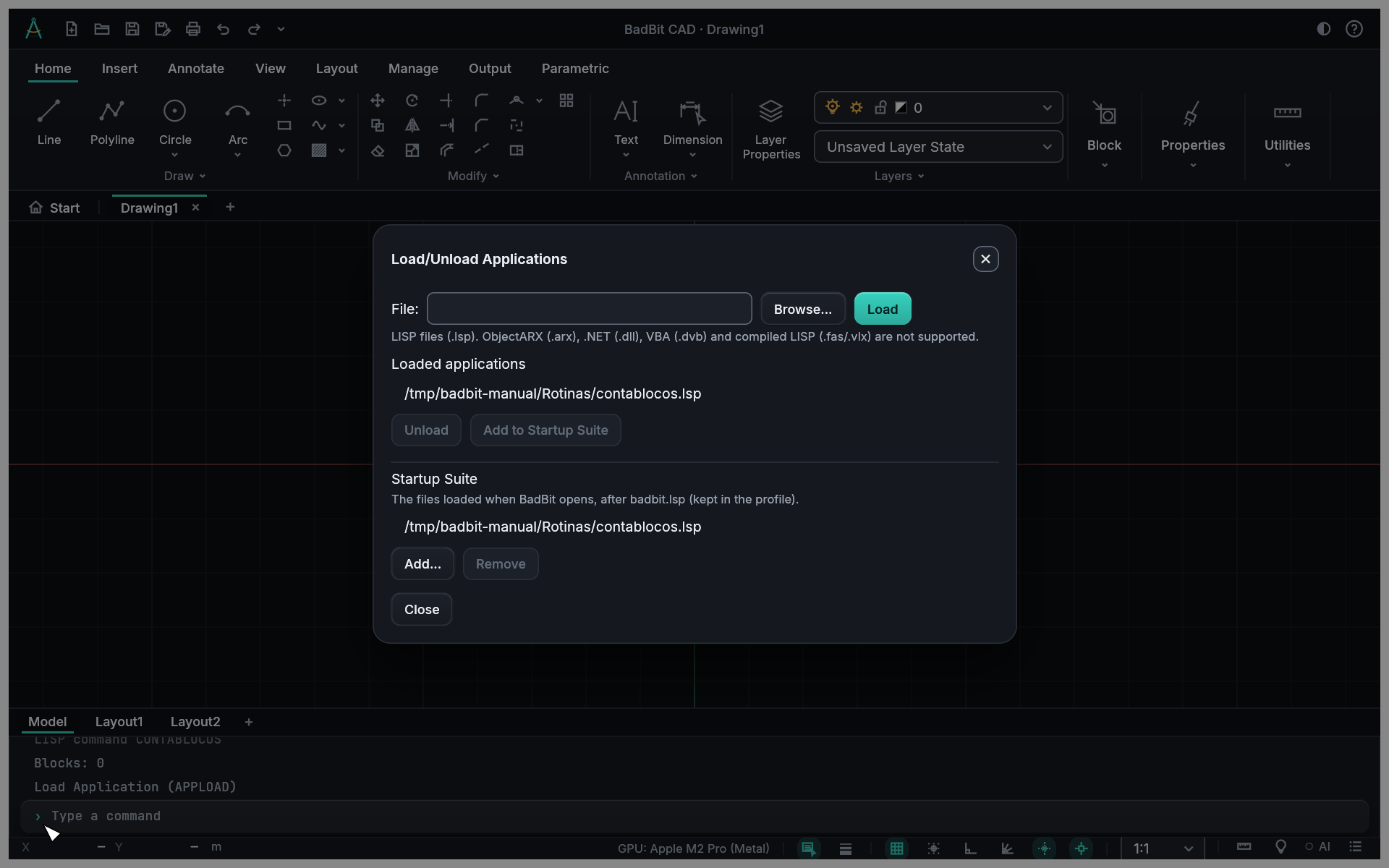
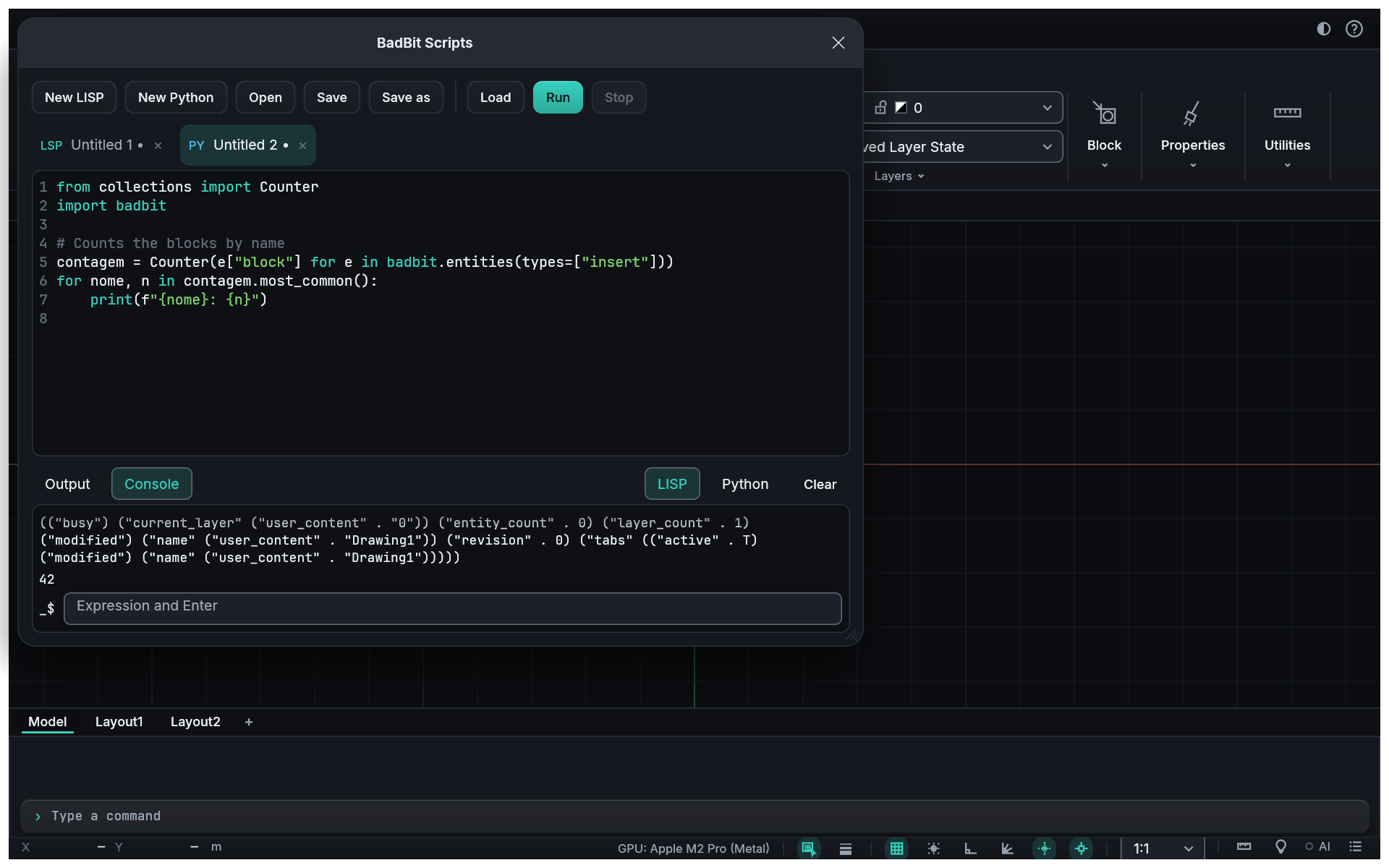
BadBit Scripts: the LISP and Python editor (SCRIPTEDITOR, alias SED)
BadBit Scripts is BadBit CAD's simple editor for LISP routines (.lsp) and Python scripts (.py): open, edit, save, load and run without installing anything. Type SCRIPTEDITOR (or SED) and Enter; the name is the same in the three languages. If you come from AutoCAD and type VLIDE or VLISP, a hint shows the right name (nothing opens under those names). It is not meant to be an IDE: the full editor will be the BadBit extension for VS Code.
Tabs. New LISP and New Python open an empty tab; Open opens a .lsp or .py; Save and Save as write it (a tab with unsaved changes has a dot after the name and, when closing it, the editor asks). The code has line numbers and simple colors for the language words, strings, numbers and comments.
Load and Run. In a .lsp, Load (or Run) sends the file to the LISP session, expression by expression: its functions and c: commands become available. In a .py, Run runs the script in a separate process (a stuck or failing script never freezes BadBit CAD) and Stop (or Esc) ends it; Load runs the file in the Python console, to try its functions. The first time you run Python, BadBit CAD downloads its Python (25 to 37 MB, depending on the system), with a progress bar and a Cancel button; without internet, the message says so.
Output. The Output panel shows what the program prints and the errors, with the line: in a .lsp, the line where the expression starts ("Line 9: ; error: bad argument type"); in a .py, the lines of the Python error. Click the underlined line to go to it in the code.
Console. In the Console panel, choose LISP or Python and type one line at a time, with Enter; the value appears right below. In Python, the badbit package is already imported.
Packages (pip). In the Python console, a line that starts with pip (or %pip, as in IPython) runs pip in a package environment of your own, managed by BadBit CAD, and does not go to Python: pip install numpy, pip uninstall numpy (no prompt), pip list, pip show, pip freeze and pip --version; other subcommands are refused. The first time, the environment is created (a few seconds, no internet needed); after that, scripts and the console import what you installed. pip runs on its own, with its output in the console, and Stop (or Esc) ends it. Packages come from PyPI (or from the index you give, such as --index-url or --no-index --find-links <folder>) and are kept when you move to a new version of BadBit CAD. Installing a package runs third-party code with your account's permissions; no BadBit operation runs pip.
BadBit operations. From LISP, (badbit-call "operation" '(("parameter" . value))) calls any BadBit operation (the same ones AI and Python use), and each call is one undo step. In Python, each operation is a function of the badbit package (badbit.cad.layer.create(name="Walls")), with questions to the person (badbit.getpoint, badbit.ssget) on the command line. Scripts always work, with nothing to turn on: they are your own code, and the AI (MCP) switch in Options is only for AI assistants. The Python and LISP guides and the operations reference are in the BadBit AI and scripts documentation.
Security. The trusted folders and SECURELOAD apply to .py files too: a file outside the trusted folders asks for confirmation (Load once, Always load from this folder, Do not load) before loading or running.
The command line in the terminal (console)
BadBit CAD also has its command line in a terminal, without opening the window: call the program with console (on macOS, "/Applications/BadBit CAD.app/Contents/MacOS/badbit-shell" console; on Windows and Linux, the installed executable with console). You type commands and the answers to the prompts as here, LISP expressions ((+ 1 2), !variable) and, on the lines that start with :, the BadBit operations (:op cad.layer.list), their list (:ops), the description of one (:desc), the session history (:history), pip (:pip install <package>), help (:help) and quitting (:quit). Esc and Enter, or Ctrl+C, cancel the command and interrupt LISP; Ctrl+D quits (anything not saved is lost).
The console opens and saves drawings in any folder, as here: a name without a folder goes to the terminal's current folder, and network and Windows device paths are refused. It needs nothing turned on, because you are the one typing. File dialogs become the file name prompt (SAVEAS asks for the file name). --idioma pt-BR, en or es chooses the language of the prompts. It also reads its input from a file (console < script.txt), to run a sequence of commands without the window. The console guide, in the AI and scripts documentation, has all the details.
Batch from Python, without opening the window. The badbit Python package (pip install badbit, in the Python on your machine) also processes drawings without opening BadBit CAD: badbit.headless() starts the program without a window, the script opens, changes and saves .bbd, DXF and DWG files, and at the end the program closes by itself; badbit.each_drawing(folder) goes through a whole folder, one drawing at a time. The same script runs from the terminal with python -m badbit run script.py --headless. It is your own script: it needs nothing turned on and nothing to accept, opens and saves files where you ask (with absolute paths) and keeps the backup copy before writing over a file. The Python guide, in the AI and scripts documentation, has the examples.