
The interface
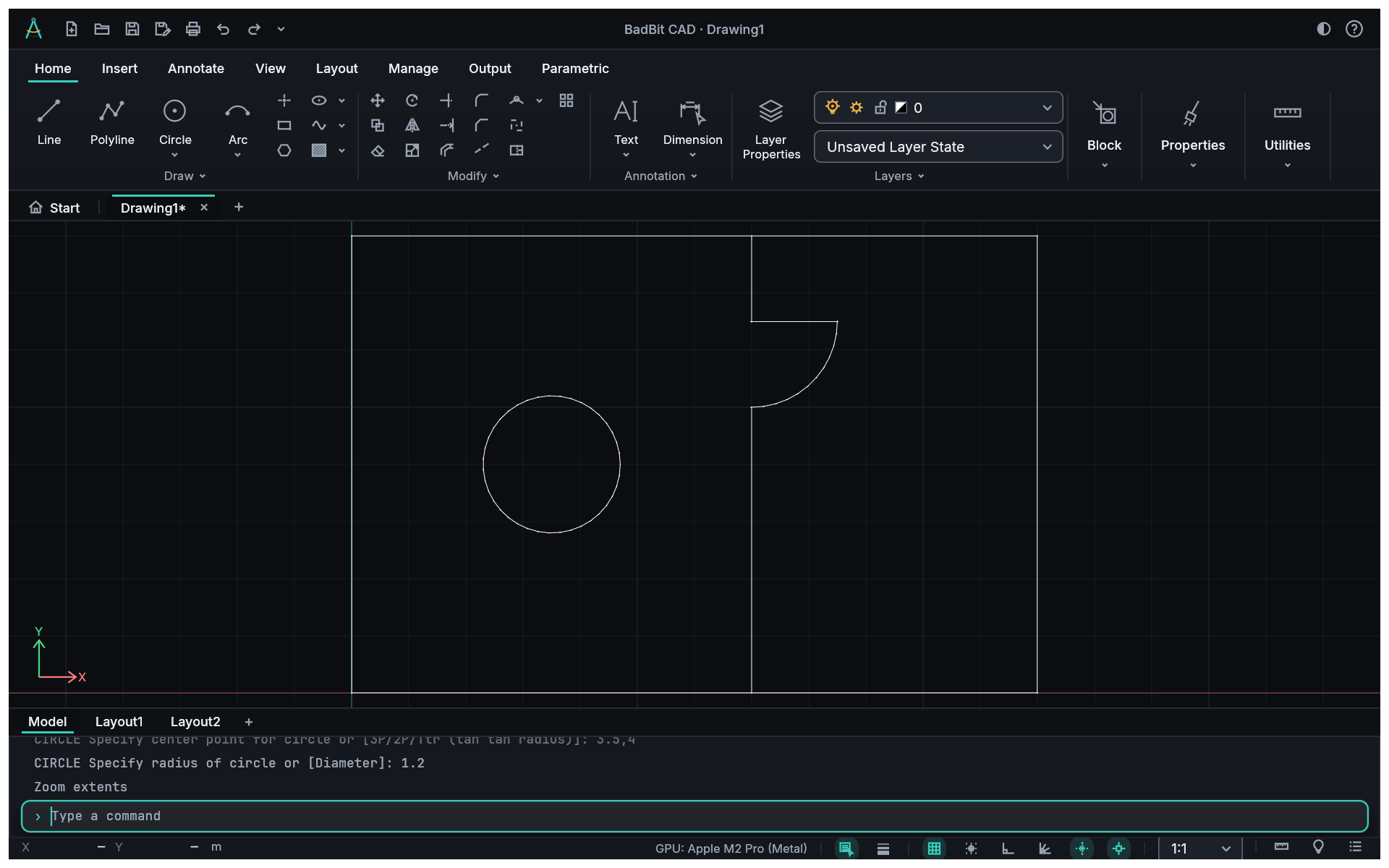
The window follows the AutoCAD layout, from top to bottom: the title bar, the ribbon with the command tabs, the file tabs, the drawing area, the Model and layout tabs (see the chapter Layouts and plotting), the command line, and the status bar.
Title bar

On the left are the BadBit CAD symbol (the compass; BadBit is the name of the whole suite) and the Quick Access Toolbar: new (Ctrl+N), open (Ctrl+O), save (Ctrl+S), save as (Ctrl+Shift+S), undo, and redo (see Files). The drawing name appears in the middle; on the right, the light or dark theme button and, in the corner, the help ? (see Help and About).
Customizing the Quick Access Toolbar
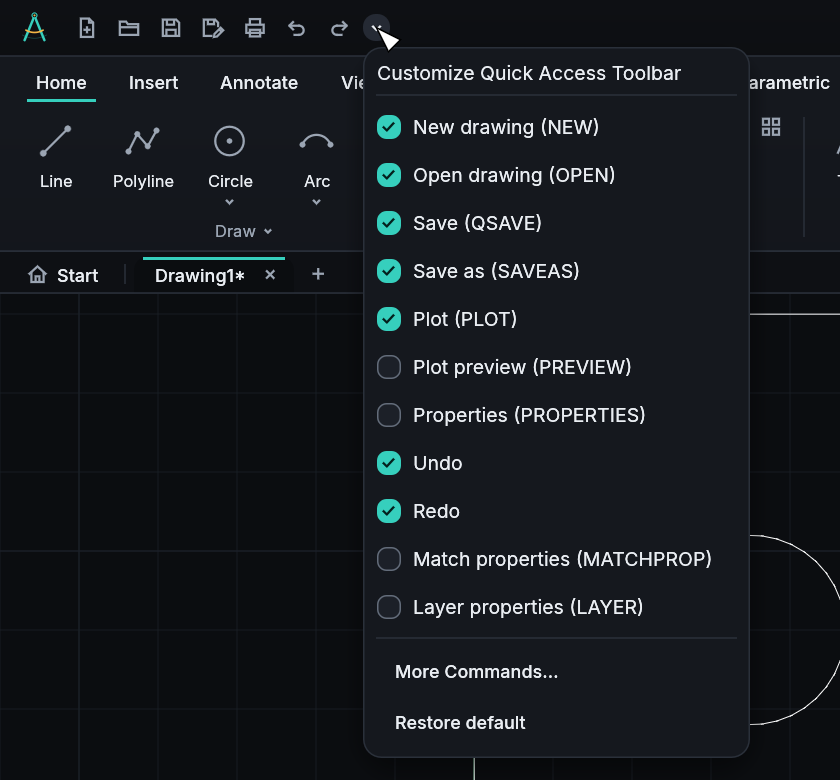
As in AutoCAD, the small arrow at the end of the toolbar opens the Customize Quick Access Toolbar list: check or clear New, Open, Save, Save as, Plot, Plot preview, Properties, Undo, Redo, Match Properties, and Layer Properties. More Commands… opens the list of all commands, with search, to put any of them on the toolbar (a command without an icon appears with its typed name). Restore default goes back to the factory toolbar: New, Open, Save, Save as, Plot, Undo, and Redo.
The toolbar is stored in your profile (Appearance section; see Options and profiles) and goes along when you export or import the profile.
Ribbon

The ribbon groups the commands into tabs and panels, with the same organization as AutoCAD:
| Tab | Panel | Commands |
|---|---|---|
| Home | Draw | Line, Polyline, Circle, Arc, Point, Rectangle, Polygon, Ellipse, Spline; in the expanded panel, Construction Line, Ray, Boundary, Revision Cloud (rectangular, polygonal, and freehand), Donut, Divide, and Measure |
| Home | Modify | Move, Copy, Erase, Rotate, Mirror, Scale, Trim, Extend, Offset, Fillet, Chamfer, Break, Join (with Join Ends in the list), Explode, Stretch, Array; in the expanded panel, Break at Point, Edit Polyline, Edit Spline, Lengthen, Align, and Delete Duplicate Objects |
| Home | Annotation | Text (MTEXT, with TEXT in the list), Dimension (DIM, with Linear, Aligned, Angular, Arc Length, Radius, Diameter, and Ordinate in the list) and, with a wide window, the lists of the current text style (AA icon) and dimension style (dimension icon); in the expanded panel, Text Style, Dimension Style, Continue, Baseline, and Find Text |
| Home | Layers | Layer Properties and the layer list (see Layers) |
| Home | Block | Insert and Create (after Layers, as in AutoCAD: with a narrow window, it becomes a single button before the layer list) |
| Home | Properties | Match Properties (the brush) and the properties palette (Ctrl+1); in the expanded panel, List and Linetype |
| Home | Utilities | Measure (with Distance, Radius, Angle, Area, Volume, and Quick in the list), ID Point, Quick Select, Units, Object snap settings |
| Home | Clipboard | Paste (with Paste as Block and Paste to Original Coordinates in the list), Cut, and Copy Clip (with Copy with Base Point in the list); only with a wide window (a ribbon of 1,400 points or more) |
| View | Navigate | Pan and Zoom (Extents; in the list, Window, Previous, All, Center, Object, and Scale); in the expanded panel, Regen |
| View | Interface | Light or dark theme, Options (user profiles) |
| Layout | Layout | New layout, Page setup, and the LAYOUT options |
| Layout | Layout viewports | Rectangular and Polygonal (MVIEW), Enter viewport (MSPACE), Back to paper (PSPACE); in the expanded panel, VPLAYER |
| Manage | Cleanup | Purge (PURGE) and Delete Duplicate Objects (OVERKILL) |
| Output | Plot | Plot (PLOT), Page setup (PAGESETUP), Preview (PREVIEW) |
| Output | Export | Export PDF (EXPORTPDF), Export (EXPORT), Publish (PUBLISH) |
A panel title with the small arrow (Draw ▾) opens the expanded panel, with the commands that do not fit in the strip, as in AutoCAD. Buttons with the small arrow next to them (Arc, Ellipse, Spline) have a list of forms; the button repeats the last one chosen. In the Measure and Zoom lists, each item starts the command with the chosen option already selected, as in AutoCAD.
In a narrow window, the small buttons show only the icon (the name appears in the tooltip). If space is still short, the panels on the right turn into a single button, with the title and the small arrow: clicking it opens the whole panel right below, as in AutoCAD.

The button of the command in progress (and those of the open palettes, such as Layers and Properties) is highlighted in the accent color while it is active. Hovering the mouse over a button shows the name and the alias (for example, "Line (L)"). If the mouse stays still (a little over a second), the tooltip grows, like AutoCAD's extended tooltip: the name, what you type on the command line, a short explanation of what the tool does and how to use it and, for the drawing and editing commands, an animation of the tool in action, in a loop (the cursor crosshairs, the clicks, and the result). The animation is drawn by BadBit CAD itself, with the theme colors. A click closes the tooltip.
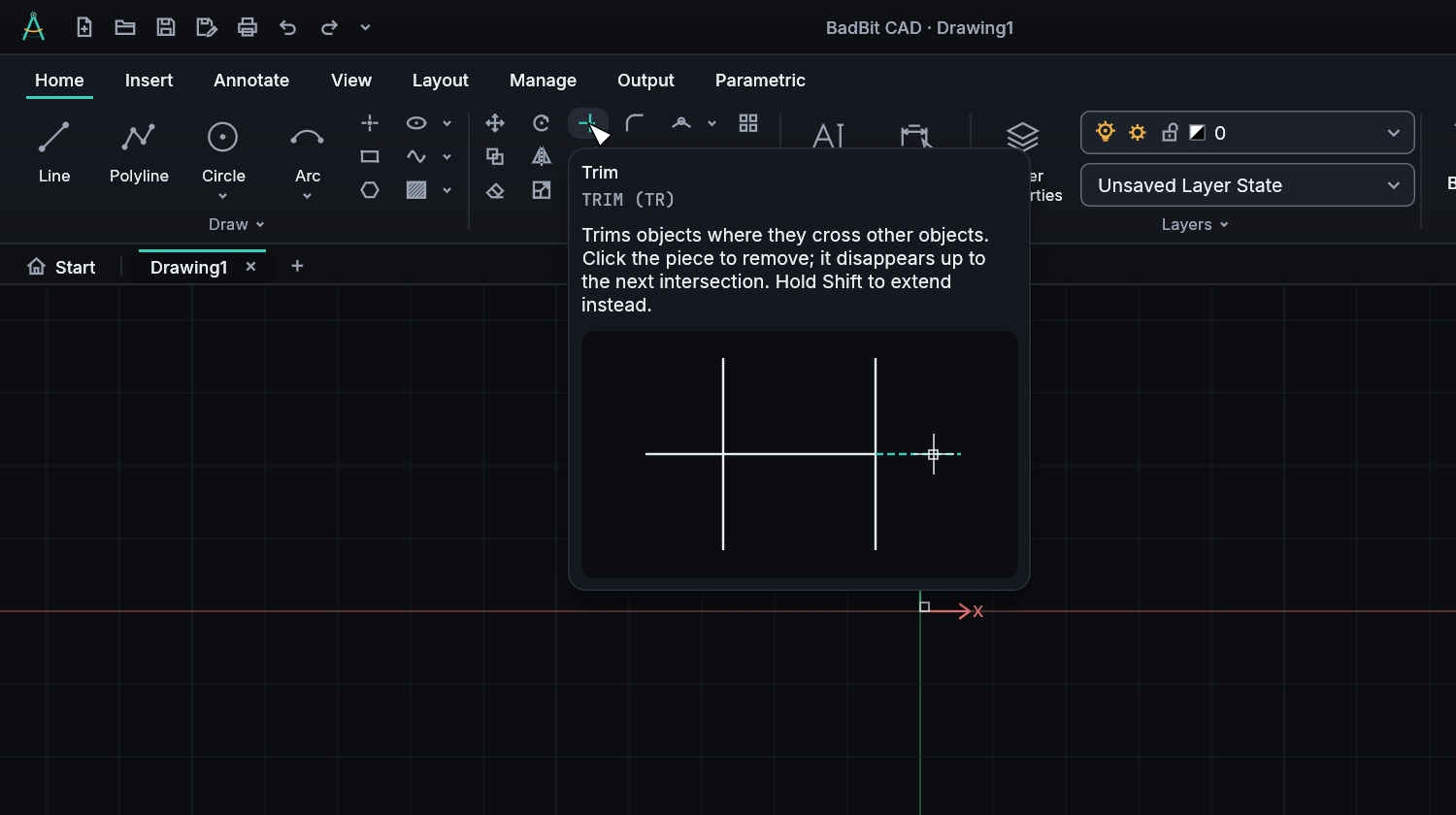
The button runs the same command you type on the command line. The tabs grow along with the new commands.
Options and profiles (OPTIONS, alias OP)
The Options button on the View tab (or OP on the command line) opens the Profiles tab, like AutoCAD's. A profile stores the preferences of the person using BadBit CAD: the variables (those of SETVAR, except the ones AutoCAD stores in the drawing, such as CLAYER and LTSCALE), the command shortcuts, the linetypes, the starting layers, the pen tables, the units, and the theme.
Since 2027.0.0-beta.11
This window, like every window in BadBit CAD, never goes past the visible area: on a short screen (or with the program window made smaller), the title and the buttons at the bottom always stay in view and the middle scrolls inside, with the scroll bar on the right. Dragged by the title, the window does not leave the screen.
Fields too: FIELDDISPLAY (the gray background of fields) and FIELDEVAL (when fields recalculate by themselves) are in the profile's Variables section, come back when BadBit CAD opens, and go along when exporting; the FIELDDISPLAY of an AutoCAD .arg profile is imported too.
The Files part of the window has the font search path (AutoCAD's Support File Search Path, as far as fonts are concerned): the folders in which SHX fonts are searched for, in order. With no folder in the list, the font folders of the AutoCAD and DWG TrueView installed on the computer and their user support folders apply (the window shows which ones it found; on the Mac, the Fonts/shx inside AutoCAD 20xx.app), plus the folder of the open drawing. Add adds the typed folder; Browse… picks the folder in a dialog; Remove removes one; Restore default goes back to the folders of the installations. Right below is the Alternate font (FONTALT): the SHX used in place of a missing one (. for none: BadBit CAD's equivalent is used, of the same size; see AutoCAD SHX fonts in the text chapter). The search path goes in the profile (with the variables) and FONTALT in the Variables section; when importing an AutoCAD .arg profile, its support path (ACAD) becomes the font search path.
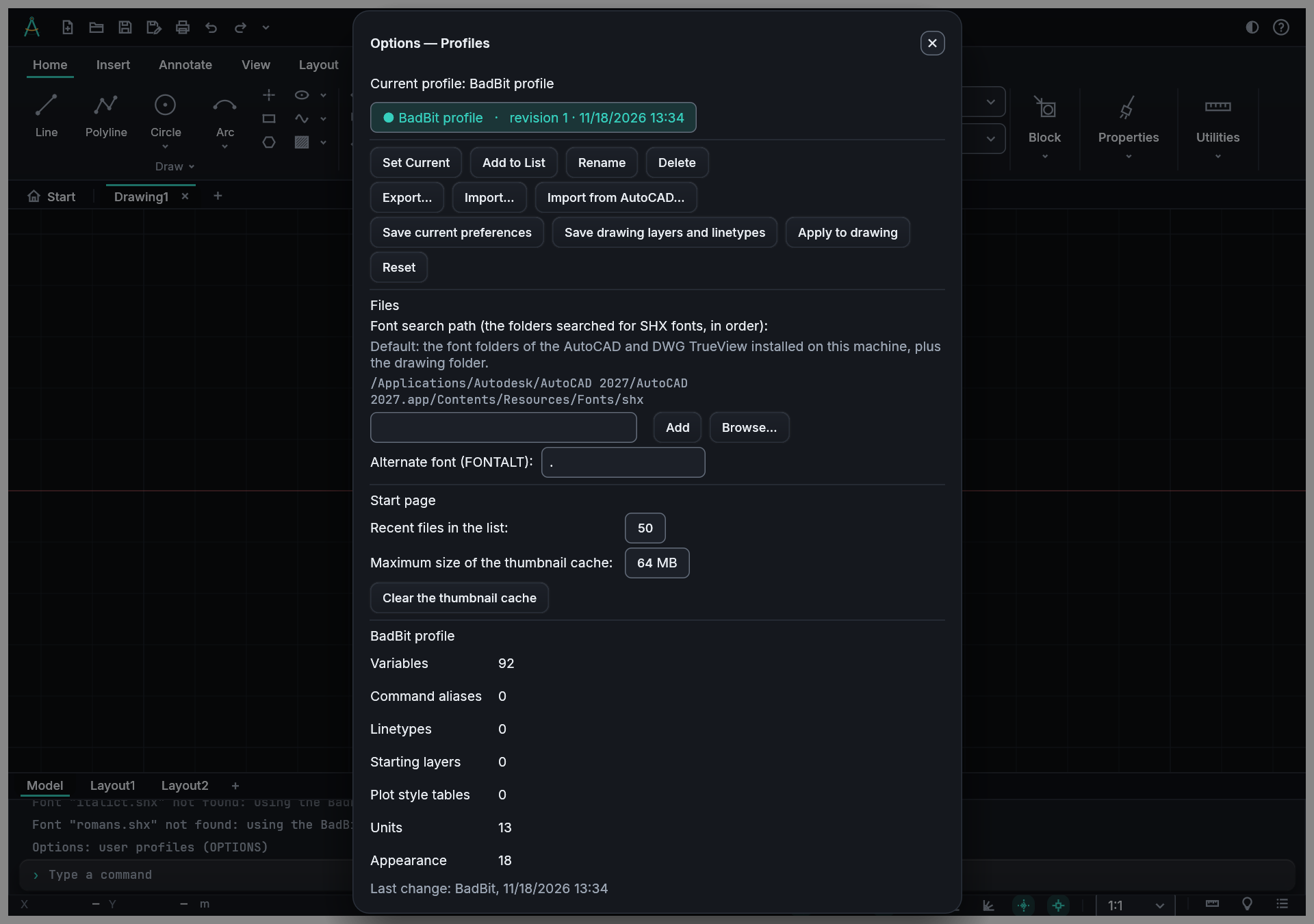
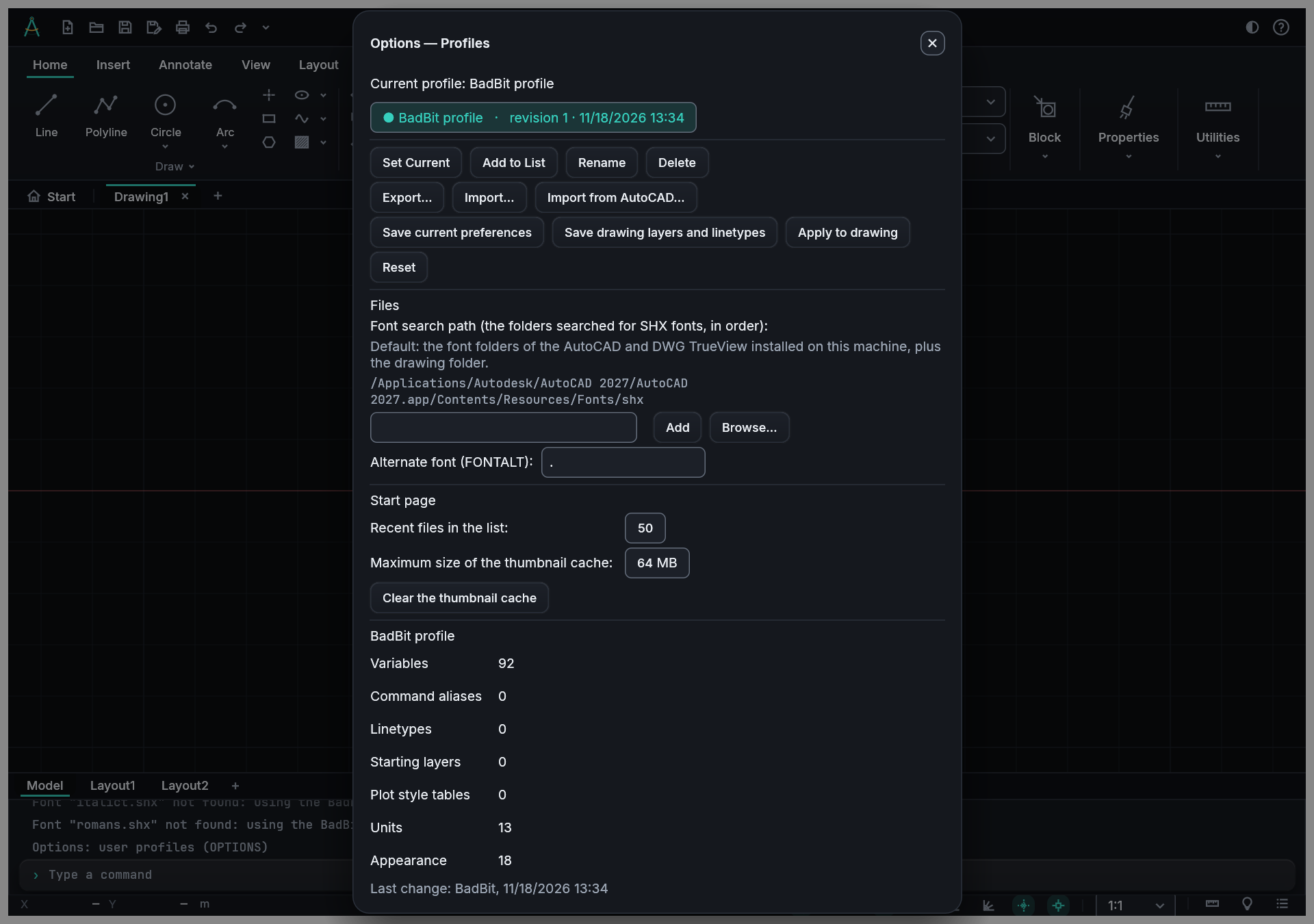
| Button | What it does |
|---|---|
| Set Current | The selected profile takes effect immediately (variables, shortcuts, units, and theme). |
| Add to List | A new profile, a copy of the selected one. |
| Rename and Delete | Changes the name of or deletes the selected profile (the current one cannot be deleted). |
| Export… and Import… | Writes and reads the profile in a .bbd-profile file (readable JSON text), to take it to another machine. |
| Import from AutoCAD… | Reads what you already have in AutoCAD: shortcuts (acad.pgp), linetypes (.lin), pen tables (.ctb by color and .stb by named style), and the exported profile (.arg). |
| Save current preferences | Copies the current variables, units, and theme into the selected profile. |
| Save drawing layers and linetypes | The layers and linetypes of the open drawing become the profile's starting ones. |
| Apply to drawing | Adds to the open drawing the profile's layers and linetypes that are not in it yet (a single undo step). |
| Reset | Returns the selected profile to BadBit CAD's default values, as in a freshly installed program: variables, shortcuts, units, theme, layers, linetypes, and pen tables. It asks for confirmation first, because it cannot be undone. If it is the current profile, the program goes back to the defaults right away (the language stays the same). To keep what it has beforehand, use Export…. |
Importing shows what came in, section by section, with the count of each: clear what you do not want and choose Create new profile or Merge into selected profile (what comes in takes precedence, and lists are merged by name). Whatever BadBit CAD did not use appears under Not used, never silently disappearing (for example, the external commands of acad.pgp).
The current profile saves the variables, units, and theme by itself when BadBit CAD closes, and each new drawing starts with its starting layers and linetypes. Profiles are kept in the system's configuration folder (in Application Support on macOS, in %APPDATA% on Windows, and in ~/.config on Linux). The pen tables are kept for plotting.
File tabs
Right below the ribbon are the tabs of the open drawings, as in AutoCAD: one tab per drawing, with the file name (or Drawing1, Drawing2... while it has no name). A * after the name indicates unsaved changes.
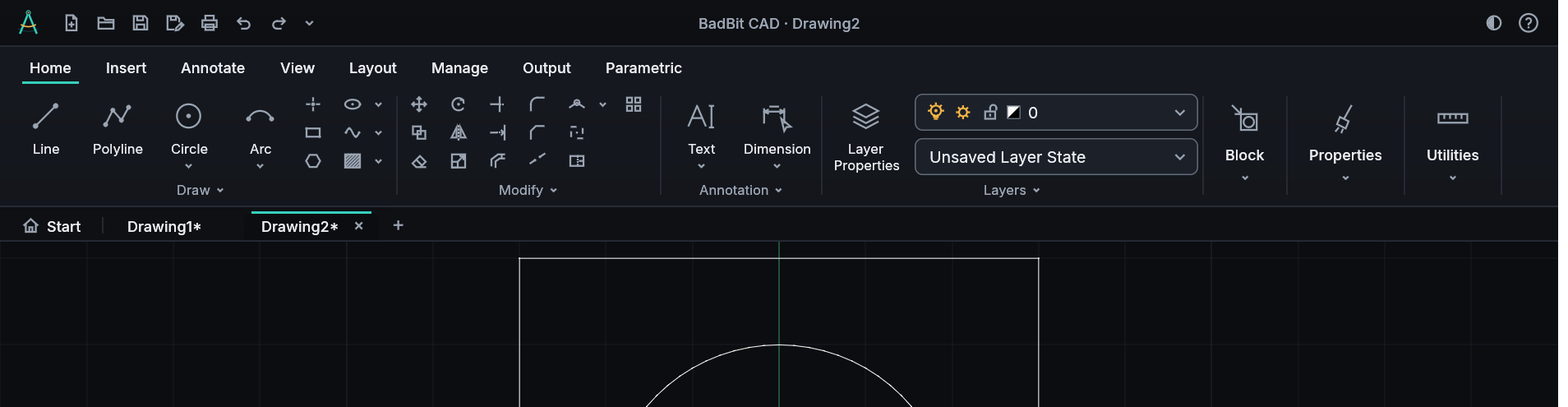
× to close, and the + for a new drawing.- NEW (Ctrl+N, the New button, or the
+at the end of the bar) opens a new tab with an empty drawing, already with the profile's starting layers and linetypes. The previous drawing stays open in its tab. - OPEN (Ctrl+O) also goes to a new tab. If the current tab is the empty drawing from the start, with nothing done, the file opens in it. A file that is already open does not open again: BadBit CAD just goes to its tab.
- Switching tabs: click the tab, or Ctrl+Tab (the next one) and Ctrl+Shift+Tab (the previous one). Each tab keeps its own undo, selection, zoom, and automatic save. A half-finished command is canceled when you switch tabs.
- Closing a tab: the
×(it appears on the active tab and on the one under the mouse) or the CLOSE command. With unsaved changes, it asks whether to save first. When you close the last tab, BadBit CAD goes back to the Start tab (see below); with STARTMODE 0, an empty drawing remains. - Closing BadBit CAD asks about each tab with changes, one at a time: BadBit CAD goes to the tab and asks. No discards only that tab and moves on to the next; Cancel stops everything.
Start screen (Start tab)
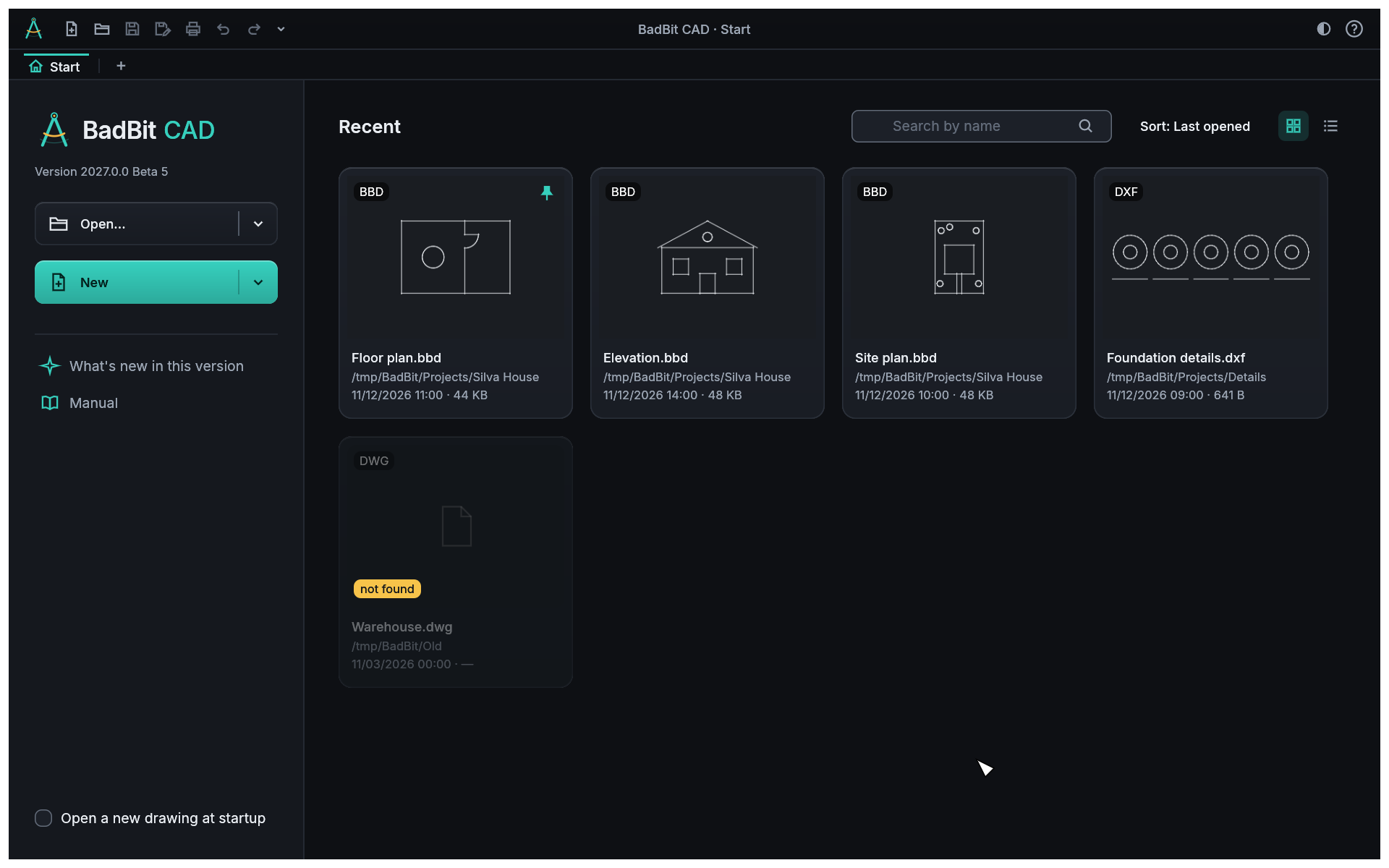
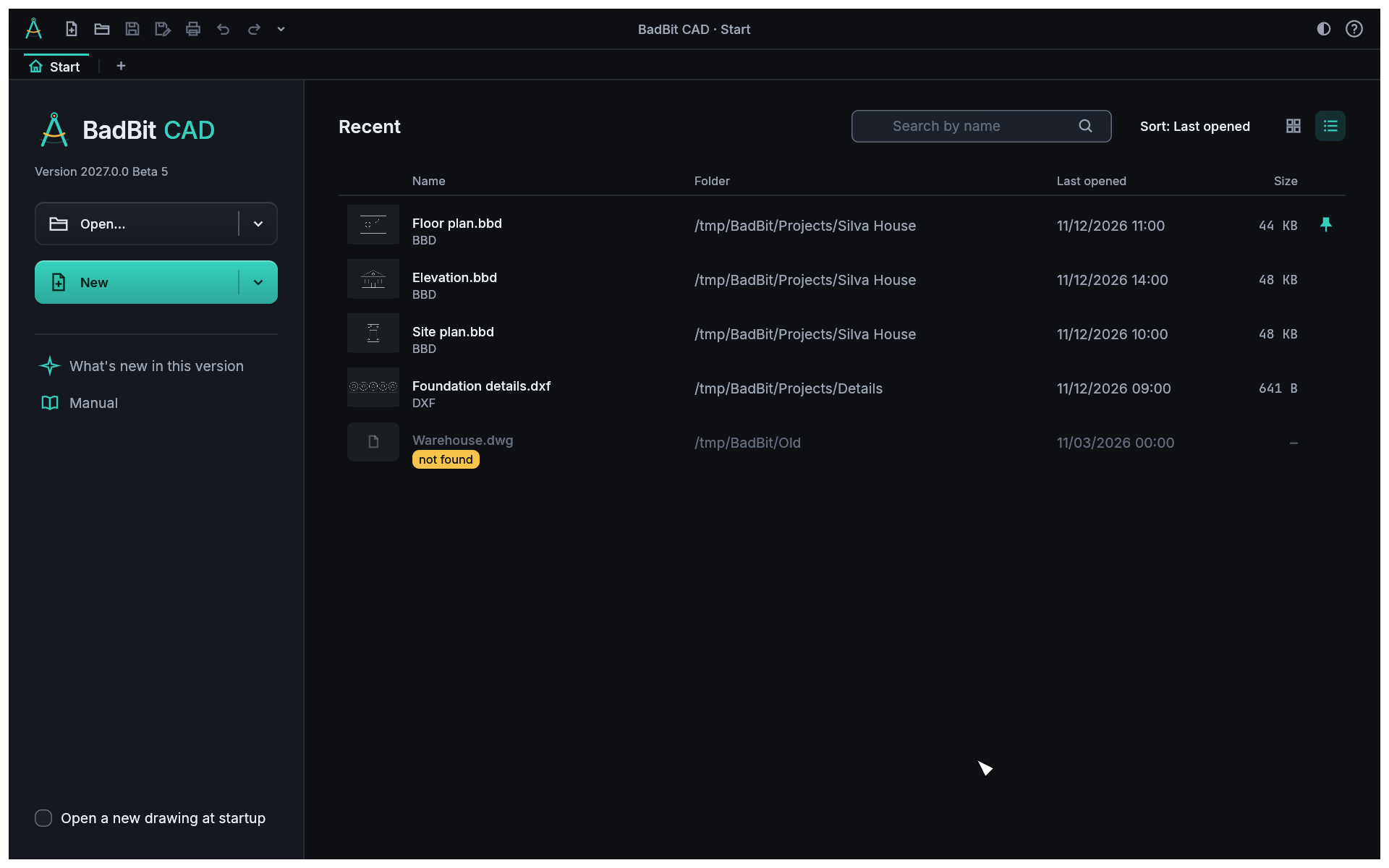
At the top of the left column are the BadBit CAD signature (the symbol and the name) and the version. Like AutoCAD's Start tab, the Start tab is the first one in the tab bar, fixed (without the ×), with the little house. It is what appears when BadBit CAD opens, in place of the empty drawing. The tab has no drawing: the ribbon, the command line, the Model and layout tabs, and the status bar go away, and only the file commands work (Ctrl+N, Ctrl+O, and the New and Open buttons on the Quick Access Toolbar). As in AutoCAD, the Quick Access Toolbar buttons that need a drawing (Save, Save as, Plot, Undo, Redo...) are disabled while the Start tab is in front; the small arrow that customizes the toolbar still works. The open drawings stay in their tabs.
- Going back to the Start tab: click it, Ctrl+Home, or the GOTOSTART command. A half-finished command in the drawing is canceled, as when switching tabs. On the Start tab, Ctrl+Tab goes back to the previous drawing; among the drawings, Ctrl+Tab still cycles only among them.
- STARTMODE: 1 (the default) shows the tab; 0 hides it, and GOTOSTART only reports that it is turned off. The variable is stored in your profile.
- Open a new drawing at startup: the box at the foot of the left column makes BadBit CAD open straight into a Drawing1, as before; the Start tab stays in the bar. The choice is stored in the profile.
Open and New
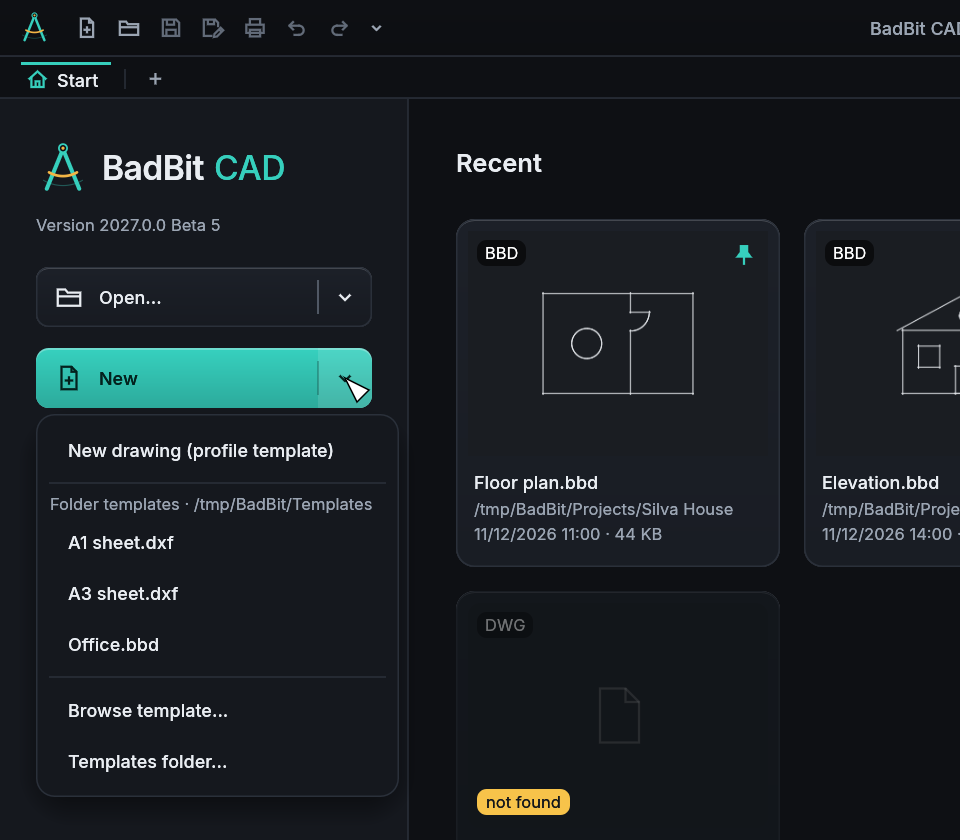
The left column has the two buttons with the small arrow next to them:
- Open... opens the file dialog (DWG, DXF, and
.bbd). The small arrow shows Open file... and the recent folders (the folders of the files in the list): choosing one opens the dialog already in it. - New opens a new drawing with the profile's starting layers and linetypes, like Ctrl+N. The small arrow shows the templates: the profile's, the DWT, DWG, DXF, and
.bbdfiles of the templates folder (the default is Documents/BadBit/Templates, named Modelos with the interface in Portuguese and Plantillas in Spanish; after a language change the folder that already exists is kept; Templates folder... picks another one, which is stored in the profile), and Browse template..., for a file from anywhere. The drawing that comes from a template is new and unnamed (Drawing2, Drawing3...): the template is not changed on save.
At the bottom are the links What's new in this version (a window with what changed) and Manual (this PDF manual, in the system's reader). The manual does not come inside the installer (the PDF is larger than the program itself): the first time, Manual downloads the one for the installed version, with the notice Downloading the manual... at the bottom, and opens it when it finishes; from the second time on it opens the copy stored on the computer, also without internet (see Help, just below).
Recent
In the center are the files opened and saved most recently (DWG, DXF, and .bbd), from newest to oldest. Each one shows the name, the folder, the date it was last opened, and the size; the badge in the corner of the thumbnail tells the type.
- Open: double-click the file. A file that is already open does not open again: BadBit CAD goes to its tab.
- Grid or list: the two buttons next to the search switch between the cards with the thumbnail and the rows with the columns (name, folder, last opened, and size).
- Sort: by last opened, by name, or by size.
- Search: the field filters by file name, ignoring case and accents ("fundacao" finds "Fundação.dwg").
- Pin: the pin in the corner of the card (or at the end of the row) pins the file to the top of the list, in any sort order; another click unpins it.
- Right-click: Open, Open folder (shows the file in the Finder, in Explorer, or in the file manager), Remove from list, and Pin (or Unpin).
- File that disappeared: a deleted or moved file appears dimmed, with the not found badge; double-clicking only shows a notice. Remove it with Remove from list.
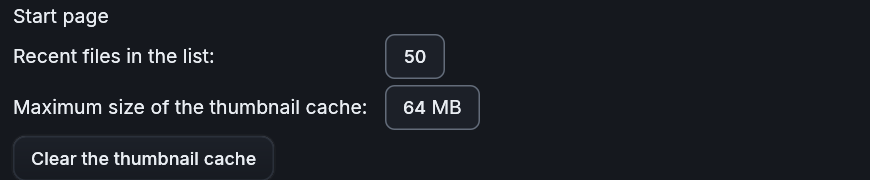
The list is stored in your profile (Appearance section), with up to 50 files; the maximum (from 1 to 500) is changed in the Options window (OPTIONS), Start page part, Recent files in the list field (like AutoCAD's "Number of recently-used files"). Lowering the number removes the oldest ones from the list immediately (pinned ones go last). The list is updated each time a file is opened and each time it is saved.
Thumbnails
- A
.bbdgets the thumbnail inside it each time it is saved, drawn by the CPU in a thread (the screen does not stop). As in AutoCAD, the thumbnail shows the current view: the model the way it is on the screen (with the current zoom and pan) or, with a layout on the screen, that layout's sheet with the viewports. For the thumbnail to show the whole drawing, do a zoom extents (Z, E) before saving. - A DWG shows the preview that AutoCAD writes into the file (BMP up to 2010, PNG from 2013 on; in old DWG files that only carry the preview in WMF, the Windows metafile, BadBit CAD draws it with its own interpreter: polylines, polygons, rectangles, ellipses, arcs, and the images inside it); a DXF, the THUMBNAILIMAGE section, both in text DXF and in binary DXF. DWG and DXF files saved by BadBit CAD also carry the thumbnail (drawn by the CPU at save time, in the same format as AutoCAD): it appears here, in AutoCAD's Open dialog, and in Windows File Explorer.
- With no thumbnail in the file (a DWG written by another program, a DXF without the section, an old
.bbd), BadBit CAD opens the file in a thread, draws the thumbnail, and keeps it in a cache on your computer (the system's cache folder, up to 64 MB; the oldest ones go first). Files over 200 MB get only the placeholder. - In the Options window, Start page part: Maximum size of the thumbnail cache (from 1 to 4096 MB; lowering the limit trims the cache immediately, in a thread) and Clear the thumbnail cache (deletes the stored thumbnails; they are read or drawn again when the Start tab appears). Both choices are stored in the profile.
- While the thumbnail has not arrived, the card shows the placeholder (the sheet); with many files, the thumbnails arrive one by one, without freezing the screen. With everything loaded and the mouse still, the Start tab requests no frames, like the rest of BadBit CAD.
- In the browser, the Start tab has only New and Open (with no disk, there are no recent files).
AI (MCP)
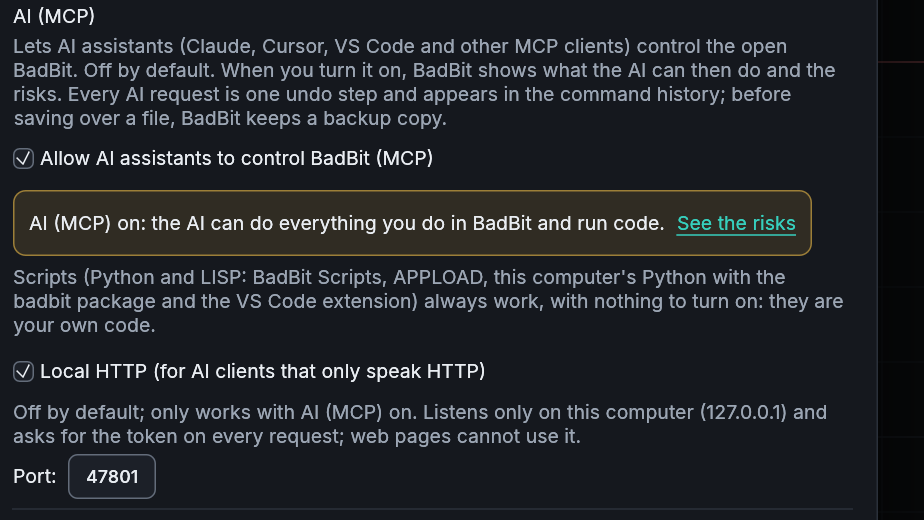
AI assistants (such as Claude, Cursor and VS Code) can control BadBit CAD over MCP: drawing, querying and changing objects and layers, running any command with the answers to its questions, changing the view and taking an image of it, opening, saving, exporting and closing files (a drawing with changes only closes when the assistant says to save it first or to discard, and never while a question of yours is open on screen), printing and running code. AI comes turned off: it only works after you turn it on, in the Options window, part AI (MCP), or with the AI button of the status bar.
- Allow AI assistants to control BadBit (MCP): turns it on and off. Turning it on shows the risk notice first (below); turning it off disconnects whoever is connected right away.
- Local HTTP (for AI clients that only speak HTTP): off by default, and only works with AI (MCP) on. When on, BadBit CAD serves the assistants that only connect over HTTP at
http://127.0.0.1:<port>/mcp, on this computer only; the default Port is 47801. While it is open, the Address appears with the Copy token button (the client sends the token in theAuthorization: Bearerheader) and Generate another token (the old one stops working at once). Web pages cannot use the local HTTP, and every request without the token is refused. The MCP guide, in the AI and scripts documentation, shows how to configure the client.
Scripts do not depend on this switch: BadBit Scripts, APPLOAD, LISP, the Python on this computer with the badbit package, the VS Code extension and the console always work, with nothing to turn on, because they are your own code (see the chapter Entering points and answering commands). Connected scripts do not show on the status bar.
The risk notice
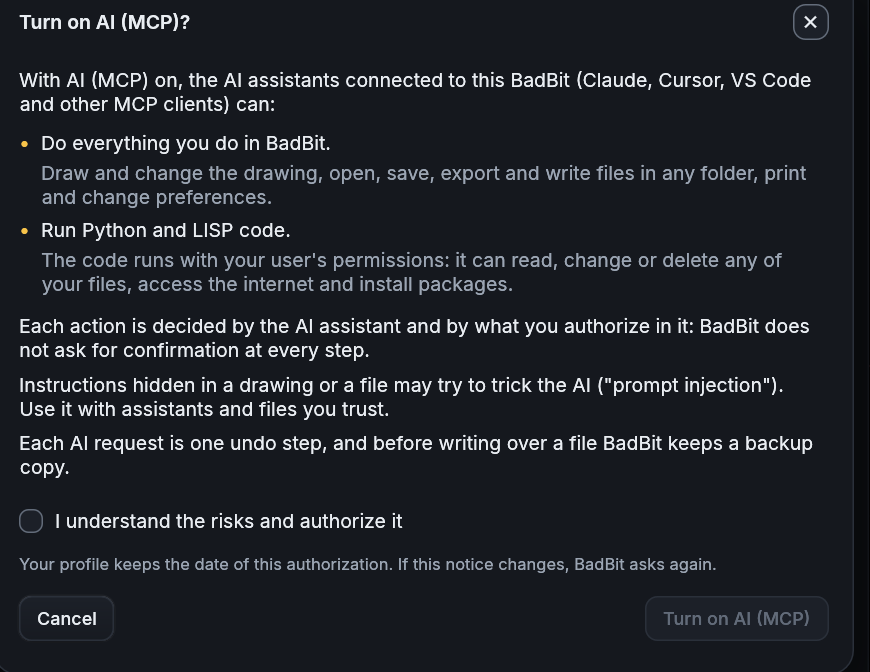
Turning on AI (MCP) opens the Turn on AI (MCP)? window, which lists what the connected AI assistants can then do:
- Do everything you do in BadBit: draw and change the drawing, open, save, export and write files in any folder, print and change preferences.
- Run Python and LISP code: the code runs with your user's permissions and can read, change or delete any of your files, access the internet and install packages.
And the caveats: each action is decided by the AI assistant and by what you authorize in it (BadBit does not ask for confirmation at every step); instructions hidden in a drawing or a file may try to trick the AI (prompt injection), so use it with assistants and files you trust; and each AI request is one undo step, with the backup copy before writing over a file.
The Turn on AI (MCP) button only works after you tick I understand the risks and authorize it; Cancel (or Esc) leaves AI off. Your profile keeps the date and the notice version: if the notice changes, BadBit asks again. With AI on, the AI (MCP) part always shows the banner "AI (MCP) on: the AI can do everything you do in BadBit and run code.", with the See the risks link (which reopens the list, with the Turn off AI (MCP) button), and the AI button of the status bar turns to the warning color. A profile without this consent (from an earlier version or edited by hand) comes in with AI (MCP) off.
When it is off, an assistant that tries to use the open BadBit gets, on every request, the message asking to turn on AI (MCP) here; as soon as you turn it on, the next request works, without restarting the assistant.
Without a window (BadBit from the terminal or from the Claude Desktop package), there is no window for the notice, so the consent is explicit in the configuration: in the Claude Desktop package, the required box I understand the risks and authorize it; in the terminal, --aceito-ia with the notice version. Without it, BadBit does not start and says why; when it starts, it writes a short notice with these powers to the client's log. The MCP guide, in the AI and scripts documentation, explains each case.
BadBit does not interrupt the assistant with questions: each action is decided by your AI client (which usually asks for your permission). Before the first time the AI saves over a file in each connection, BadBit silently keeps a backup copy next to it (name.ia-backup-YYYYMMDD-HHMMSS.bbd). The AI cannot change its own switch: this part of Options (the switch, the local HTTP and the token) only changes here, by you. Network and Windows device paths are not read or written by the AI's requests, and commands that would open the file window do not run through them (the AI uses the file operations). With no assistant connected, none of this changes your work.
Each request from an assistant becomes a single undo step, with the name of its origin (for example "AI: cad.entity.create"): U takes back everything that request did. The command line shows who connected and who disconnected. The choices are kept in your profile (importing a profile from another computer does not turn AI on). Only programs of your user, on your machine, can connect: the channel is local and asks for a new key every time BadBit CAD opens.
If you close BadBit CAD with an assistant connected and open it again (with AI (MCP) on), the assistant comes back by itself on its next request; the requests that were in progress get the notice that the program closed. The click that disconnects, on the other hand, holds until you restart the MCP server in the assistant, even with BadBit reopened. A batch from the assistant that fails leaves nothing behind, not even the system variables it changed (such as LTSCALE).
Since 2027.0.0-beta.11
Watching the AI draw. With BadBit CAD open, the assistant draws in short stages you follow on screen (for example: layers and walls, then doors and windows, then dimensions and hatches), saying before each one what it is going to do. Each stage shows up little by little, as its steps are applied, and is one undo step. Between one stage and the next the assistant reads what you wrote, so you can ask or correct things along the way. If you start a command while a stage is being drawn, the stage waits for your command to finish; what you draw in the meantime goes into the same undo step as the stage. Without a window (from the terminal, or the package without BadBit open), the assistant still sends the whole project at once.

Connect to an assistant
Since 2027.0.0-beta.11
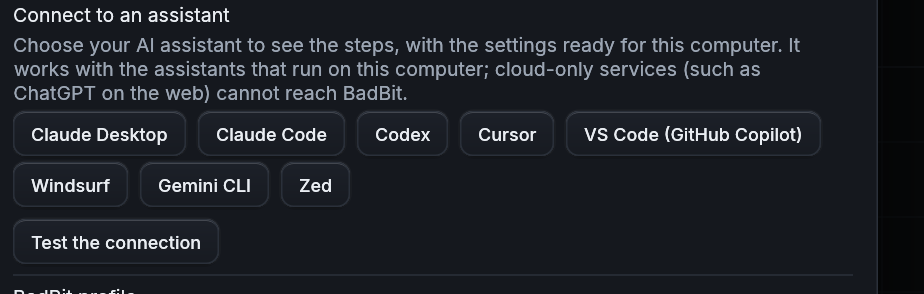
Below the AI (MCP) switch there is Connect to an assistant, with a button for each AI assistant that runs on the computer: Claude Desktop, Claude Code, Codex, Cursor, VS Code (GitHub Copilot), Windsurf, Gemini CLI and Zed. The button opens the Connect to (assistant name) window, with:
- the short steps (what to do and how to tell it connected);
- the settings ready for this computer, with the path of the installed BadBit CAD (the snippet that goes in the assistant's file or, for Claude Code, the terminal command) and the file where it goes;
- Copy: copies all the settings;
- Set up automatically: BadBit tells you which file it will change and asks first; when you confirm, it keeps a copy of the file next to it (
<file>.badbit-backup-YYYYMMDD-HHMMSS) and adds only thebadbitserver (the other servers and settings in the file stay as they are; a file it cannot read is not touched). For Claude Code, BadBit runs theclaude mcp addcommand for you.
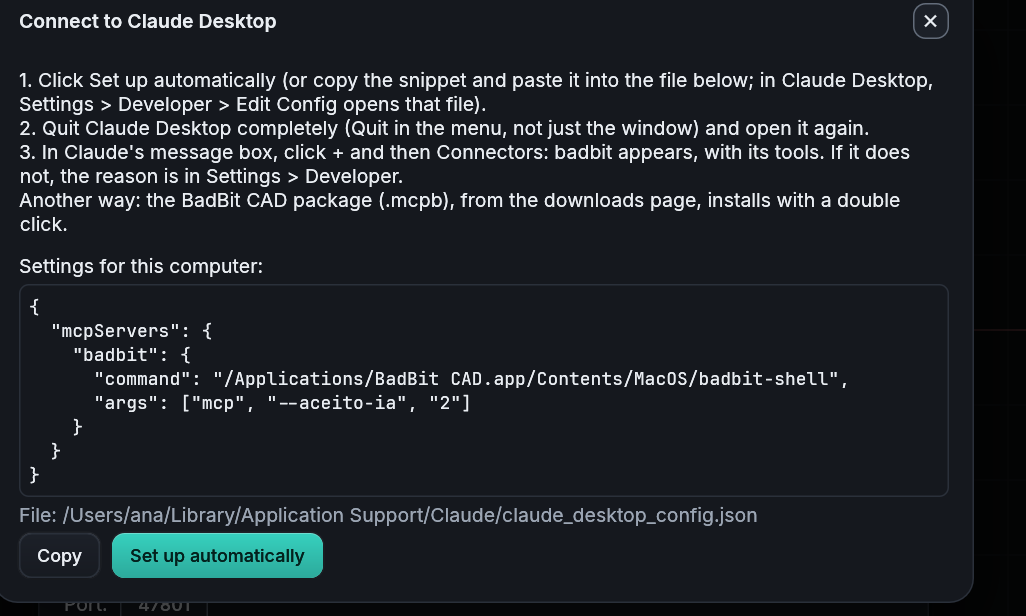
The settings carry your acceptance of the risks (with BadBit closed, the assistant opens it without a window), so they only appear with AI (MCP) on; when it is off, the window shows the Turn on AI (MCP)… button. Cloud-only services (such as ChatGPT on the web) cannot reach BadBit, which only answers on this computer.
Since 2027.0.0-beta.11
Test the connection checks the BadBit side: it tells you whether the local channel is answering, whether AI (MCP) is on, which assistant connected last (with the name it gave) and the local HTTP address, if on. The guide "Connecting your AI assistant to BadBit", in the AI and scripts documentation, has the manual steps for each assistant, on each system, and the common problems.
Drawing area
This is where the drawing appears. The cursor changes with what the command asks for, as in AutoCAD:
| Situation | Cursor |
|---|---|
| No command | The crosshairs with the pickbox in the center |
| The command asks for a point (LINE, CIRCLE, the hot grip...) | Only the crosshairs, closed at the point |
| The command asks for objects (Select objects, the object to trim...) | Only the pickbox |
The size of the crosshairs follows the CURSORSIZE variable (default: 5% of the screen) and that of the box, PICKBOX. In the lower-left corner is the icon of the X (red) and Y (green) axes.
Command line

The command line occupies the bottom strip, across the full width. Above the input are the last three lines of the history (prompts and answers); F2 expands the history. While a command runs, its prompt appears before what you type, with the command name: "LINE Specify first point:".
You do not need to click the command line: what you type over the drawing goes straight to it, as in AutoCAD. As you type, command suggestions appear; the arrows choose and Enter runs.
Status bar

On the left, the cursor coordinates in the project unit and, with objects selected, how many there are. On the right, the drawing modes as icons, in AutoCAD's order:
| Icon | Mode | Key |
|---|---|---|
| Grid | Reference grid | F7 |
| Snap mode | The cursor moves from grid point to grid point (SNAP) | F9 |
| Ortho | Horizontal and vertical only | F8 |
| Polar | Polar tracking | F10 |
| Tracking | Object snap tracking (OTRACK) | F11 |
| Object snap | Snaps (OSNAP) | F3 |
| Lineweight | Shows or hides lineweights (LWDISPLAY) | — |
| Quick Properties | The small properties window for the selection (QPMODE) | Ctrl+Shift+P |
| Annotation scale | The CANNOSCALE list (1:1, 1:50, 1:100...), the scale of annotative objects | — |
| Units | Opens the units window | — |
| Isolate objects | The light bulb: lit with objects hidden by ISOLATEOBJECTS or HIDEOBJECTS; clicking it opens the menu Isolate Objects, Hide Objects, and End Object Isolation (see Isolating and hiding objects, in the selection chapter) | — |
| AI | Turns AI (MCP), the control by AI assistants, on or off (see AI (MCP), above); turning it on shows the risk notice first, and when on the button is in the warning color. With an assistant connected, "AI connected (name given by the client): Name" appears on its left (the name is the one the assistant itself gives; when it only sends its technical name, known ones show with their display name, such as "claude-ai", which becomes Claude Desktop), and the command line reports the connection with the same name; clicking it disconnects. Scripts do not show here | — |
A mode that is on appears highlighted. Right-clicking the object snap icon opens the Object snap tab of the Drafting settings; on the polar icon, the Polar tracking tab; on the lineweight icon, the Lineweight settings (LWEIGHT). Hovering the mouse over the GPU name shows the zoom, how many lines are on the screen, and the time of each frame.
Customizing the status bar: memory per tab
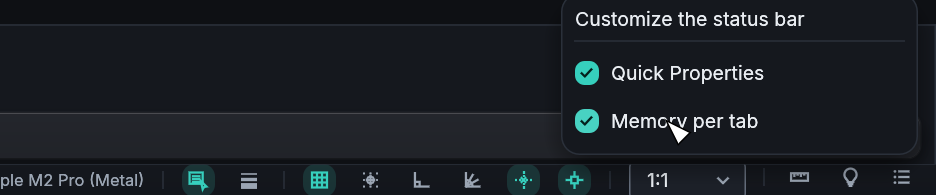
The button in the right corner of the status bar (the one with the lines, like AutoCAD's "Customization") opens the list of items that can be put on the bar. For now, Memory per tab, which comes turned off. When checked, the bar shows, to the left of the GPU name, how much the drawing of the active tab and the whole app take up, for example Drawing: 96 MB · App: 182 MB. The drawing value changes when you switch tabs. The choice is stored in the user profile (Appearance section) and goes along when exporting the profile.
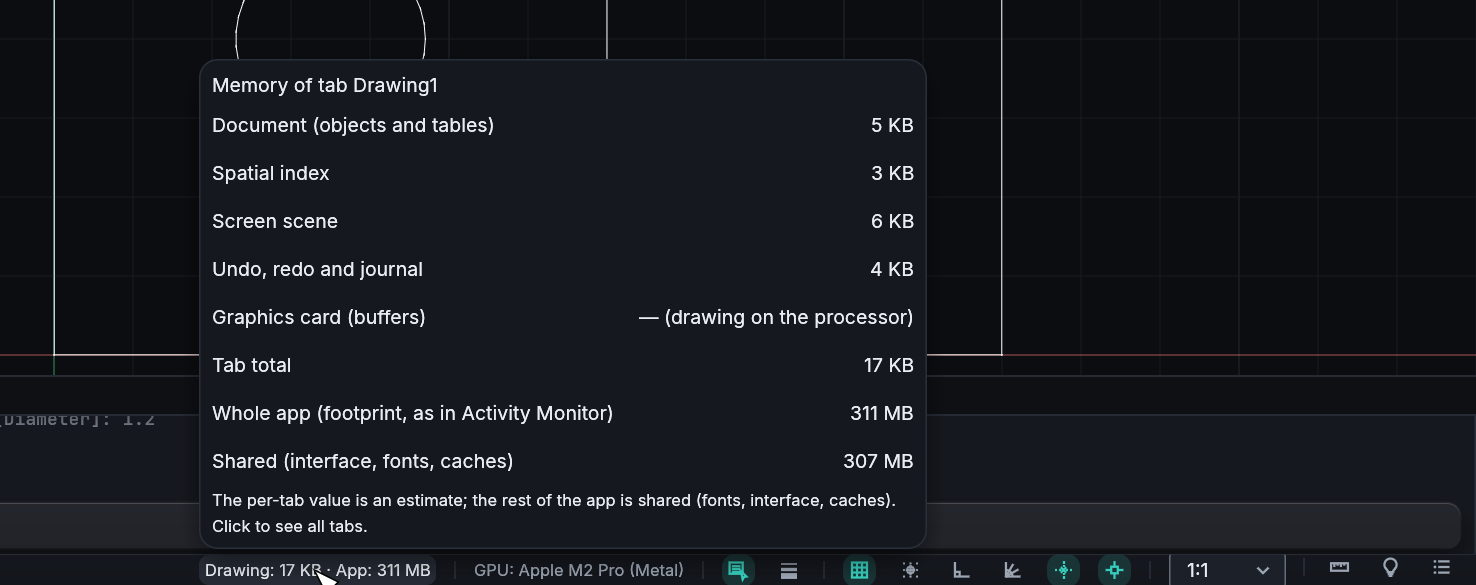
Hovering the mouse over the item shows the details of the active tab: the document (objects, layers, blocks, and styles), the spatial index, the screen scene, the undo and redo with the recovery journal, the graphics card buffers (when the drawing goes through the GPU), and the tab total. It also shows the whole app, as the system counts it (on macOS, the same number as Activity Monitor; on Windows, Task Manager's working set; on Linux, the resident memory), and the shared part: what belongs to no tab (the interface, the fonts, the caches, and the program itself). The per-tab value is an estimate made from the drawing's content; the app's is the system's. In the browser, only the drawing appears.
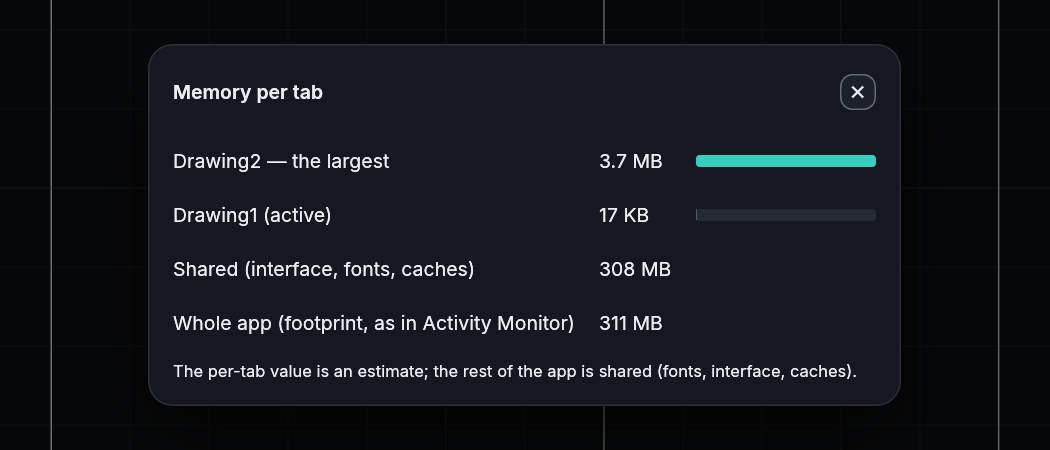
Clicking the item opens the Memory per tab window: all open tabs, from the one that takes up the most to the one that takes up the least, with a proportional bar; the first one is marked as "the largest" and the active one as "(active)". At the bottom, the shared part and the whole app. An idle tab has no screen scene (it is rebuilt when you go back to the tab), which is why it takes up less than the same tab when active.
The meter only works with the item turned on and measures at most every 2 seconds, taking advantage of the frames the screen was going to draw anyway: with the app idle, the number stays as it was and the app keeps sleeping (moving the mouse updates it). The size of each drawing is measured once and then follows each command, undo, and redo, without going through the drawing again.
Light and dark themes
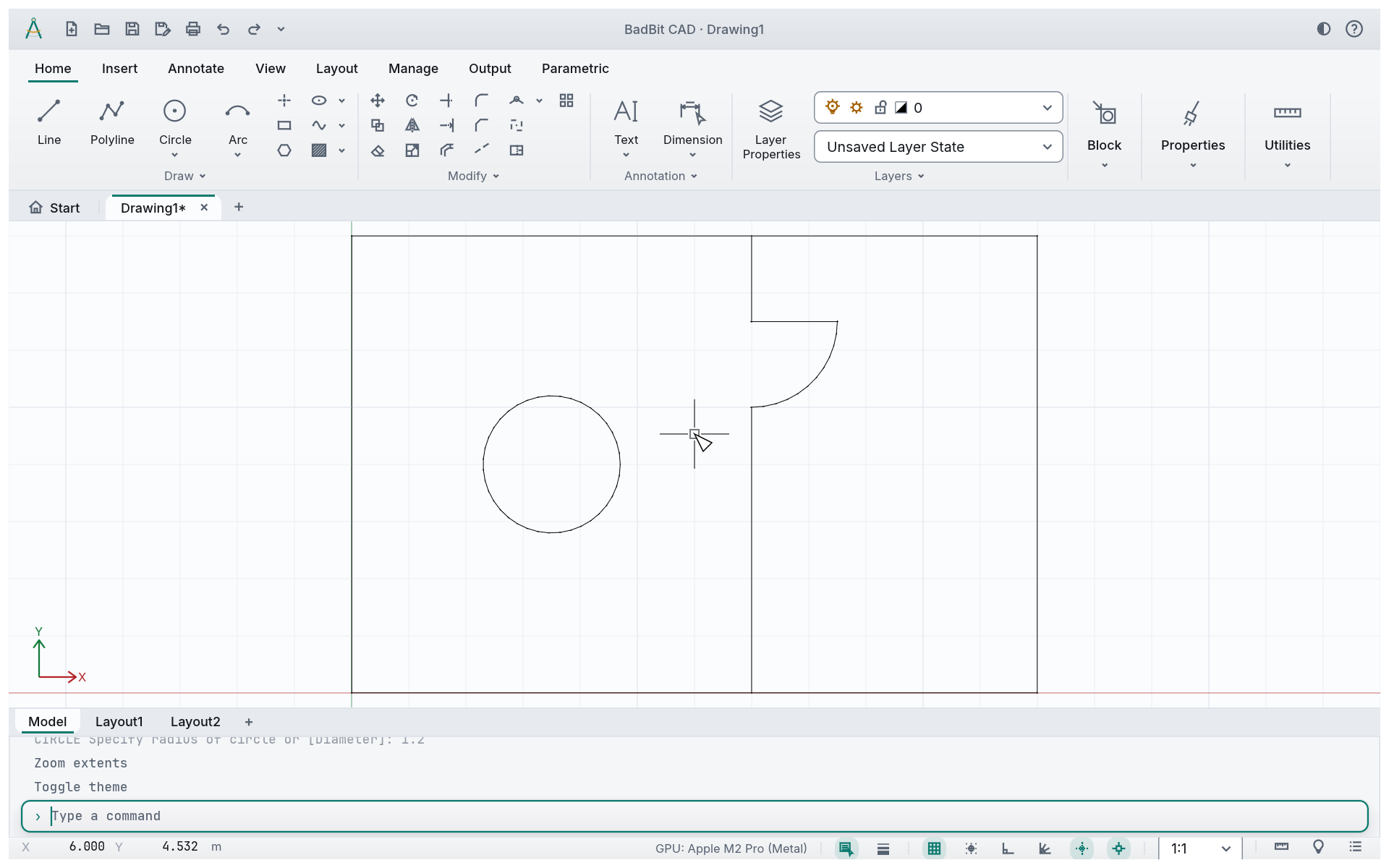
The button in the right corner of the title bar, or the THEME command, switches themes. Objects of color 7 (white/black) follow the background, as in AutoCAD.
Help and About
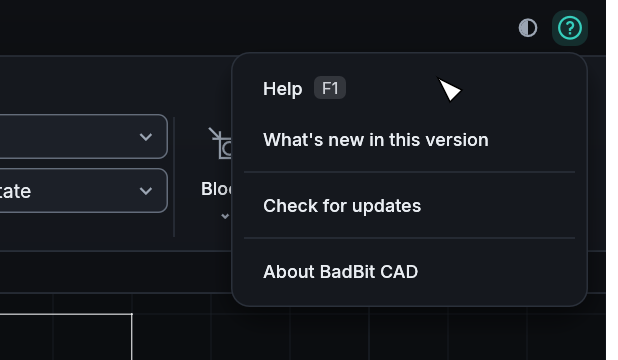
The ? in the right corner of the title bar takes the place of AutoCAD's InfoCenter and also works on the Start tab. Clicking it opens the menu:
- Help (F1, or the HELP command): opens this PDF manual in the system's reader, the same as the Manual link on the Start tab. The program looks for the file
BadBit-CAD-Manual-<language>.pdf(or the Portuguese one) in this order: first next to the program (for IT staff who copy the PDF at installation: themanualfolder next to the executable, the executable's own folder,../Resources/manualin the macOS.appbundle, and../share/badbit/manualon Linux); then the already downloaded copy for this version, in the program's data folder (~/Library/Application Support/BadBit/CAD/manual/<version>on macOS,%LOCALAPPDATA%\BadBit\CAD\manual\<version>on Windows,~/.local/share/badbit/cad/manual/<version>on Linux); with neither of the two, it downloads the manual for the installed version fromhttps://downloads.badbit.com.br/cad/releases/<version>/manual/(or from the company mirror, the policy'sbaseUrl, chapter Installation and updates), in the interface language or, if that one does not exist yet, in Portuguese. The download runs in the background: you can keep drawing while Downloading the manual... appears (on the command line; on the Start tab, at its bottom), and the PDF opens by itself when it arrives. From the second time on, the manual opens from the stored copy, also without internet. In a new version of the program, its manual is downloaded the first time and the copy for the previous version is deleted. Without internet and without a copy, the notice says it could not be downloaded right now and shows the manual's address, to open in the browser when the connection comes back. In the browser the manual does not have its own address yet; the notice says so. - What's new in this version: the window with what changed, the same as on the Start tab.
- Check for updates: opens the Updates window and checks for a new version right away (chapter Installation and updates). When there is a new version, the notice Update version available also appears to the left of the ?. In the browser the item is disabled: the new version arrives when the page is reloaded.
- About BadBit CAD: the About window, also through the ABOUT command.
About window (ABOUT)
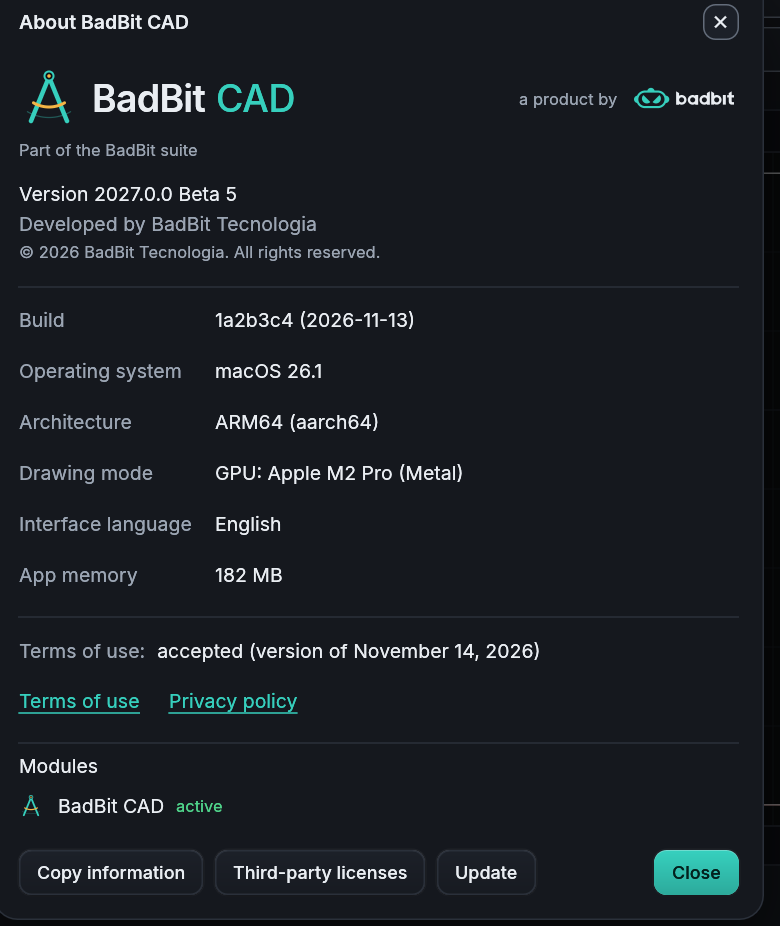
The window shows:
- at the top, the BadBit CAD signature (the compass symbol and the name) and, on the right, a product by with the BadBit logo; below, that it is part of the BadBit suite, and who develops it (BadBit Tecnologia), with the copyright. The screen reader reads the name with the version year (BadBit CAD 2027);
- the version in the product format,
YYYY.N.P(model year, release in the year's line, and fix; as at Autodesk, a year's line starts in the previous year), with the channel before the public release: Alpha N, Beta N, Release Candidate N, or Nightly with the date; the stable version has no channel. E.g.: Version 2027.0.0 Beta 1. It is the same version BadBit CAD writes into the files (.bbd, DWG, and LandXML); - the build: the short commit code and its date (without the source code history, unknown and the build date);
- the operating system with the version, the architecture (ARM64, x64), the drawing mode (GPU, with the name of the card, or CPU, with the number of threads), the interface language, and the app memory of the whole app (the same measurement as the status bar meter; in the browser it does not appear);
- the Terms of use accepted on this computer (accepted (version of 11/14/2026), or accepted by and the company's name, when IT accepted on its behalf) and the Terms of use and Privacy policy links, which open the version in effect in the browser (chapter Installation and updates; in the browser it does not appear);
- the platform modules, each with the product symbol, and whether they are active. For now, only BadBit CAD; the other modules of the suite appear here according to the license.
Copy information copies all of this as text, one item per line, to paste into a bug report. Update opens the Updates window and checks for a new version (chapter Installation and updates). Close, the ×, or Esc close the window.
Third-party licenses
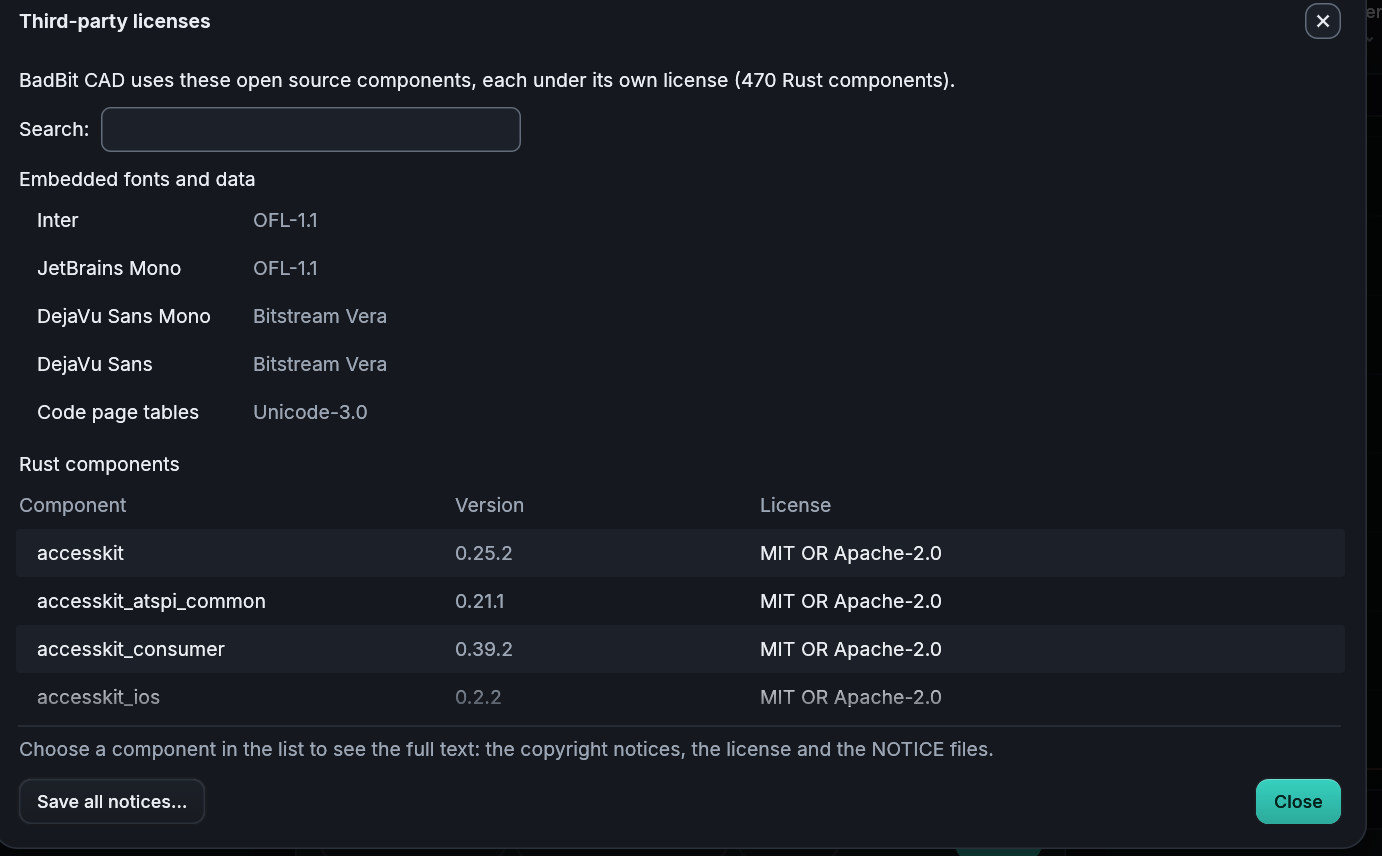
The Third-party licenses button in the About window lists the third-party fonts and data that ship with the program (Inter and JetBrains Mono, OFL 1.1 license; the subset of DejaVu Sans Mono and the DejaVu Sans used for the drawing's texts, Bitstream Vera license; the code page tables of old DXF, Unicode license) and all the open source components that go inside the program, with the version and the license (the SPDX expression of each one). The Search field filters by name or by license; hovering the mouse over the name shows the address of the source code.
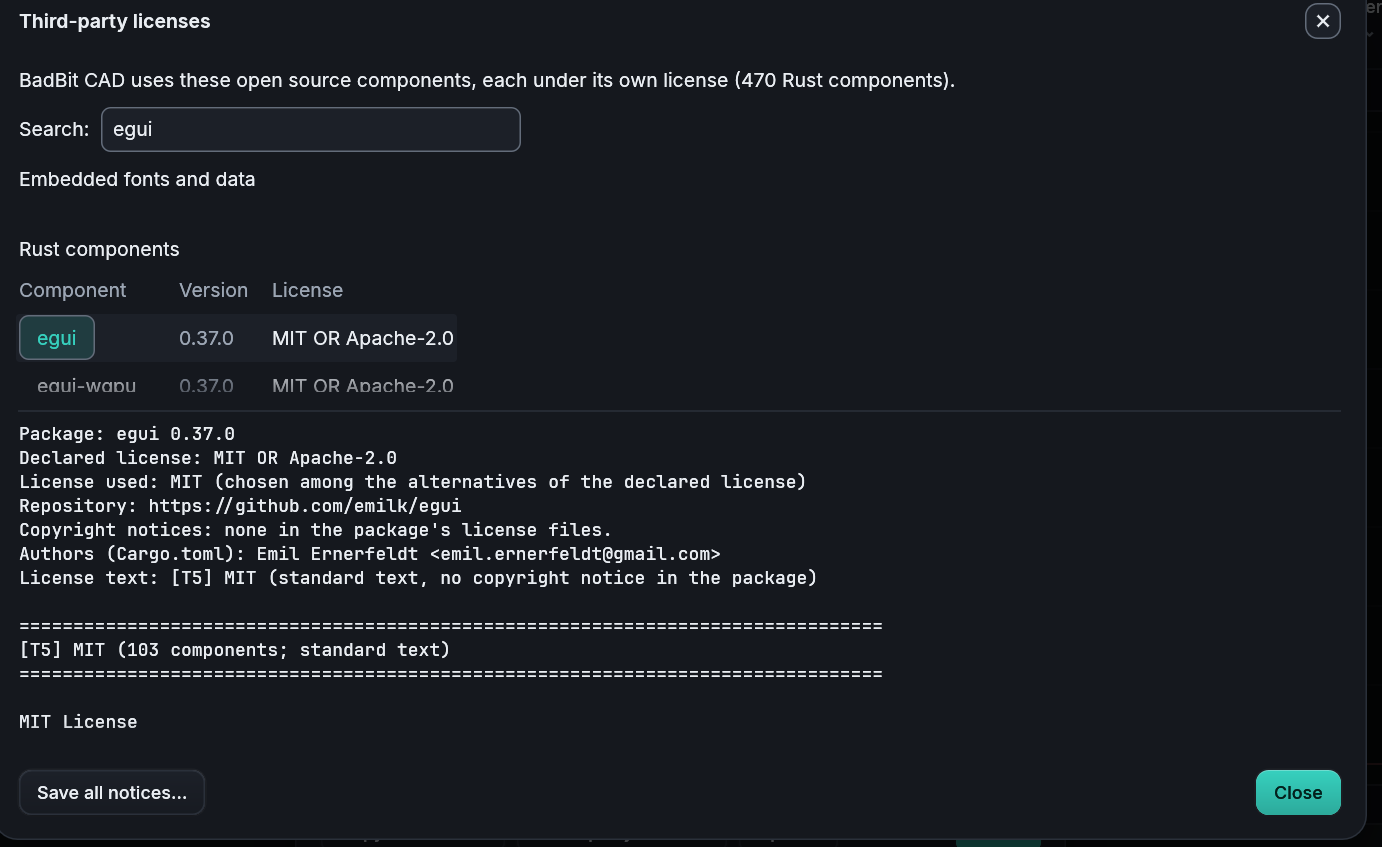
Clicking a component shows its full text below the list, the same as in the third-party notices file, with the labels and explanations in the interface language and the copyright notices and licenses in the original: the declared license and the license used (in a component with a choice of licenses, such as MIT OR Apache-2.0, BadBit CAD uses MIT when the package includes its file), the copyright notices, the license text and, in full, the NOTICE files and the third-party code files the package embeds. When the package does not include the license file, the license's standard text applies, marked standard text, no copyright notice in the package. The text can be selected and copied.
Save all notices… writes the whole file, in the interface language (a text file with all the components), wherever you choose. In the browser, the button is Copy all notices and copies the text to the clipboard. Each system's installer ships the three languages with the program: THIRD-PARTY-NOTICES (Portuguese), THIRD-PARTY-NOTICES.en (English), and THIRD-PARTY-NOTICES.es (Spanish).