Tables
Tables follow AutoCAD's: a single object with the rows and columns, the text of each cell (multiline, with the same font as MTEXT), the alignment, merged cells, the borders and background color of each cell, the three cell styles (Title, Header, and Data), the number format, and formulas, which recalculate by themselves when a cell changes. The row grows to fit the text. The table style (TABLESTYLE) gives the starting sizes, colors, and borders.
Table is on the Annotation panel of the Home tab (open the panel's list); TABLESTYLE is in the same list.
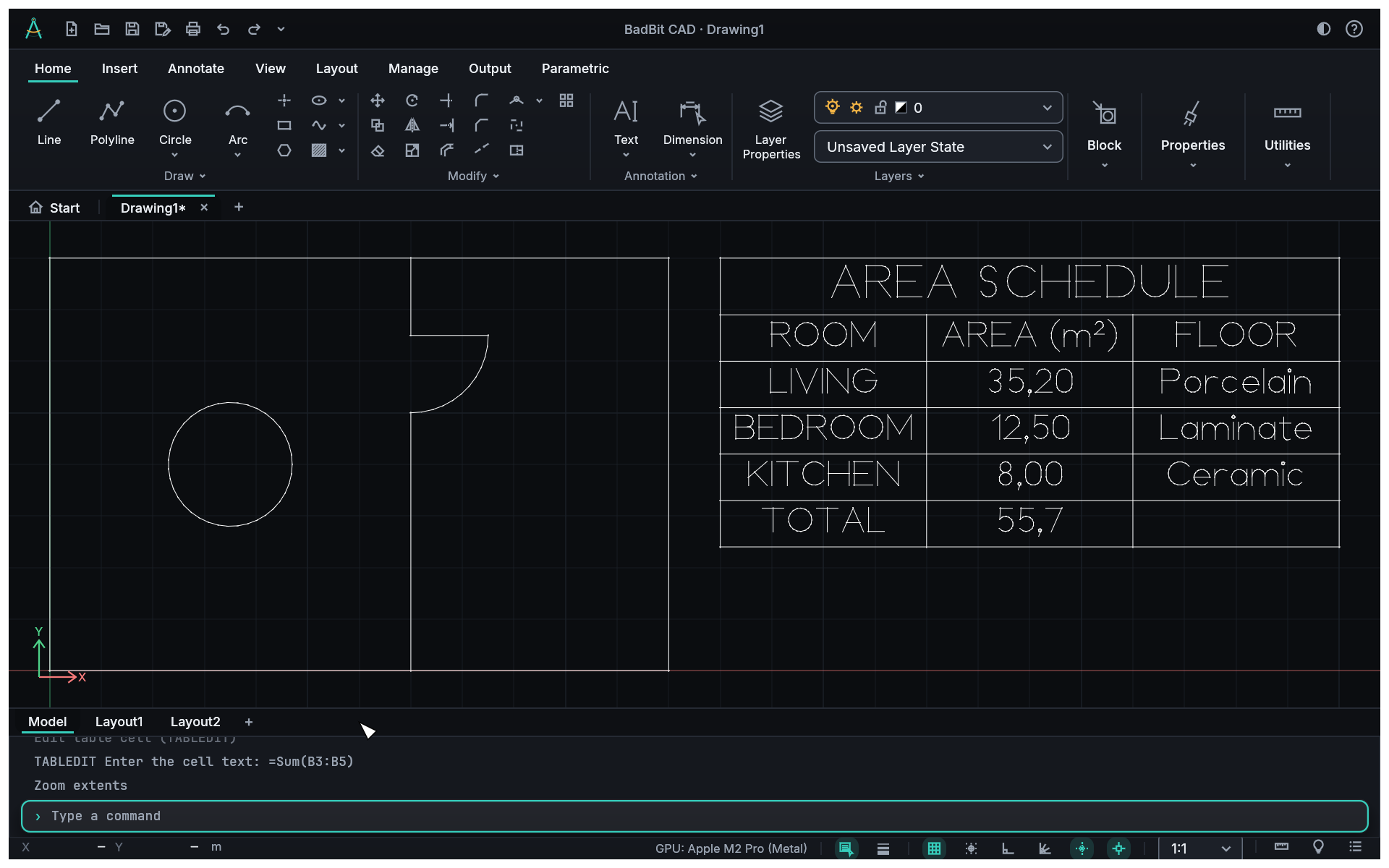
=Sum(B3:B5).TABLE (alias TB)
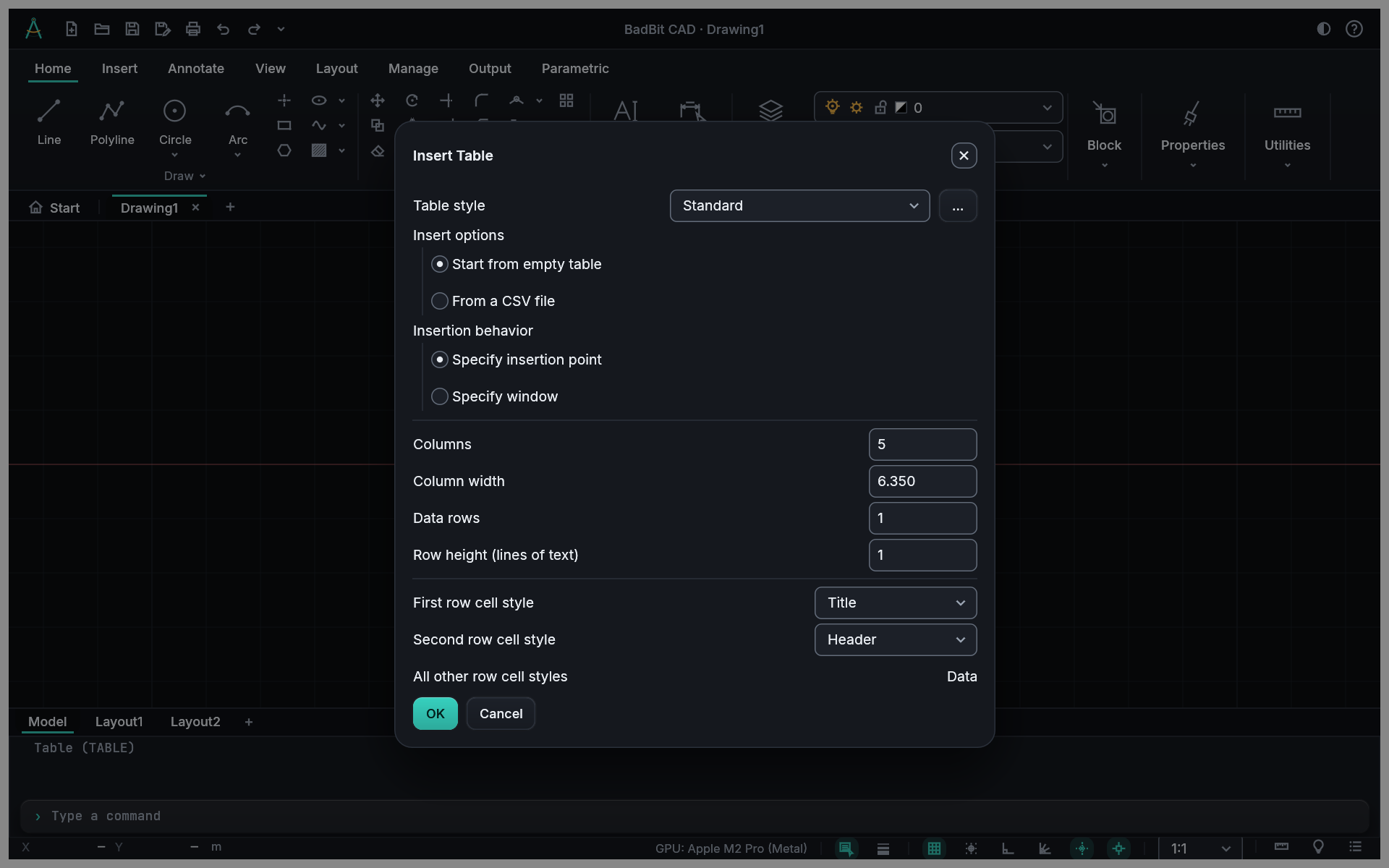
Opens the Insert Table window:
- Table style: the list of the drawing's styles (the
…button opens TABLESTYLE); the one chosen becomes current; - Insert options: two option buttons, as in AutoCAD: Start from empty table or From a CSV file; with CSV selected, the File field appears with the Browse… button (AutoCAD does it through the data link with Excel; here, CSV is enough: comma, semicolon, or tab, with quotes). From the CSV, each line of the file becomes a row of the table, the first one with the Header style;
- Insertion behavior (also option buttons): Specify insertion point (the top left corner; the table follows the cursor) or Specify window (the two corners: the columns divide the width and as many data rows fit as the height allows);
- Columns and Column width, Data rows and Row height (in lines of text);
- First row cell style and Second row cell style (Title, Header, or Data); the others are Data. With Title and Header, the table has the data rows plus these two; the title is created merged across the full width.
The window remembers what was chosen. After OK, specify the insertion point (or the corners of the window). The empty table comes in with the title already being edited in the drawing itself.
-TABLE (alias -TB)
The same table from the command line: the number of columns, the number of data rows, and the insertion point or [Style (S)/Width (W)/Height (H)]. Style asks for the table style name, Width for the column width, and Height for the row height in lines of text. Enter accepts the value between <>.
Typing in the cells (TABLEDIT and double-click)
The cell text is typed in the drawing itself, with the blinking cursor, as in MTEXT. The keys, as in AutoCAD:
- Tab confirms and goes to the next cell (on the last one, it creates a new row); Shift+Tab goes back;
- Enter confirms and moves down; Alt+Enter breaks the line inside the cell;
- the arrows move within the text and, at its end, move to the neighboring cell (up and down, in single-line text);
- Ctrl+Enter (Cmd+Enter on the Mac) confirms and finishes; Esc abandons the cell being edited.
Each cell typed is an undo step. TABLEDIT asks to select a table cell; double-clicking a cell does the same directly.
Formulas
A cell that starts with = is a formula, as in AutoCAD. Cells are referenced by column (letters) and row (number; the first row, the title's, is 1): A1, B3, $C$2. These work:
- the operations
+ - * /and^, with parentheses:=B3*2,=(B3+B4)/2; - the functions over ranges and cells, separated by commas:
=Sum(B3:B5),=Average(B3:B5),=Count(B3:B5),=Min(...),=Max(...).
An empty cell counts as 0 in operations and is not included in functions (the average of 1, 2, and an empty one is 1.5); text that is not a number is also left out of functions. An error (division by zero, text in an operation, circular reference, unreadable formula, reference to a deleted cell) appears as #####.
Inserting or deleting rows and columns adjusts the references like AutoCAD: what comes after shifts, a range grows when the new row goes into the middle of it and shrinks when one of its rows is removed; a reference to a deleted cell becomes #REF (and the cell shows #####).
Number format
Each cell style (and each cell, if you want) has the data type: General (what was typed; the result of formulas with up to six decimal places, without trailing zeros), Text, Decimal number, Whole number, Percentage, Currency (with the symbol, R$ by default, and thousands separated), Angle (in degrees), and quantities with a unit (the value in meters, from the drawing, written in cm, mm, m²...), with the decimal places. For numeric types, the typed number also comes out in the format (1.5 becomes 1.50 with two decimal places). Comma or period both work when typing.
Choosing cells
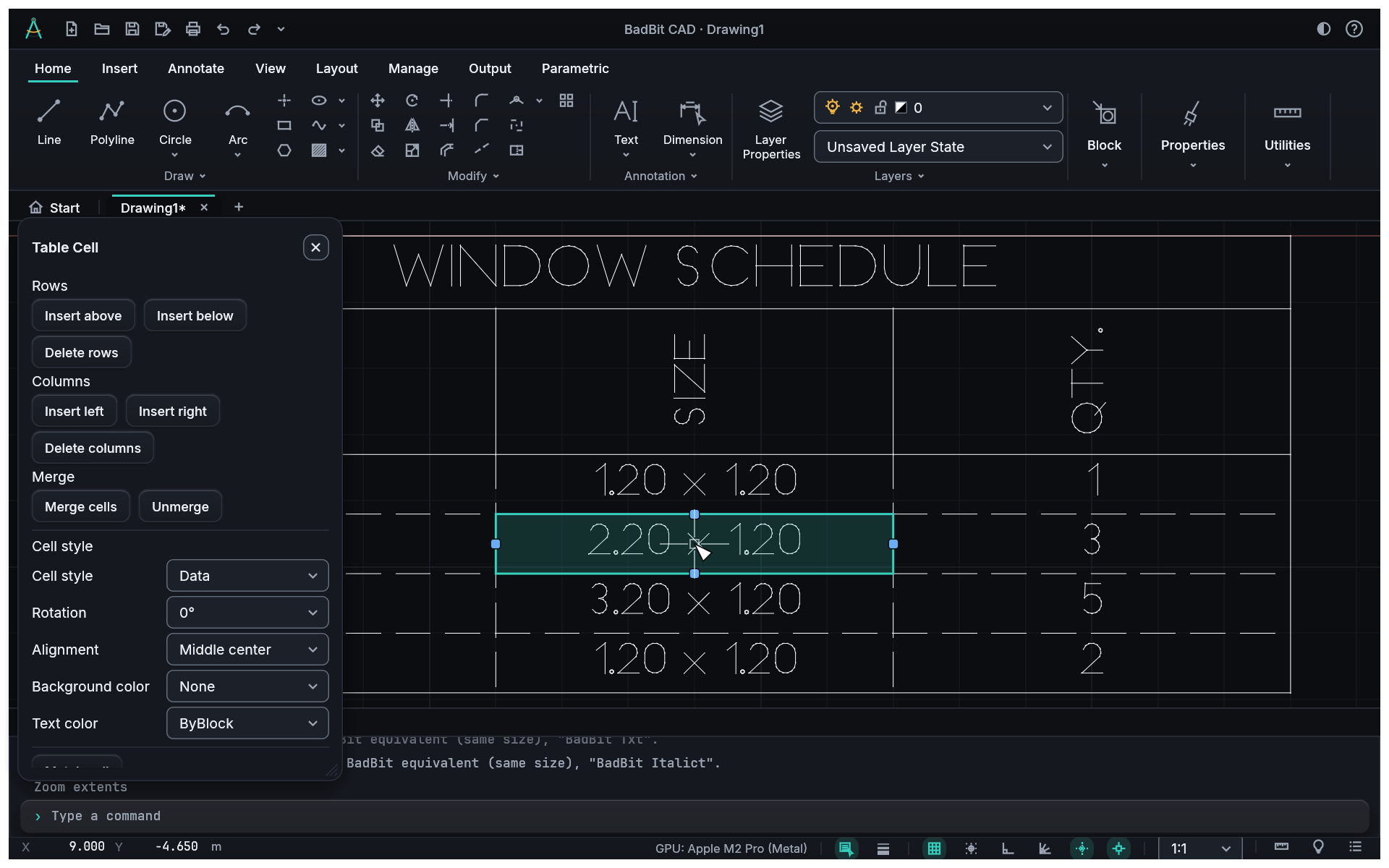
With no command, clicking inside a cell selects it (a click on the edge selects the whole table, as in AutoCAD); Shift+click extends to another cell. The selection shows:
- the cell's side grips: the top and bottom ones change the row height, the side ones the column width (click the grip, click the new place, or drag);
- the Table Cell palette (in place of AutoCAD's contextual tab, which today's ribbon does not switch by context).
With cells chosen, the arrows and Tab move (Shift+arrow extends), F2 edits, starting to type a number or a formula replaces the content (letters still go to the command line, for commands), Delete clears the content, Ctrl+C copies as tab-separated text (pastes straight into a spreadsheet), and Ctrl+V pastes what came from a spreadsheet starting at the chosen cell. Esc releases the cells.
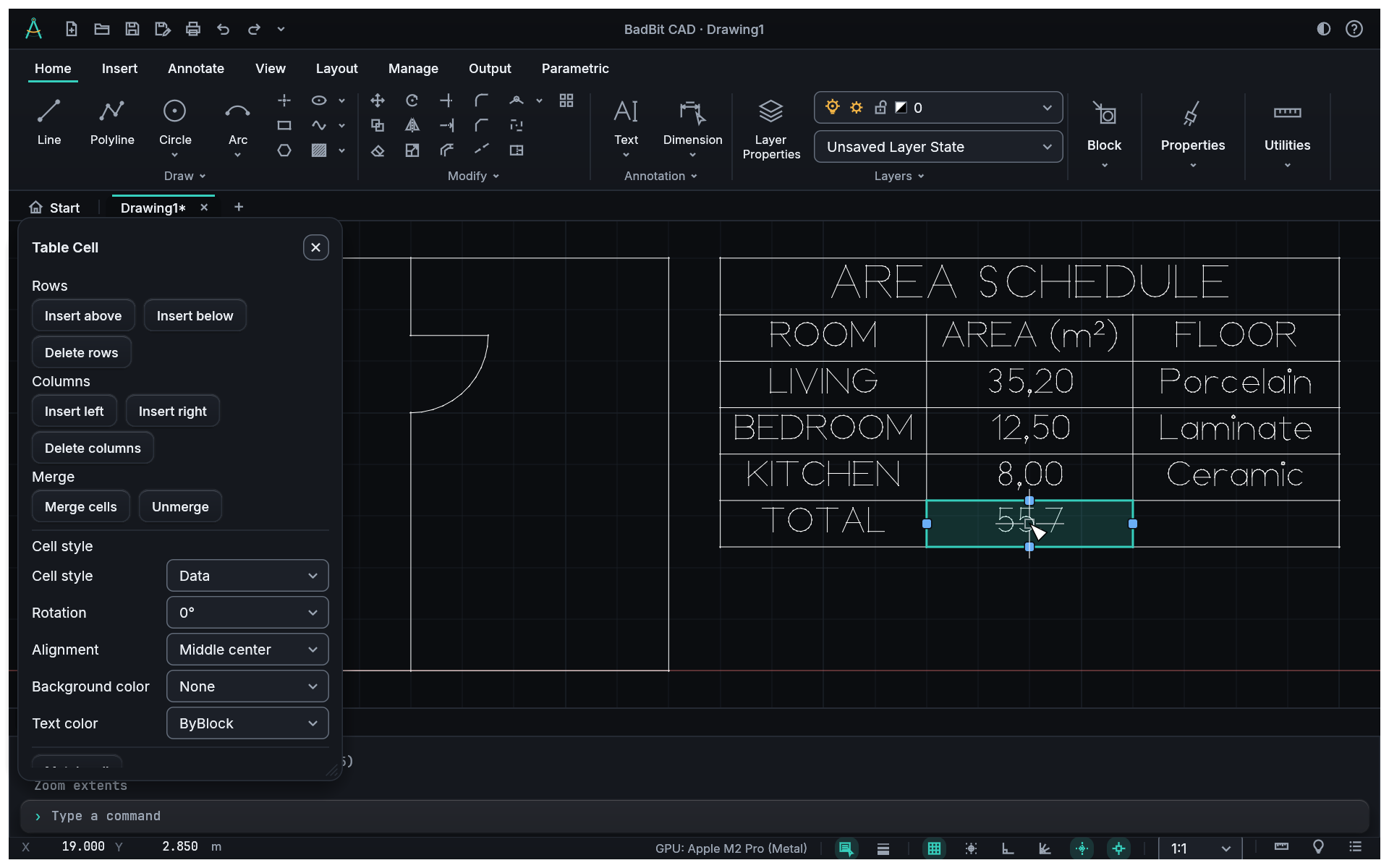
The Table Cell palette
- Rows: Insert above, Insert below (with the height, style, and format of the chosen row), and Delete rows;
- Columns: Insert left, Insert right, and Delete columns (the merged title follows);
- Merge cells (the content of the first cell that has any is kept) and Unmerge;
- Cell style: the cell style (Title, Header, or Data), the alignment (AutoCAD's nine), the background color, and the text color;
- Borders: the color and the lineweight, and the buttons All, Outside, Inside, Top, Bottom, Left, Right, No border, and From style (goes back to the style's). Border lineweight appears with LWDISPLAY on, like that of lines;
- Data format: the type, the decimal places, and the symbol, and Apply format (or Style format);
- Formula: Sum, Average, and Count. With a range chosen, the formula goes in the cell after it (below the column, or to the right of the row); in a single cell, it goes into editing already with the range of the numbers above (or to the left), like the AutoSum of spreadsheets; Clear contents;
- TABLEEXPORT, to write the table to CSV.
Properties (Ctrl+1) shows the table (the style, which the list changes, the rows, the columns, the width, which stretches the columns, and the height) and, with cells chosen, the Cell group: the cell style, the alignment, the column width, the row height, the format, the contents, and the shown value.
Editing the whole table
Selected by its edge, the table has AutoCAD's grips: the insertion point corner (moves), the corner at the end of the width (stretches the columns evenly), the one at the end of the height (stretches the rows), the opposite corner (both), and a grip at the top of each column division (the width of that column). MOVE, COPY, ROTATE, SCALE (the widths, heights, texts, and margins grow together), and MIRROR (the table goes to the other side and stays readable, like text with MIRRTEXT 0) work as on other objects; STRETCH takes the table along when the window catches the insertion point. Snaps pick the cell corners (Endpoint), the midpoints of the borders, and the insertion point (Insertion). EXPLODE breaks the table up into lines (the borders, with the color and lineweight of each one), multiline texts, and solid hatches (the backgrounds).
TABLEEXPORT
Select a table (or choose one beforehand): the table goes to a CSV file with the shown values (formulas already calculated and numbers in the cells' format), separated by commas, the way AutoCAD writes it. With FILEDIA 0, the file name goes on the command line.
TABLESTYLE (alias TS)
The Table Style Manager: the current style at the top, the list of styles and, next to it, the selected style: the table direction (Down, with the title at the top, or Up, with the title at the bottom and the insertion point at the bottom corner) and, for each cell style (Title, Header, Data), the text style, the text height (the text style's fixed height, if any, applies instead), the horizontal and vertical margins, the text color, the background color, the alignment, the data format and the decimal places, Merge cells on row creation (the title's), and the borders (visible, the color, and the lineweight). The buttons Set Current, New (a copy of the selected one), Apply (saves and rebuilds the style's tables in a single undo step), and Delete (not Standard, not the current one, not a style used by any table). Changing a text style used by a table style changes its tables along with it.
Standard follows metric AutoCAD's in a drawing in meters (a tenth of the millimeters, like dimensions): title of 0.6, header and data of 0.45, margins of 0.15, all centered and with all borders.
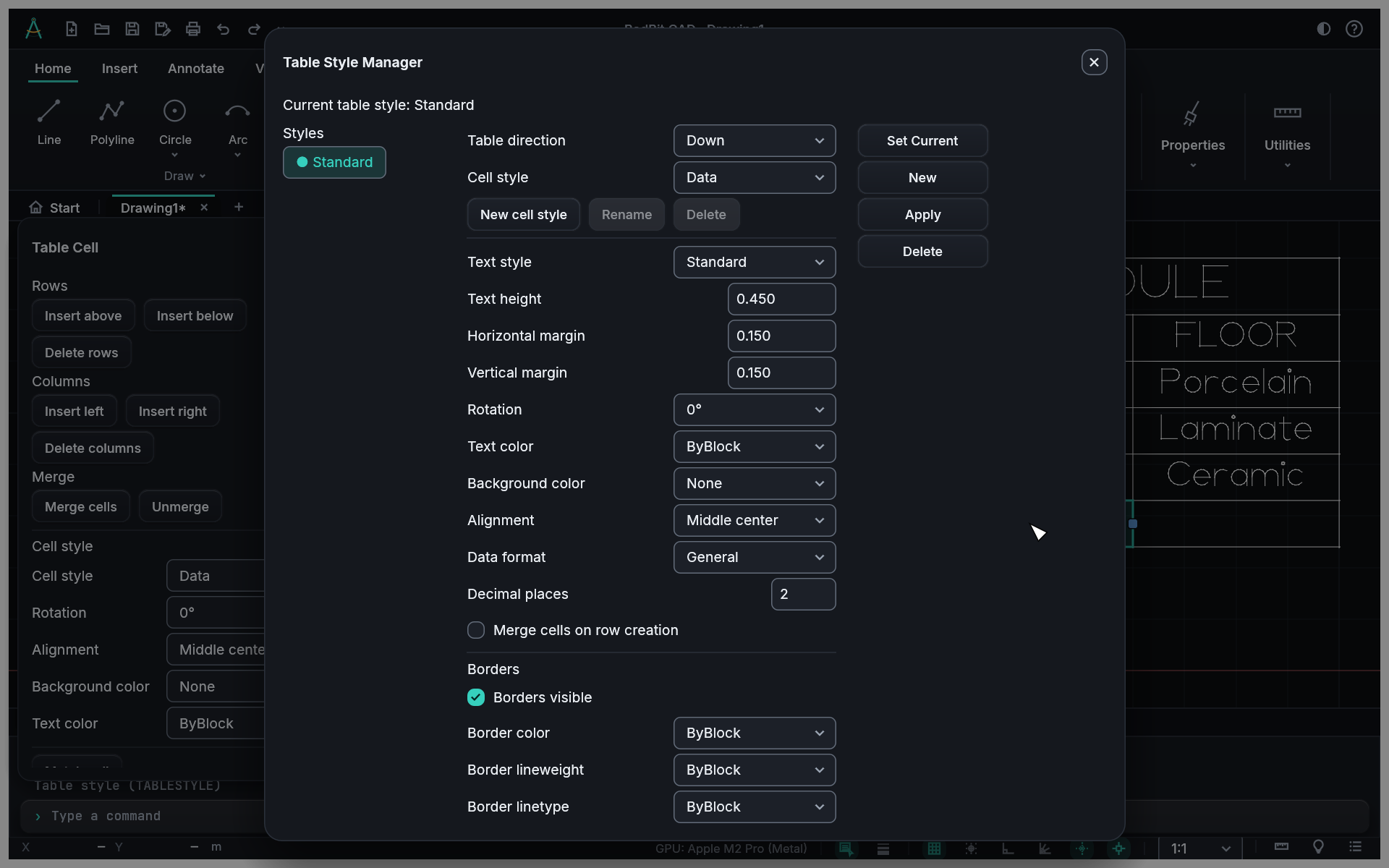
User cell styles
Besides Title, Header, and Data, the table style can have named cell styles, like AutoCAD's Cell styles list. In TABLESTYLE, below the Cell style list:
- New cell style: type the name and click OK (or Enter); the new style starts the same as the cell style shown (AutoCAD's "Start with") and is already chosen in the list. Repeated names (case-insensitive) and the names of AutoCAD's three are not allowed;
- Rename and Delete: only on user styles; Title, Header, and Data cannot be renamed or deleted.
Nothing changes in the tables until Apply. The cells of a deleted cell style go back to Data when the table style is applied, in the same undo step. User cell styles appear in the Cell style list of the Table Cell palette and of Properties. When saving to DXF/DWG they go to the file's table style (from 2007 on, in the list of cell styles that AutoCAD reads) and come back when opening; see DXF and DWG files.
Rotated text in the cell
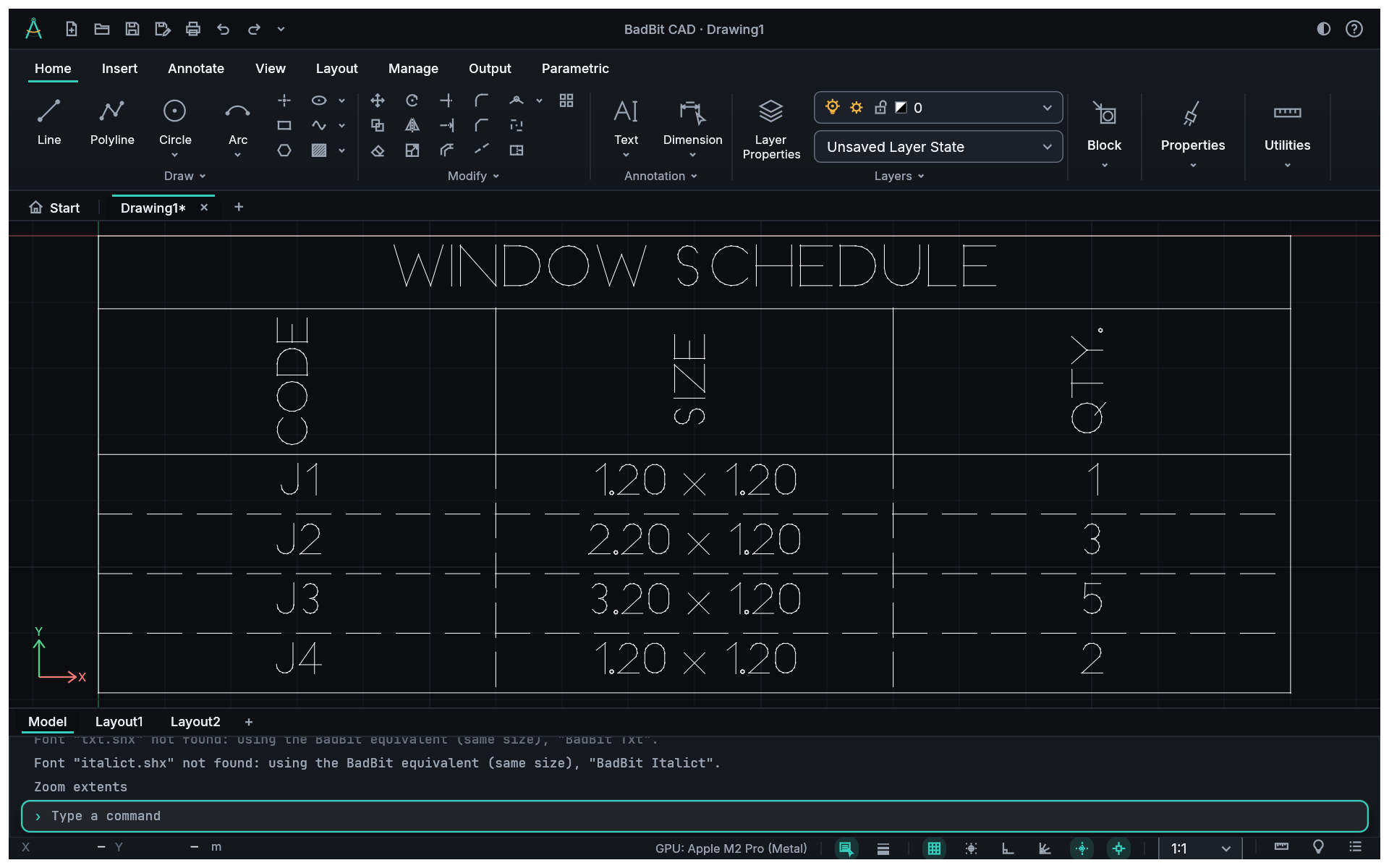
The Rotation of the cell text is 0°, 90°, 180°, or 270° (counterclockwise, from the table direction), in the cell style (TABLESTYLE) or in each cell (the Table Cell palette and the Cell group of Properties). Upright text (90° and 270°) does not wrap: the row grows until its length fits, and the cell alignment puts the text in place. At 180° the height is that of the lying-down text.
Border linetype
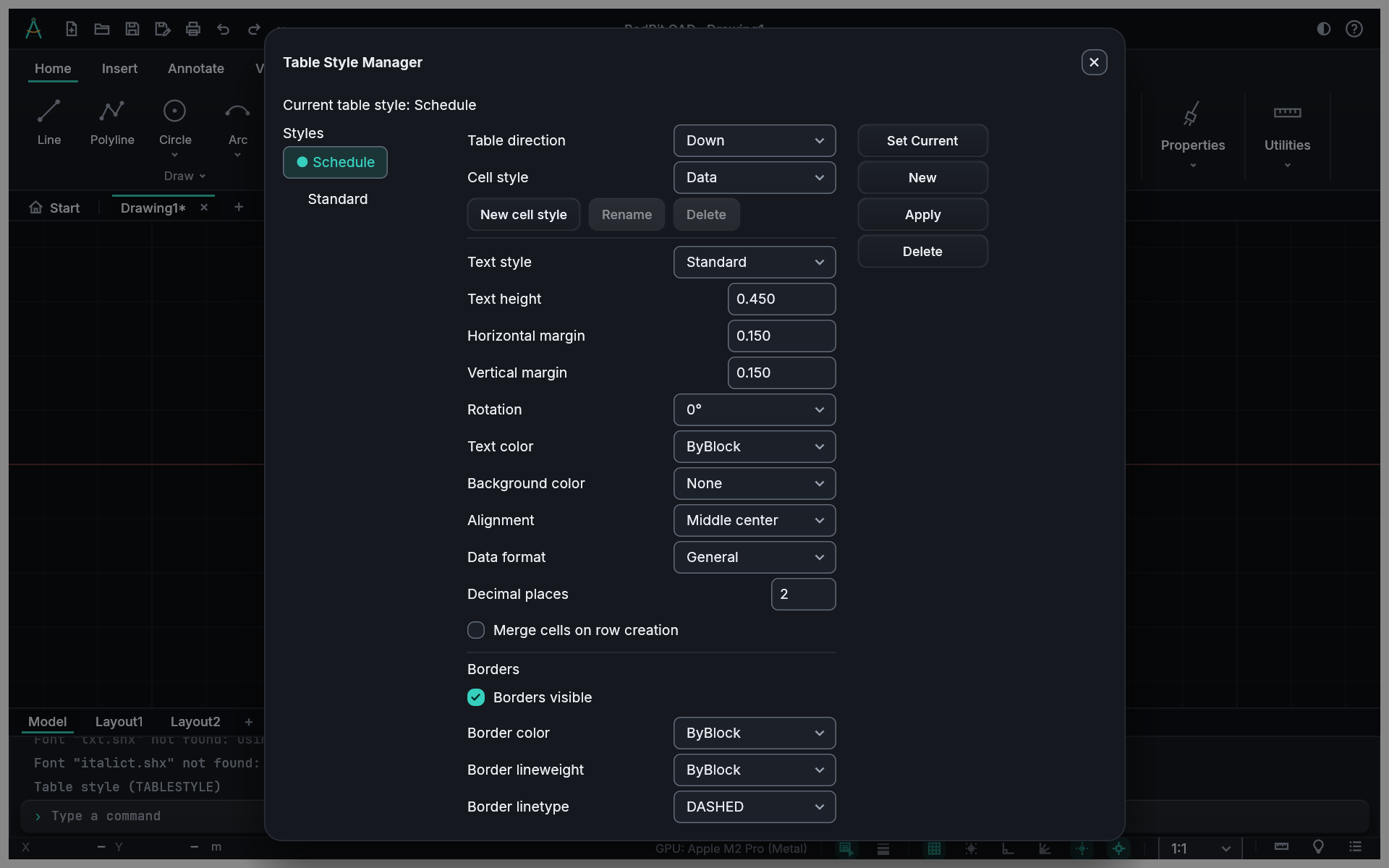
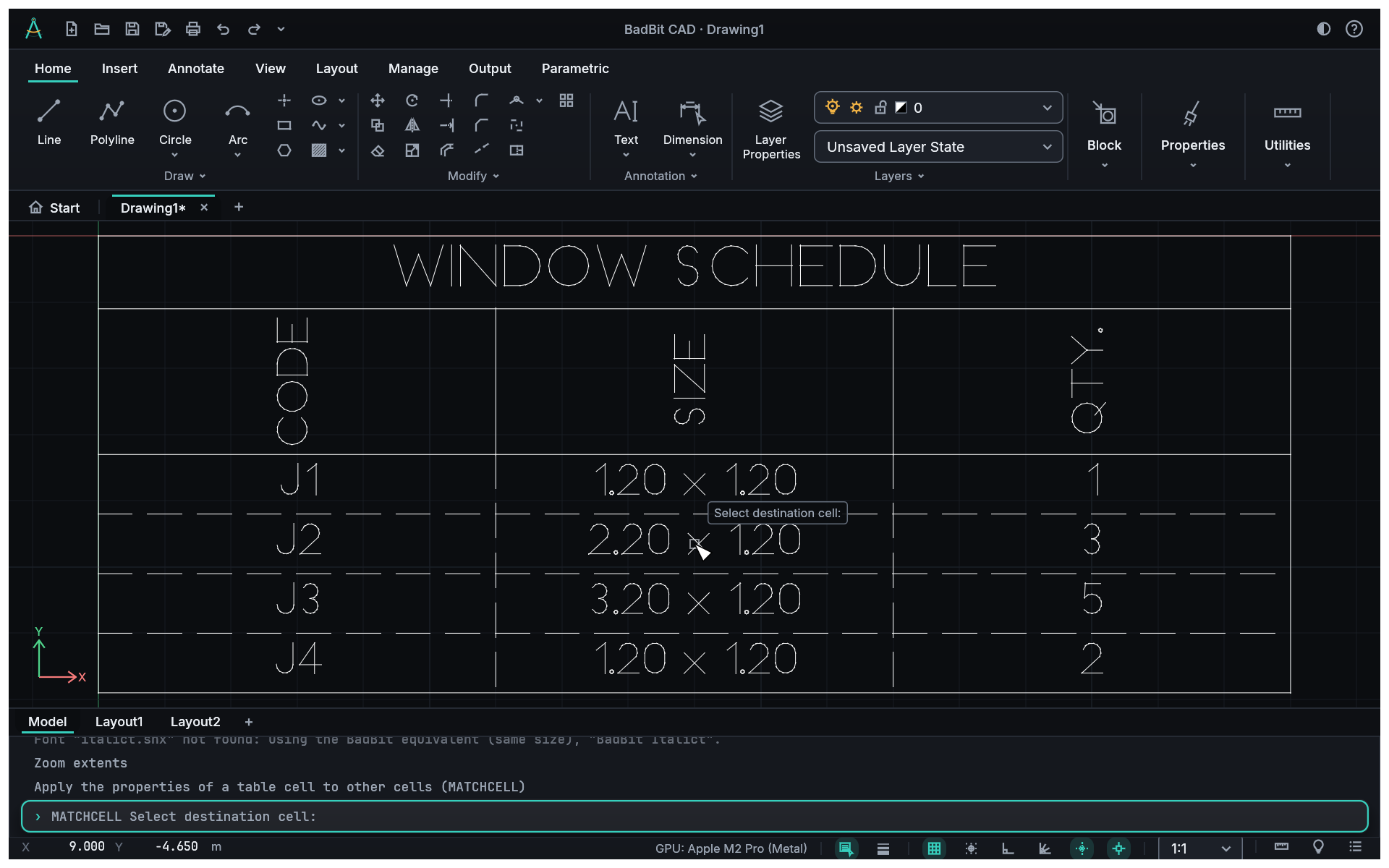
Borders have a linetype, in addition to the color and lineweight: ByBlock (the table's), ByLayer (the table layer's), Continuous, and the linetypes loaded in the drawing (LINETYPE loads them). In the Table Cell palette, choose the Border linetype before the borders button (All, Outside, Inside…); in TABLESTYLE, it applies to the four borders of the cell style. The border comes out dashed on the screen and in plotting (at the global LTSCALE scale times the table's), and EXPLODE gives lines with the same linetype.
MATCHCELL and MATCHPROP in tables
MATCHCELL copies the formatting of one cell to others, as in AutoCAD: Select source cell and then Select destination cell as many times as you want; Enter or Esc finishes. The cell style (a user style goes by name; in a table without it, the cell becomes Data), the alignment, the text height, color, and rotation, the background, the borders, and the format are copied; the content is not. Each destination cell is an undo step. With a cell already chosen, it is the source: that is the Match cell button of the Table Cell palette.
MATCHPROP (brush) with a cell chosen does the same as MATCHCELL. Between whole tables, the Table box in the Settings carries the source's table style over to the destinations.
CTABLESTYLE
The current table style is the CTABLESTYLE variable: SETVAR (or the variable name on the command line) shows and changes it, and the name must be that of a table style in the drawing. The Current table style list on the Annotation panel (below those for text style and dimension style) changes the same style, as do TABLESTYLE and -TABLE (Style option).
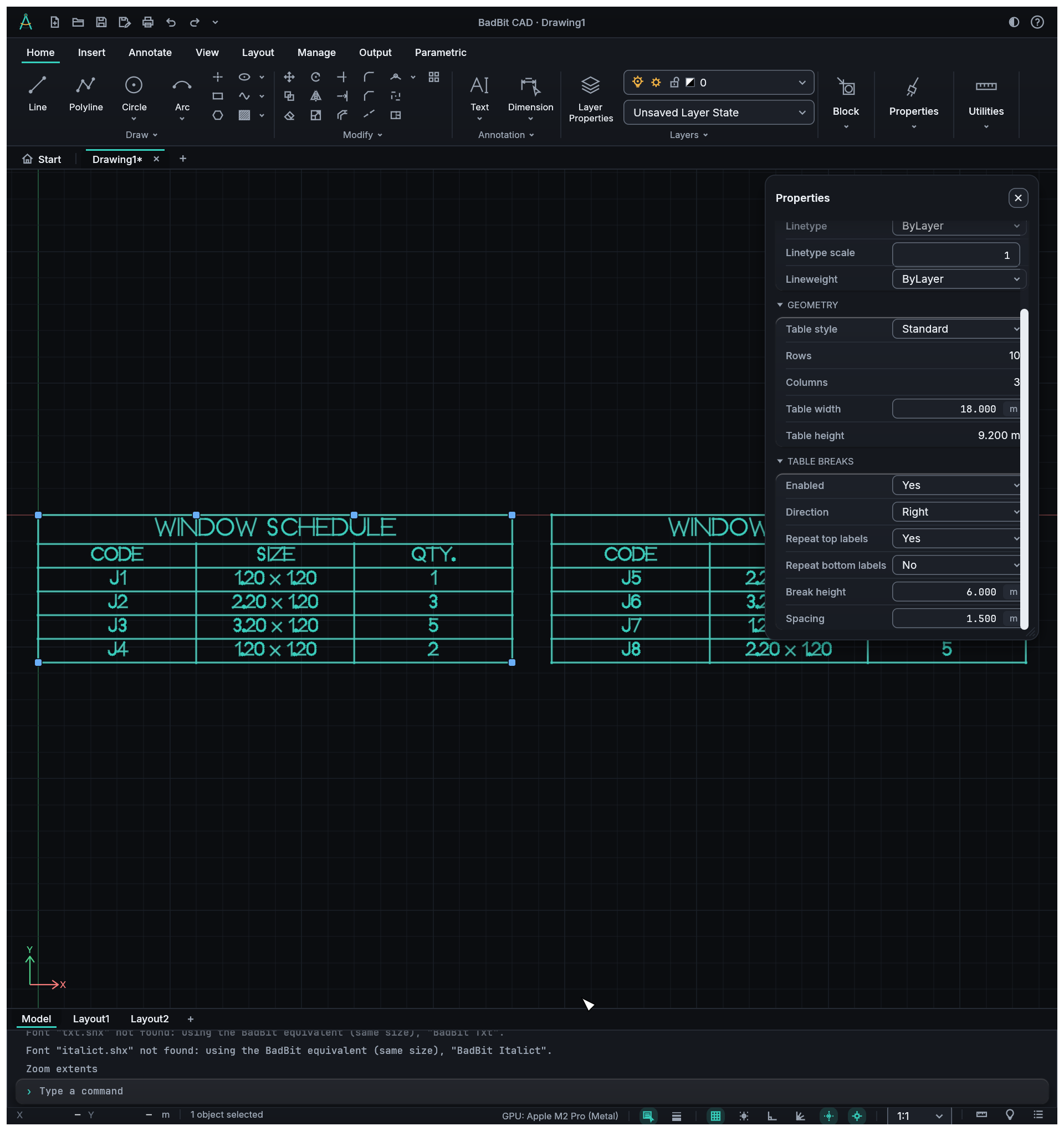
Table breaks
A long table can be broken into parts, like AutoCAD's Table breaks properties. Select the table by its edge and, in Properties (Ctrl+1), in the Table breaks group:
- Enabled: Yes breaks the table (with no height yet, the break height starts at half the table);
- Direction: Right, Left, or Down, where the parts go;
- Repeat top labels: the title and the header appear in each part;
- Repeat bottom labels: the header rows at the end of the table appear in each part;
- Break height: the maximum height of each part (rows that do not fit go to the next one; a merged cell is never cut);
- Spacing: the space between the parts.
With the table broken, the bottom grip of the first part changes the break height (the corner one also changes the width). The cells of the other parts are chosen with a click, with the side grips; selection, snaps, the table's bounding box, SCALE (the height and spacing grow together), EXPLODE, and the block written to DXF/DWG see all the parts; in DWG from 2010 on the break also goes as AutoCAD's.